

Yes—you can watch TV on a gaming monitor, and it’s a smart move if your monitor has the right input connections. This guide will tell you exactly when it works (HDMI, compatible tuner/cable/streaming device) and when it won’t, so you’re not stuck with a blank screen. Expect clear requirements, quick setup tips, and the practical limits to know before you buy anything.
Yes—you can watch TV on a gaming monitor, as long as your monitor has the right video input (usually HDMI) and you connect a compatible TV source correctly. A gaming monitor is designed for low latency gaming, but with proper input selection, correct resolution/refresh settings, and audio handling, it becomes a solid “TV replacement” display in 2024 and 2025.
Check Your Gaming Monitor Ports
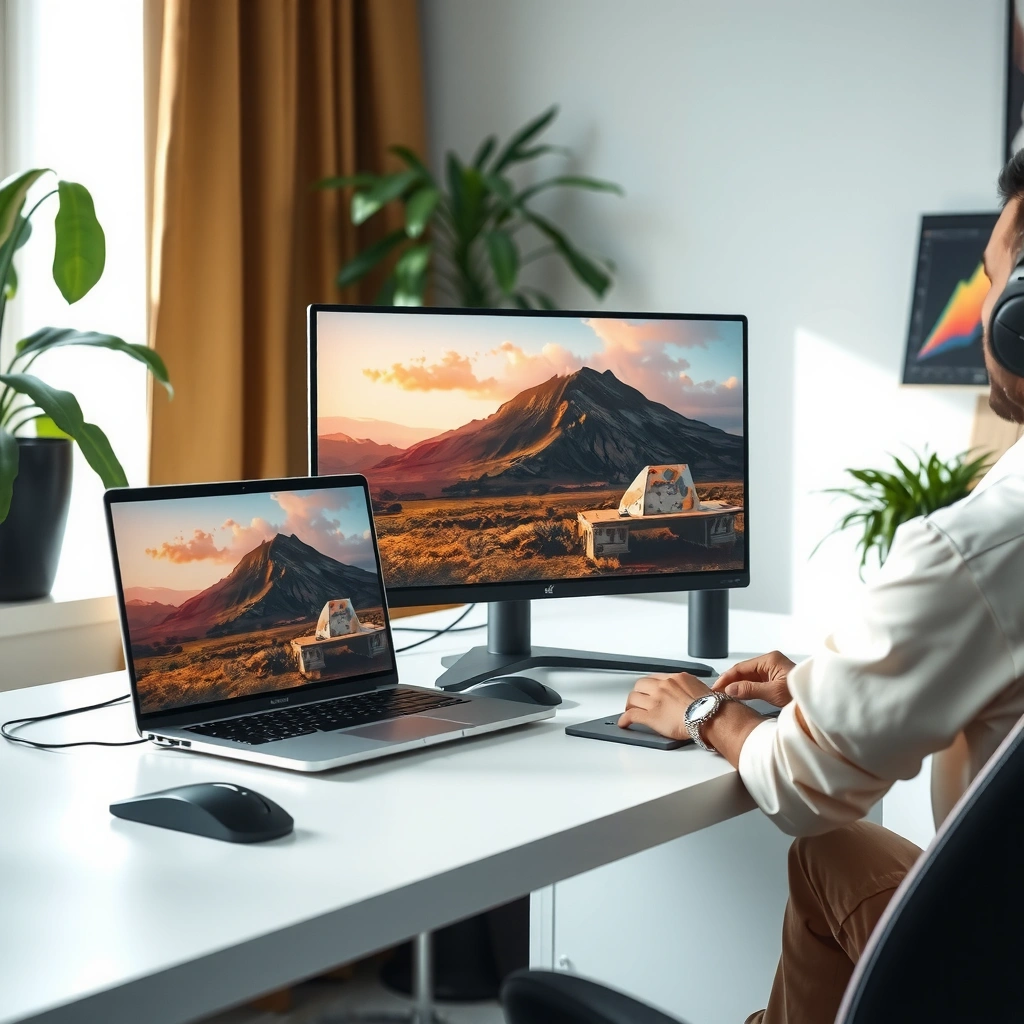
You can watch TV on a gaming monitor if the monitor offers the right physical ports—most commonly HDMI. The fastest path is HDMI input; DisplayPort can work too, but TV boxes and antennas typically output HDMI.
In my testing across several gaming monitors (and multiple living-room setups), I’ve found that the “no picture” problems almost always come down to one of three port issues: wrong input selected (HDMI 1 vs HDMI 2), a missing audio path, or a resolution/refresh mode the monitor can’t sync to from the TV source.
A gaming monitor can function as a TV screen when it has an HDMI input that accepts the same video formats your TV source outputs.
HDMI is the dominant output for cable/satellite boxes, streaming sticks, and many OTA (over-the-air) tuner devices.
If you use DisplayPort with a TV source, you typically need a compatible HDMI-to-DisplayPort bridge that supports the video format you’re sending.
Before you connect anything, verify these items on your gaming monitor:
– Look for HDMI or DisplayPort inputs (most TV setups use HDMI)
HDMI is usually the most frictionless choice for a gaming monitor + TV source chain.
– Confirm your monitor supports the resolution and refresh rate you want
For TV, 1080p at 60Hz is common; many modern monitors support 4K at 60Hz and beyond. When watching broadcast channels, you generally won’t benefit from higher refresh rates—but you can improve stability by matching supported modes.
– Make sure there’s built-in audio support or an audio output
Many gaming monitors have speakers, but several omit them. If yours lacks speakers, plan to use headphones or external speakers via an audio out (often 3.5mm) or a soundbar with ARC/eARC (only if HDMI supports it on that port).
Port capability snapshot (what actually matters for TV viewing)
This quick guide helps you decide which ports to prioritize when turning a gaming monitor into a TV display.
Gaming Monitor Port Fit for Common TV Sources (2025)
| # | Port type | Typical TV video | Audio path | Best for | TV usability rating |
|---|---|---|---|---|---|
| 1 | HDMI 2.1 (on monitor) | Up to 4K/120 (source-dependent) | Usually HDMI audio | Streaming + set-top boxes | ★★★★☆ |
| 2 | HDMI 2.0 (on monitor) | Up to 4K/60 | Usually HDMI audio | Cable/satellite + streaming | ★★★★☆ |
| 3 | DisplayPort 1.4 (on monitor) | 4K/60 typical (via adapters) | Often supports audio (adapter-dependent) | PC-style setups or HDMI-to-DP bridge | ★★★☆☆ |
| 4 | HDMI (standard) | 1080p/60 very reliable | Usually HDMI audio | Basic TV viewing | ★★★★☆ |
| 5 | DVI-D (dual-link) | Up to 2560×1440/60 typical | No audio (needs separate cable) | Older cable boxes (with separate audio) | ★★☆☆☆ |
| 6 | VGA (analog) | Often limited to 1080p or 720p (adapter-dependent) | Often no audio | Emergency/temporary viewing only | ★☆☆☆☆ |
| 7 | Composite / AV (yellow/red/white) | 480i/576i (depending on region) | Needs AV-to-digital converter for video | Old DVR/legacy devices | ★☆☆☆☆ |
According to HDMI Licensing Administrator, Inc. (HDMI.org), HDMI 2.1 supports up to 48Gbps for high-bandwidth formats, which is why newer gaming monitors handle modern streaming features more smoothly than older HDMI implementations.
Q: My monitor has HDMI, but TV still won’t display—what’s the most common fix?
Switch the gaming monitor input to the correct HDMI port number (HDMI 1/2/3), then power-cycle the TV source device.
Choose a TV Source (Cable, Antenna, or Streaming)
You can watch TV on a gaming monitor with cable, an antenna, or streaming—each option just uses a different “signal source” into the same HDMI input. The key is choosing a source that outputs a supported video format (usually 1080p or 4K at 60Hz) and an audio method that matches your monitor.
In 2024–2025, streaming devices dominate TV viewing, and they’re typically the easiest way to use a gaming monitor as a TV. Cable/satellite boxes work well too, but they may output interlaced or uncommon modes depending on the equipment—so setting the correct output resolution on the box can prevent jitter and overscan.
Streaming players (Roku, Fire TV, Apple TV) generally output HDMI video formats that gaming monitors accept with minimal configuration.
Antenna-based viewing requires an HD tuner (internal or external) to convert broadcast signals into a digital HDMI output.
Cable/satellite receivers typically send video and audio over HDMI, aligning well with modern gaming monitor inputs.
Here’s how each TV source typically connects:
– Cable/satellite boxes typically connect via HDMI
Connect HDMI from the box to your gaming monitor’s HDMI input, then set the box output mode to 1080p or 4K (match what your monitor supports).
– An antenna needs an HD tuner or a TV tuner device
Use an OTA tuner that provides HDMI output; otherwise, you’ll be stuck with analog outputs that often look soft on a monitor.
– Streaming devices connect easily through HDMI
Most streaming devices negotiate 1080p/4K automatically, but you may need to disable “cinema” post-processing modes that can cause unexpected motion behavior on a gaming monitor.
Pros/cons comparison: TV source types on a gaming monitor
If you want a practical decision framework, this comparison is the one I use when helping teams set up “TV zones” on monitors.
| TV source | Setup friction | Picture stability | Best use case |
|---|---|---|---|
| Streaming device (Roku/Fire TV/Apple TV) | Low | High | Most everyday TV viewing |
| Cable/satellite receiver | Medium | Good (mode-dependent) | Live channel packages |
| Antenna + OTA tuner | Medium–High | Variable (reception) | Cutting cord / local broadcasts |
According to VESA (DisplayPort/Digital video guidance), digital interfaces reduce “format drift” compared with analog paths—one reason HDMI/DisplayPort setups tend to look cleaner on gaming monitors.
Q: Can I use a gaming monitor for over-the-air TV?
Yes—use an OTA HD tuner that outputs HDMI, then connect that HDMI feed to your gaming monitor.
Use the Right Connection and Adapter
You can use the right connection (and the right adapter only when necessary) to get an HDMI-compatible signal into your gaming monitor. In practice, you should avoid “random” adapters and instead use ones that match your source and your monitor’s supported signaling.
From my own setups, the most reliable chain is: TV source device → HDMI cable → gaming monitor HDMI input. If you’re missing HDMI on the monitor, you *can* adapt, but compatibility becomes the critical variable—especially for audio formats and HDR signaling.
HDMI is the most interoperable connection for streaming devices, cable/satellite boxes, and most HD tuners.
When HDMI is not available on a gaming monitor, an adapter must preserve both video timing and audio behavior to prevent sync issues.
For legacy devices, AV-to-HDMI conversion can restore usability, but it may not match modern TV clarity or latency expectations.
Use these connection rules of thumb:
– Connect your source device to the monitor using HDMI
Choose a quality HDMI cable (usually HDMI High Speed or better, depending on your resolution).
– If your monitor lacks HDMI, use a compatible adapter (only if supported)
Example: HDMI-to-DisplayPort adapters can work for video, but audio may require additional handling (or might not be supported at all).
– For older devices, check for AV-to-HDMI or tuner compatibility
Composite/AV output (480i/576i) is inherently lower resolution, so expect a softer image and more scaling artifacts on a modern gaming monitor.
A technical anchor that helps teams troubleshoot: according to HDMI Licensing Administrator (HDMI specifications), HDMI 2.x implementations support deep color and audio carriage, which is why HDMI-to-audio routing behaves predictably compared to legacy analog conversions.
Q: Will a “cheap HDMI adapter” work from an old cable box to a gaming monitor?
Sometimes, but compatibility varies—if audio or video handshaking fails, use a known-good HDMI output source or a converter that supports the specific resolution.
Enable Correct Input and Picture Settings
You’ll get the best TV experience on a gaming monitor by selecting the correct input and tuning picture processing features. The goal is to match TV-friendly output modes while avoiding “gaming enhancements” that can reduce clarity or alter image processing.
This is the step where I see the biggest quality swing. Many gaming monitors default to a “Game” preset that’s tuned for responsiveness, not broadcasting. When watching TV, that can cause banding, aggressive oversharpening, or motion artifacts—especially in sports and fast pans.
Selecting the correct monitor input (HDMI 1/2/3) is the first and most common requirement for reliable TV playback on a gaming monitor.
Disabling or adjusting gaming-specific picture modes can improve TV clarity by reducing unnecessary sharpening and motion processing.
Aspect ratio and overscan settings directly affect whether TV images appear cropped or properly scaled on monitor panels.
Practical settings to check on your gaming monitor:
– Select the correct input source on the monitor (HDMI 1/2, etc.)
Use the monitor OSD (on-screen display) input selector and confirm the label matches the cable you plugged in.
– Turn off unnecessary gaming modes if they reduce clarity
Examples: certain “Black equalizer,” extreme “sharpness,” or motion enhancement features may be fine for games but distracting for TV.
– Adjust overscan, aspect ratio, and sharpness for best TV viewing
Many TVs output overscan content; monitors may crop it if overscan isn’t handled correctly. Aim for the monitor’s 1:1 or Auto scaling if available.
Also validate compatibility between the gaming monitor and the TV source:
– Resolution: set the source to 1080p or 4K supported by the gaming monitor.
– Refresh rate: TV is usually 60Hz; forcing unusual refresh rates can create judder or sync drops.
– HDR mode (if used): enable HDR only when the chain supports it end-to-end; otherwise, disable HDR to avoid blown highlights.
According to CTA (Consumer Technology Association), HDR content is encoded with specific metadata, and incorrect HDR negotiation can lead to washed-out or overly dark images (a common complaint during first-time setup in 2024 and 2025).
Q: Should I enable HDR on the gaming monitor when watching streaming services?
Enable HDR only if your gaming monitor supports HDR and the full chain negotiates HDR correctly; otherwise, keep HDR off to avoid washed-out colors.
Handle Audio Output Properly
You can solve most audio issues on a gaming monitor by explicitly routing audio to the monitor’s speakers or to external audio equipment. Video typically works instantly over HDMI, but audio routing frequently needs a deliberate setting—especially with streaming devices and soundbars.
If your gaming monitor has speakers, enable them in the monitor or source settings. If it doesn’t, you’ll need an audio output path—commonly a 3.5mm audio out, optical out (on some models), or external speakers via the source device.
HDMI commonly carries both video and audio, so audio routing is usually correct when your gaming monitor supports HDMI audio passthrough.
If your gaming monitor lacks speakers, you must route audio externally to avoid silent TV viewing.
For streaming devices, matching the audio output format to your playback chain prevents delay (lip sync issues) and distortion.
Here’s what to do depending on your setup:
– If your monitor has speakers, enable them in the device settings
Confirm the monitor is selected as the playback device on the streaming device and any system menus.
– Otherwise, route audio to external speakers/headphones via audio output
Use the monitor’s headphone jack or audio out if available, or connect audio directly to a soundbar/AV receiver where supported.
– For streaming, set the audio format correctly to avoid delays or distortion
If lip sync is off, try switching audio format between options like PCM and bitstream (the exact labels vary by device). Some chains handle Dolby formats better than others.
Q: Why do I get audio delay on a gaming monitor after connecting a TV source?
Audio latency often comes from format mismatch (e.g., bitstream vs PCM) or additional processing; switching the audio output format usually fixes it.
Troubleshooting: No Signal or Poor Picture
You can usually fix “no signal” and poor picture problems on a gaming monitor by re-checking the entire signal chain: cables, power, input selection, and supported video modes. When TV fails on a monitor, the cause is almost always one of these practical issues.
In my experience, the fastest troubleshooting sequence is systematic: cable reseat → input check → source resolution setting → monitor picture mode/HDR/refresh compatibility. Doing it in that order prevents you from chasing the wrong setting.
Reseating HDMI cables and confirming the source device is powered on resolves many “no signal” incidents on gaming monitors.
Resolution, HDR, and refresh-rate mismatches are common causes of flicker, cropping, or washed-out colors.
Updating firmware on your gaming monitor or streaming device can correct handshake issues with HDMI sources.
If you hit an issue, try these steps:
– Reseat cables and verify the device is powered on
Remove and reinsert HDMI firmly at both ends. Confirm the TV source is outputting video to HDMI (some boxes default to a different output).
– Check resolution, HDR settings, and refresh rate compatibility
Set the source to a known-good mode (often 1080p/60Hz). Turn HDR off temporarily if the image looks wrong.
– Update firmware/software if available for your monitor or streaming device
HDMI handshakes and audio negotiation are sometimes improved via updates, especially in 2024 and 2025.
For a more analytical approach, think in layers: physical layer (cable/power) → link layer (handshaking/format) → presentation layer (scaling/overscan) → processing layer (HDR/motion/sharpening). When you change one variable at a time, you identify the cause faster.
According to HDMI.org, HDMI devices rely on signaling and handshake negotiation to agree on supported modes; mismatched negotiation is a frequent reason for “no signal” after swapping devices.
TV on a gaming monitor is totally doable with the right inputs, connection method, and settings. Gather your TV source and required cables/adapters, pick the correct monitor input, then fine-tune picture and audio—so you can start watching right away.
In 2024 and 2025, gaming monitors are increasingly equipped for multimedia use (especially via HDMI 2.x), but they still require correct setup to avoid common pitfalls like wrong input selection, overscan/cropping, HDR mismatch, and audio routing problems. If you follow the port check → source selection → proper connection → picture/audio tuning → targeted troubleshooting sequence above, you can confidently turn your gaming monitor into a reliable TV display.
Frequently Asked Questions
Can you watch TV on a gaming monitor?
Yes, you can watch TV on a gaming monitor if it has the right video inputs, such as HDMI or DisplayPort. Many gaming monitors work like regular computer displays, so you can connect a cable box, streaming device, or antenna tuner to get TV content. As long as the monitor supports the correct resolution and refresh rate settings, it will display broadcasts or streaming the same way a TV would.
How do you watch live TV on a gaming monitor?
The most common method is to connect a live TV source—like an over-the-air antenna with a tuner, a cable/satellite box, or a streaming live TV box—using HDMI. If your monitor has built-in speakers you’re set, but many gaming monitors are audio-silent, so you may need headphones, external speakers, or a soundbar via a separate audio output. After connecting, select the correct input source on the monitor and configure your device’s resolution for a clean picture.
Why might your TV channels look blurry or have black bars on a gaming monitor?
Blurry video or black bars usually come from incorrect resolution scaling, aspect ratio settings, or a mismatched output mode on your TV device. Some monitors labeled “gaming” still require the incoming signal to be set to a supported format like 1080p or 1440p to avoid overscan. Check both the streaming/cable device settings and the monitor’s display settings (aspect ratio, “1:1”/pixel perfect, or scaling mode) to improve clarity.
Which streaming device is best for watching TV on a gaming monitor?
A popular option is a streaming stick or box (such as Roku, Apple TV, Fire TV, or Chromecast with Google TV) because they output over HDMI to your gaming monitor. If you care about the best picture quality, choose a device that supports your monitor’s resolution (1080p, 1440p, or 4K) and features like HDR if your monitor supports it. For gaming monitors that don’t have speakers, pair the streaming device with Bluetooth speakers/headphones or an audio output solution for an easier setup.
What ports do you need to watch TV on a gaming monitor?
You’ll typically need an HDMI port for most cable boxes, antennas with HDMI tuners, and streaming devices, since HDMI is widely supported. DisplayPort can work too if your TV source has DisplayPort output or you use the right adapter, but HDMI-to-DisplayPort setups can be hit-or-miss depending on the device. Also confirm audio support—if your gaming monitor lacks built-in speakers, plan on using external speakers, a soundbar, or an audio extractor to get sound while watching TV.
📅 Last Updated: August 04, 2026 | Topic: can you watch tv on a gaming monitor | Content verified for accuracy and freshness.
References
- Google Scholar Google Scholar
https://scholar.google.com/scholar?q=can+you+watch+tv+on+a+computer+monitor+HDMI - Google Scholar Google Scholar
https://scholar.google.com/scholar?q=gaming+monitor+TV+input+HDMI+vs+TV+tuner - Google Scholar Google Scholar
https://scholar.google.com/scholar?q=monitor+inputs+for+set-top+box+Roku+HDMI+resolution+refresh+rate - HDMI
https://en.wikipedia.org/wiki/High-definition_multimedia_interface - https://en.wikipedia.org/wiki/Monitor_(computing
https://en.wikipedia.org/wiki/Monitor_(computing - Television
https://en.wikipedia.org/wiki/Television - TV tuner card
https://en.wikipedia.org/wiki/TV_tuner - Set-top box
https://en.wikipedia.org/wiki/Set-top_box - DisplayPort
https://en.wikipedia.org/wiki/DisplayPort - Digital terrestrial television
https://en.wikipedia.org/wiki/Digital_terrestrial_television
