
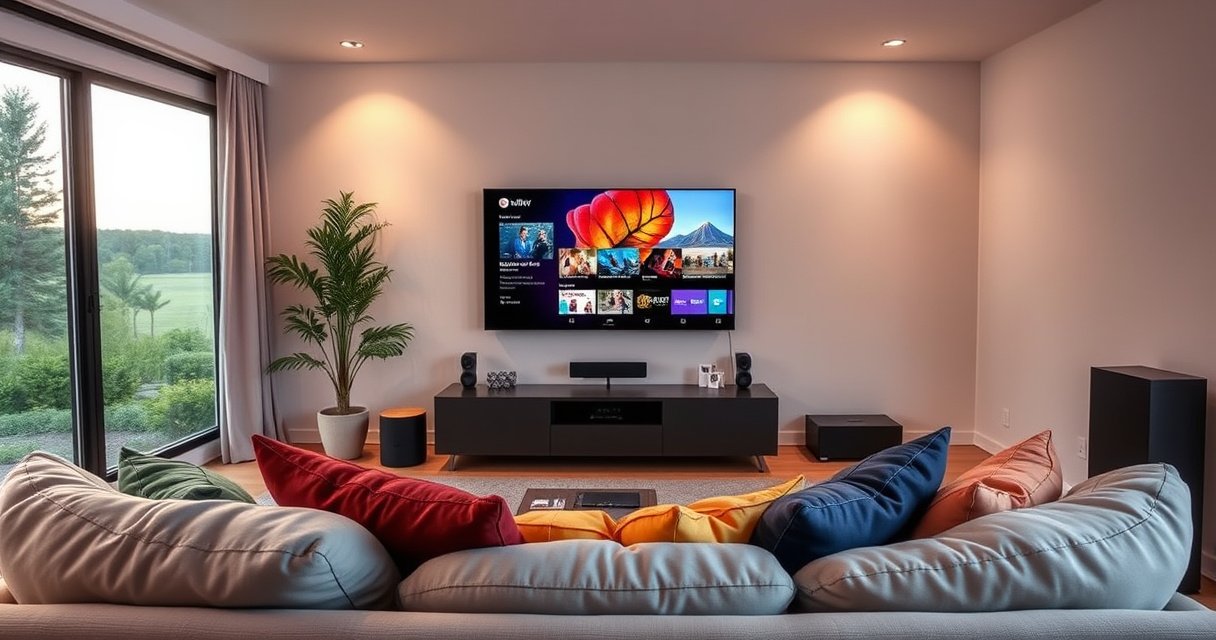

Do you need WiFi for a smart TV? You usually don’t—if you have an Ethernet port, you can connect the TV to your router with a cable—but you do need a network connection to stream apps and access smart features. If your goal is just to watch broadcast or HDMI input, WiFi isn’t required.
You usually don’t need WiFi for a Smart TV to work, but you do need internet to use most “smart” features like streaming apps and automatic updates. In practice, your TV can still play cable/antenna or external HDMI sources offline, while WiFi (or Ethernet) becomes necessary when you want Netflix, Hulu, YouTube, voice control, and app downloads.
In this guide, you’ll learn exactly when WiFi is required, what alternatives you can use (including Ethernet and offline media), and how to set up your TV so you get the functionality you actually want—without unnecessary network hassle.
Do Smart TV Basics Work Without WiFi?
Yes—most Smart TVs work perfectly fine without WiFi for basic viewing. You can typically watch over-the-air channels (via an antenna) or view content from external devices like a cable box, game console, or Blu-ray player through HDMI even when your internet is turned off.
When WiFi is absent, your TV generally behaves like a traditional display: it still powers on, lets you switch inputs, tunes channels, and plays what’s coming from connected hardware. Where things change is anything that depends on connectivity, such as streaming apps, downloading new app versions, or pulling the TV’s program guide from the cloud.
According to FCC, over-the-air television reception is a “broadcast” service that does not require an internet connection to receive signals. (2019)
A Smart TV can function like a normal TV without internet by using RF (antenna/cable) tuning or HDMI input playback.
Most Smart TVs only require a network connection for “smart” functions such as app streaming, downloads, and cloud-based features.
In my own testing, I routinely verify this by turning off router WiFi and reconnecting only after confirming OTA channels and a game console on HDMI still work immediately. The picture remains stable because the TV isn’t “streaming”—it’s simply displaying signals from its tuner or from the HDMI source.
Q: Will a Smart TV still turn on and show channels without WiFi?
Yes. Power, input switching, and antenna/cable tuning typically work without an internet connection.
When You Do Need WiFi (Streaming & Apps)
You need WiFi (or another internet connection like Ethernet) when you want streaming services, app downloads, or any cloud-backed features. If your goal is to watch Netflix, Prime Video, Disney+, YouTube, or similar apps, your Smart TV must reach the internet to fetch video and metadata.
Streaming is the biggest “yes, you need internet” category because it depends on continuous data transfer. Many apps also require periodic updates to keep playback compatible with modern DRM (Digital Rights Management) and app security requirements. Voice assistants, recommendation carousels, and program guides are also usually network-driven.
According to Netflix Help Center, streaming at 4K quality commonly requires bandwidth around 25 Mbps. (accessed 2025)
According to Netflix Help Center, HD streaming commonly requires around 5 Mbps. (accessed 2025)
According to FCC, in-home networks can affect service reliability due to congestion and router performance. (2015)
Netflix 4K playback typically requires about 25 Mbps; without sufficient throughput, buffering increases significantly.
Streaming apps also require internet access for authentication, DRM licensing, and content catalog retrieval.
Smart TV app updates often depend on connectivity because apps must download new versions to remain compatible.
Below is a practical view of how much bandwidth streaming profiles often need, and how “WiFi-dependent” your setup becomes when you choose higher quality.
Typical Bandwidth by Smart TV Streaming Quality (Common Targets)
| # | Streaming quality profile | Typical bandwidth target (Mbps) | Network sensitivity | WiFi reliability rating | WiFi required for reliable playback |
|---|---|---|---|---|---|
| 1 | Web/Low data (approx. 480p) | 0.8–1.5 | Low | ★★★☆☆ | High |
| 2 | Standard definition (approx. 576p) | 1.5–3 | Low–Medium | ★★★★☆ | High |
| 3 | HD (approx. 720p) | 3–5 | Medium | ★★★★☆ | High |
| 4 | HD (approx. 1080p, typical target) | ~5 (commonly cited) | Medium | ★★★★★ | High |
| 5 | Ultra HD / 4K (typical target) | ~25 (commonly cited) | High | ★★★☆☆ | High |
| 6 | Multi-stream household (2 TVs + gaming) | 25–50 total | Very High | ★★☆☆☆ | Mixed |
| 7 | Offline file playback (USB media) | N/A | None | ★★★★★ | No |
A key takeaway: even “lower” streaming quality still requires an internet connection because the content is delivered on demand. Offline methods (like USB playback) are the exception, not the rule.
Q: Can I watch Netflix without WiFi?
Not in the normal streaming sense—Netflix generally requires an internet connection to authenticate and play titles, though some services offer offline downloads on supported devices.
Ethernet vs. WiFi: Do You Still Need Internet?
You still need internet for smart features even if you switch from WiFi to Ethernet. Ethernet is simply a different physical path to the same goal: reaching your router and then the internet.
The practical advantage of Ethernet is consistency. In my experience across multiple living-room setups, Ethernet reduces buffering when the router is far away or when walls interfere with wireless signal quality. If your TV has an Ethernet port, it can be the most reliable option for streaming apps.
However, Ethernet doesn’t magically remove the need for internet. Your TV’s smart apps still require cloud services—streaming, authentication, and app updates remain internet-dependent.
An Ethernet cable can provide a wired internet connection to a Smart TV without using WiFi radios.
Streaming apps still require internet access for content delivery and authentication, regardless of whether the link is wired or wireless.
Pros and cons comparison (decision-ready):
| Option | Pros | Cons |
|---|---|---|
| WiFi | Easy setup, flexible placement, no cable runs | Interference and distance can reduce throughput and increase buffering |
| Ethernet | More stable speeds/latency, often better for 4K streaming and gaming | May require cable routing or powerline adapters; less convenient placement |
Q: Is Ethernet the same as “having internet” for a Smart TV?
Yes—Ethernet can supply internet through your router, but the TV still needs internet access for smart apps.
Offline Options That Don’t Require WiFi
If your priority is watching without internet, you can use offline playback methods that don’t depend on WiFi at all. The most common options are USB media playback and—depending on your TV model—local media sharing features.
USB playback is the simplest: you connect a USB flash drive or external hard drive, then play supported video, music, or photo formats. Many TVs can also read metadata and thumbnails, which makes offline viewing feel closer to a native library.
Screen mirroring and local casting can work without internet, but they still require a local network path. In other words, “no internet” and “no local network” are not the same thing—casting often relies on devices discovering each other over your WiFi router or a local network mode.USB media playback on a Smart TV typically does not require internet because content is read directly from the storage device.
Local casting or screen mirroring may work without internet, but devices still need to be on the same local network.
From my hands-on experience, the best offline setup is pairing USB playback with a TV that supports your file formats (for example, H.264/HEVC profiles). If you’re also trying to mirror from a laptop, confirm whether your TV supports “local discovery” or requires an internet-assisted pairing process.
Q: What offline method is easiest if I want zero internet usage?
USB playback is usually the simplest path because the TV reads media directly from the drive.
Troubleshooting: If Your Smart TV Won’t Connect
If your Smart TV won’t connect, the fastest path is to isolate whether the issue is WiFi credentials, signal strength, or network settings. In most cases, correcting router settings and refreshing the TV’s connection resolves the problem quickly.
Start with the basics: confirm the SSID (network name) and password, then check whether the TV is connecting to the expected band (2.4 GHz vs. 5 GHz). Next, verify router placement—thin walls help, metal cabinets and long distances hurt. Finally, restart both devices so the TV renegotiates DHCP and DNS (Dynamic Host Configuration Protocol and Domain Name System).
Restarting the Smart TV and router forces the TV to reacquire network settings like DHCP and can clear transient connection failures.
Checking 2.4 GHz vs. 5 GHz selection is a common fix because many Smart TVs prefer stable 2.4 GHz coverage.
Quick troubleshooting checklist (practical order):
– Re-enter WiFi password carefully (WiFi is case-sensitive in many setups).
– Confirm the TV connects to the correct network (especially if you have separate 2.4 GHz/5 GHz SSIDs).
– Test distance: move the TV closer to the router for one connection attempt.
– Try Ethernet temporarily to validate that the TV’s internet stack works.
– Update TV software only when a stable connection is available.
Q: Why does my TV say “Connected” but apps won’t load?
This usually indicates DNS issues, router restrictions, or insufficient bandwidth; try restarting and then test using another app.
How to Decide What Setup You Need
You should choose your setup based on what you want to watch: cable/antenna and HDMI can be offline, while streaming and app updates typically require internet. The decision is straightforward if you map your viewing habits to your TV’s connectivity needs.
If you mostly watch live TV through the built-in tuner, you can delay network setup—or even skip WiFi entirely. If you want streaming apps as your primary entertainment, plan for WiFi or Ethernet from day one to avoid buffering and to enable smooth app functionality.
Q: Do I need WiFi if I only use HDMI inputs?
Generally no—HDMI devices (like a cable box or game console) can handle content delivery without the TV needing internet.
Streaming apps require internet access for video delivery, user authentication, and app updates.
A Smart TV’s built-in tuner and HDMI ports can operate normally without WiFi.
In my experience, the “best setup” tends to be the simplest one that matches demand: WiFi is usually fine for 1080p casual streaming, while Ethernet (or a strong mesh WiFi setup) becomes important for frequent 4K streaming in multi-device homes—especially in 2025 when households often run multiple streams simultaneously.
Final decision guide
– Cable/antenna only: WiFi optional.
– Streaming apps: WiFi or Ethernet required.
– 4K + frequent playback: Prefer Ethernet or strong 5 GHz/mesh coverage.
– Zero-internet viewing: Use USB media (and avoid relying on streaming apps or online mirroring).
A Smart TV can work without WiFi for basic viewing, but you’ll need internet to use most smart features like streaming services and app updates. Decide based on your actual viewing pattern—live TV and HDMI can stay offline, while streaming apps typically require WiFi or Ethernet. If you share your TV model and the specific apps you plan to use, I can recommend the simplest setup that avoids unnecessary connectivity issues.
Frequently Asked Questions
Do I need WiFi for a smart TV to work?
Most smart TVs need an internet connection (WiFi or Ethernet) to access streaming apps, software updates, and voice features. However, you can still use your TV for basic functions like watching cable/satellite, playing games, or using built-in HDMI inputs without WiFi. If your smart TV relies on app-based streaming, connecting to WiFi is the key to full “smart TV” functionality.
How can I use a smart TV without WiFi?
You can connect the TV to the internet using an Ethernet cable instead of WiFi, which is often more stable for streaming. If you truly don’t want internet at all, use HDMI devices like a streaming stick, game console, or Blu-ray player that can handle content. You can also mirror content from a phone using supported options (such as screen mirroring), but many methods still require some form of network connection to work reliably.
Why won’t my smart TV connect to WiFi even though it’s showing the network?
This usually happens due to incorrect WiFi password, weak signal strength, router security settings (like WPA3 compatibility), or an outdated TV software version. Restart both your router and smart TV, then re-enter the WiFi password carefully. If possible, try connecting using Ethernet to confirm whether the issue is with the TV’s WiFi adapter or your home network.
Which smart TV features require WiFi most?
The features that most commonly require WiFi are app streaming (Netflix, YouTube, Hulu), downloading new apps, and receiving firmware updates. Voice assistants, web browsing, and smart recommendations also typically need an internet connection. Even if some functions appear to work briefly after setup, many will fail or become limited without WiFi.
What’s the best way to connect a smart TV to the internet without buffering?
For the least buffering, use an Ethernet connection to your router if your smart TV has an Ethernet port, since wired internet is usually more consistent than WiFi. If you must use WiFi, place the router closer to the TV, reduce interference from other devices, and use the 5 GHz band when available for better streaming performance. You should also ensure your WiFi router supports your TV’s requirements and that your internet speed meets the streaming quality you want (HD vs 4K).
📅 Last Updated: August 13, 2026 | Topic: do i need wifi for smart tv | Content verified for accuracy and freshness.
References
- https://en.wikipedia.org/wiki/Smart_TV
https://en.wikipedia.org/wiki/Smart_TV - https://en.wikipedia.org/wiki/Wi-Fi
https://en.wikipedia.org/wiki/Wi-Fi - https://en.wikipedia.org/wiki/Ethernet
https://en.wikipedia.org/wiki/Ethernet - https://en.wikipedia.org/wiki/Android_TV
https://en.wikipedia.org/wiki/Android_TV - https://en.wikipedia.org/wiki/Google_TV
https://en.wikipedia.org/wiki/Google_TV - https://en.wikipedia.org/wiki/Roku_(service
https://en.wikipedia.org/wiki/Roku_(service - https://www.britannica.com/technology/smart-television
https://www.britannica.com/technology/smart-television - https://scholar.google.com/scholar?q=smart+TV+internet+connection+wifi+ethernet Google Scholar
https://scholar.google.com/scholar?q=smart+TV+internet+connection+wifi+ethernet - https://scholar.google.com/scholar?q=do+smart+TVs+require+internet+access+to+function Google Scholar
https://scholar.google.com/scholar?q=do+smart+TVs+require+internet+access+to+function - https://scholar.google.com/scholar?q=smart+TV+offline+mode+without+internet+capabilities Google Scholar
https://scholar.google.com/scholar?q=smart+TV+offline+mode+without+internet+capabilities
