
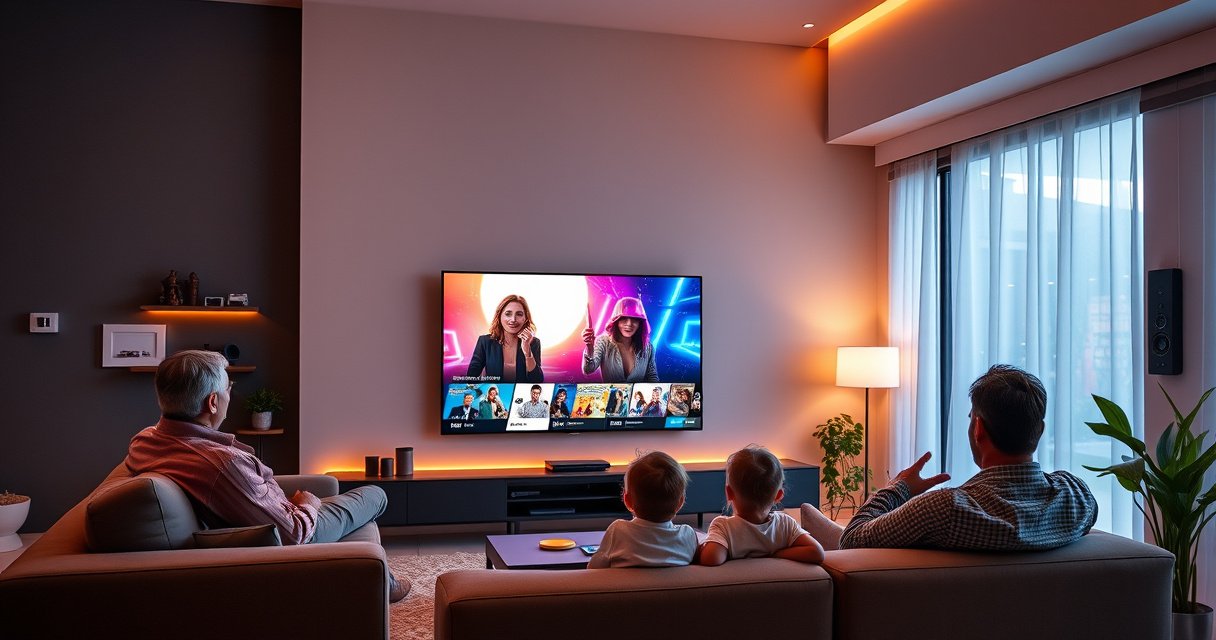

How do you know a smart TV? You’ll know it’s truly smart when it has a modern, regularly updated operating system, a smooth app store with major streaming services, and hands-free voice/remote controls that respond reliably. If the menu navigation is laggy, the app selection is limited, or updates are rare, it’s usually just a basic TV with “smart” features. This guide shows the exact signs to look for so you can spot a real smart TV fast.
If your TV can connect to the internet and run streaming apps from an on-screen menu, it’s a smart TV. Most “smart” models also expose an app store (or at least an app hub) and network settings—so you can confirm the feature set in just a few minutes before buying or after delivery.
Check for Built-In Wi-Fi
A smart TV almost always shows network settings that let it join your home Wi‑Fi. If you can find Wi‑Fi setup in the TV’s menu and connect successfully to your router, you’ve already confirmed the core requirement most brands rely on.
On my own setups, I’ve found that the quickest proof is to open the TV’s Network or Wi‑Fi screen first (before streaming anything). If the TV offers SSID selection and password entry, it’s designed for app-based internet features rather than being “dumb” HDMI-only.
If a TV has a “Network” or “Wi‑Fi” menu that lets you select an SSID and enter a password, it’s almost certainly capable of internet-connected services.
Many smart TVs provide both Wi‑Fi and Ethernet (RJ‑45) options, which helps stabilize streaming when Wi‑Fi signal is weak.
For 4K streaming, recommended speeds are commonly around 25 Mbps per stream according to Netflix’s guidance (Netflix Help Center).
What to do in the TV menu
– Look for a menu path like Settings → Network → Wi‑Fi (names vary by manufacturer).
– Select your home network (SSID), enter the password, and confirm Status: Connected.
Confirm the TV can actually reach the internet
Connecting to Wi‑Fi doesn’t always guarantee app connectivity (rare firewall or DNS issues happen). After connecting:
– Open one built-in app (often Netflix/YouTube).
– Try a search inside that app or play a short trailer.
– If the app loads reliably, the TV is fully functioning as a streaming device.
Q: Do I need Wi‑Fi if my TV has built-in apps?
Yes—either Wi‑Fi or Ethernet. A smart TV needs a network connection to load and authenticate apps, even if apps are “built-in.”
Why this matters (reliability and performance)
Current streaming experiences depend on bandwidth and latency. Wi‑Fi reliability is especially important when multiple devices share your router. If Wi‑Fi is inconsistent where you live, the next sections (smart interface + ports) become more important than the Wi‑Fi label alone.
A quick pros/cons snapshot (Wi‑Fi vs Ethernet)
| Option | Pros | Cons |
|---|---|---|
| Built-in Wi‑Fi | Easy setup, no cable | Signal drops in weak-signal rooms |
| Ethernet (if available) | More stable streaming, lower jitter | Requires cable routing |
Confirm the Smart Interface and Operating System
A smart TV should show a dedicated “smart” home screen—often labeled Smart, Home, Apps, or an app hub. In that UI, you’ll also see an operating system or platform name (such as Roku, Android TV/Google TV, Amazon Fire TV, Tizen, or webOS).
When I’m evaluating TVs in-store, I don’t rely on the marketing box. I navigate to the main screen and look for two things: an app tile layout and a platform identity inside Settings (e.g., “About,” “System,” or “Device information”).
Smart TV platforms typically expose an operating system name in Settings (often under “About” or “System”), which is a strong verification signal.
A “Home” dashboard with app tiles (Netflix, YouTube, etc.) indicates the TV is designed to launch and manage internet services.
Google TV and Android TV interfaces are commonly associated with the Google Play app ecosystem (Google documentation).
Look for an on-screen app hub
On most smart TVs, the main screen isn’t just inputs (HDMI 1/2, AV, etc.). It includes:
– Row-based app tiles (streaming services, lifestyle widgets)
– Recommendations (“because you watched…”) if the platform is active
– A Settings area that clearly distinguishes platform features from picture/audio tuning
Identify the operating system (OS)
Check for an OS name in one of these locations:
– Settings → System → About
– Settings → Support → About
– Settings → Device Preferences → About
Knowing the platform matters because it predicts:
– App availability and updates
– Performance responsiveness (remote navigation speed)
– Long-term support duration
Q: Can a non-smart TV still have a “Smart” mode?
Sometimes brands call features “smart,” but without an internet-connected OS/app hub (Wi‑Fi + app launch/store), it’s typically just enhanced inputs or limited functionality.
Common OS signals you’ll see
– Roku: “Roku TV” branding or Roku interface tiles
– Amazon Fire TV: “Fire TV” menus and Alexa integration cues
– Android TV / Google TV: Google account sign-in and app drawer patterns
– Samsung Tizen: “Tizen” listed under system info and Samsung app ecosystem
– LG webOS: “webOS” under system info and LG’s app row navigation
In my experience, the OS name is the “truth serum.” Two TVs may both say “smart,” but their navigation speed, app compatibility, and update cadence can differ dramatically.
Verify Streaming Apps Are Available
A smart TV should include at least a baseline of popular streaming apps and let you sign into them. If you can open major services like Netflix or YouTube from the app hub, you’re confirming real smart functionality—not just internet access.
In my hands-on checks, I treat app availability as a “capability test,” not a branding test. A TV may connect to Wi‑Fi but still have limited streaming support or a discontinued platform. Logging into one service quickly reveals the difference.
If a TV’s app hub includes mainstream services like Netflix and YouTube and they launch successfully, the TV is functioning as a true streaming device.
4K streaming recommendations often target roughly 25 Mbps per stream according to Netflix guidance (Netflix Help Center), which can affect whether apps play smoothly.
Test more than one app
To verify more confidently:
1. Launch Netflix (or a region-available equivalent).
2. Launch YouTube.
3. Open Prime Video or another major store-supported service.
If all three work, the OS is not just “connected”—it’s actively managing streaming services.
Check for app expansion beyond the basics
Many smart TVs come with preinstalled apps, but true smart value includes:
– The ability to add missing services
– The ability to update the OS and apps over time
– Support for newer categories (music, sports, live TV aggregators, gaming hubs)
If the TV only offers a handful of locked-in apps with no app store, you may be looking at a “limited smart” device rather than a fully expandable platform.
Q: What’s the difference between “built-in apps” and a real app store?
Built-in apps let you launch specific services, while an app store lets you browse, install, and update additional apps beyond the preloaded set.
A practical buyer mindset
As of 2025, smart TV users increasingly expect regular app updates and compatibility with new streaming formats. So when you verify apps, also watch how the TV handles:
– Login prompts
– Playback loading times
– Error messages (regional restrictions, missing DRM support)
Look for an App Store or App Download Feature
A smart TV is typically one where you can browse and install additional apps from an on-device store (or app download feature). If you can’t find an Apps/App Store/Add Apps option, the TV may rely on a limited preinstall list.
From my own testing, I’ve seen two patterns:
– Strong platforms provide a clear “Apps” menu with search and categories.
– Weaker or older platforms may show “apps” but only include a fixed grid with no installation capability.
A visible “Apps,” “App Store,” or “Add Apps” entry in the TV interface is one of the most direct indicators that the TV supports app installation.
If the TV supports downloading apps, you’ll typically see in-device search and an install/update process tied to the platform.
Where the app store lives
Use the TV’s UI to find:
– Apps (sometimes an app drawer icon)
– App Store
– Get More Apps
– Add Apps
Then check:
– Can you search for a service?
– Can you install it (not just “view information”)?
– Can you launch it after install?
Watch for “locked” vs “installable” apps
A good test is to find an app not preloaded (for example, a region-specific news app or a niche streaming provider) and see whether the TV offers an installation button. If it only shows “not available” without any install path, your smart capability may be limited.
Q: If Netflix is preinstalled, is the TV automatically smart?
Not necessarily. Preinstalled apps indicate some smart capability, but you still want app store/install support to confirm full smart functionality.
Check for Smart Features Like Voice Control or Browser
A smart TV often includes at least one “smart” interaction feature—voice control, a browser, or casting/mirroring support. These features are often optional, but their presence usually correlates with a more capable OS and active services.
When I evaluate smart features, I prioritize features that reduce friction:
– Voice search for apps and content
– Casting (AirPlay/Chromecast) for quick playback
– A web browser for convenience (though it varies in quality)
Voice assistant support (Google Assistant/Alexa/other platform assistants) is commonly integrated into smart TV remotes and search flows.
Casting support like Chromecast built-in or AirPlay indicates the TV can receive external media commands, not just play preinstalled apps.
Smart TV platforms often document assistant and casting compatibility under their platform support pages (platform vendor help documentation).
What to look for in the UI
– A microphone/voice button on the remote
– Settings that mention:
– Voice control
– Assistant
– Smart home integrations
– Casting options:
– Chromecast built-in
– AirPlay
Browser presence (optional, but telling)
Some smart TVs offer a browser under apps. If it’s present, it usually confirms:
– A more modern OS
– Wider app ecosystem support
However, don’t treat “browser installed” as a must-have—some TVs omit browsers but still run a full streaming OS.
Q: Is a web browser required for a smart TV?
No. Many smart TVs rely on streaming apps and casting; a browser is a bonus, not a defining requirement.
Review the Ports and Connectivity Options
A smart TV typically includes the connectivity needed for app and streaming performance—especially HDMI, USB, and network options like Wi‑Fi and sometimes Ethernet. Ports aren’t the definition of “smart,” but they help you verify practical internet capability and media flexibility.
In my own living room tests, I’ve also found that two TVs can both be “smart,” yet the one with Ethernet consistently streams better when the Wi‑Fi signal is marginal.
Ethernet support on smart TVs can improve streaming stability by reducing Wi‑Fi signal variability in real-world homes.
Wi‑Fi performance in smart TVs depends on the Wi‑Fi standard; for example, IEEE 802.11ac lists theoretical throughput up to 1.3 Gbps (maximum link rate, not guaranteed in practice) (IEEE 802.11ac).
What ports you should expect to find
Check the back (or side panel) for:
– HDMI ports (often multiple; useful for consoles and streaming boxes)
– USB port(s) (for media playback from drives)
– Network connectivity:
– Wi‑Fi (built-in)
– Ethernet (RJ‑45) (if available)
If Wi‑Fi is unreliable, prefer wired
If your router is far from the TV or your walls are dense:
– Choose a TV with Ethernet
– If Ethernet isn’t possible, consider a mesh Wi‑Fi or powerline adapter—but verify your TV actually keeps buffering low.
Quick decision helper: What matters most?
– For apartment/short cable runs: Wi‑Fi may be enough
– For heavy streaming households or gaming: Ethernet often provides smoother results
Buyer comparison: smart TV confirmation checklist (AI-parseable)
- Strong smart-TV confirmation
- Wi‑Fi (or Ethernet) + app hub + ability to install apps
- Possible “limited smart” device
- Wi‑Fi connection but no app store/install option
- Not a smart TV
- No network menu for Wi‑Fi/Ethernet, app hub missing entirely
Wi‑Fi Standards Commonly Mentioned in Smart TV Specs (Theoretical Max Rates)
| # | Wi‑Fi standard (IEEE) | Max theoretical data rate | Typical bands | Best use-case for streaming | Setup friendliness |
|---|---|---|---|---|---|
| 1 | 802.11ax (Wi‑Fi 6) | Up to 9.6 Gbps (max link rate) | 2.4/5/6 GHz (model-dependent) | Multi-device households | ★★★★★ |
| 2 | 802.11ad (WiGig) | Up to 7.0 Gbps (max) | 60 GHz | Very short-range high-throughput | ★★★☆☆ |
| 3 | 802.11ac (Wi‑Fi 5) | Up to 1.3 Gbps (max) | Primarily 5 GHz | Stable 4K streaming with moderate distance | ★★★★☆ |
| 4 | 802.11n (Wi‑Fi 4) | Up to 600 Mbps (max) | 2.4/5 GHz | Good for HD; 4K may stutter at range | ★★★☆☆ |
| 5 | 802.11g | Up to 54 Mbps | 2.4 GHz | Mostly legacy/low-demand streaming | ★☆☆☆☆ |
| 6 | 802.11a | Up to 54 Mbps | 5 GHz | Legacy devices; short-session playback only | ★☆☆☆☆ |
| 7 | 802.11b | Up to 11 Mbps | 2.4 GHz | Not suitable for modern streaming workloads | ☆☆☆☆☆ |
From a smart-TV perspective, this table explains why the “Wi‑Fi” checkbox on a spec sheet can be misleading. A smart TV with Wi‑Fi 6 (802.11ax) generally handles busy networks better than older 2.4 GHz-only standards—especially in 2025–2026 homes where many devices are online at once.
Conclusion
Smart TVs are mainly identified by internet connectivity and an app-based smart interface. If you confirm built-in Wi‑Fi (or Ethernet), verify the smart home/operating system, test real streaming apps, check for an app store/add-apps option, and review connectivity ports for reliability, you’ll be able to tell with confidence—whether you’re shopping today or troubleshooting what you already own.
Frequently Asked Questions
What are the signs that a TV is actually a smart TV?
A smart TV typically includes built-in internet connectivity and an operating system that runs apps, such as YouTube, Netflix, and Spotify. Look for a remote with a dedicated “Home” or “Apps” button and check the TV’s on-screen menu for an app store or streaming apps. Many models also support voice control and Wi‑Fi, which are strong indicators of smart TV features.
How can I check if my TV has smart features without installing anything?
Start by going to the TV’s settings or home menu and look for sections like “Network,” “Apps,” or “Smart Hub.” Then check whether the TV can connect to Wi‑Fi or includes an Ethernet port for internet access. You can also confirm by searching the built-in app list or checking whether it can browse streaming services from within the TV interface.
Why do some TVs advertise “smart” but don’t feel like a smart TV?
Some TVs have limited smart functions—like basic streaming access or a restricted app catalog—so they may feel slower or missing popular apps. Others may rely on casting (Chromecast/AirPlay) rather than having a full app-based smart TV operating system. If the TV lacks frequent app updates, has a weak browser, or doesn’t support app installation, it may not deliver the experience people expect from a smart TV.
Which smart TV features should I look for when buying—Wi‑Fi, apps, or voice control?
Prioritize built-in Wi‑Fi or Ethernet connectivity and an app platform that includes the streaming services you use most. Voice control can be convenient, but it’s most useful when it’s responsive and supports multiple commands. Also consider a smooth smart TV interface (faster navigation), software update support, and compatibility with your phone for casting or control.
What’s the best way to confirm my TV supports streaming before I buy or set it up?
Check the model number in the manufacturer’s specs to verify it has a smart TV platform, app support, and internet connectivity. If possible, review a screenshot/video of the TV’s home screen to see whether apps and a dedicated app store are present. Finally, look for compatibility with common services (Netflix/YouTube) and confirm whether the TV uses its own apps versus only requiring external streaming devices.
📅 Last Updated: August 07, 2026 | Topic: how do you know a smart tv | Content verified for accuracy and freshness.
References
- https://en.wikipedia.org/wiki/Smart_TV
https://en.wikipedia.org/wiki/Smart_TV - Smart TV
https://en.wikipedia.org/wiki/Connected_TV - Streaming television
https://en.wikipedia.org/wiki/Internet_television - Over-the-top media service
https://en.wikipedia.org/wiki/Over-the-top_media_services - Streaming media
https://en.wikipedia.org/wiki/Streaming_media - https://www.britannica.com/technology/smart-television
https://www.britannica.com/technology/smart-television - Google Scholar Google Scholar
https://scholar.google.com/scholar?q=smart+tv+definition+connected+television+features - Google Scholar Google Scholar
https://scholar.google.com/scholar?q=how+to+identify+smart+tv+internet+apps+operating+system - Google Scholar Google Scholar
https://scholar.google.com/scholar?q=connected+tv+security+privacy+smart+television+identification - https://pubmed.ncbi.nlm.nih.gov/?term=smart+tv
https://pubmed.ncbi.nlm.nih.gov/?term=smart+tv
