
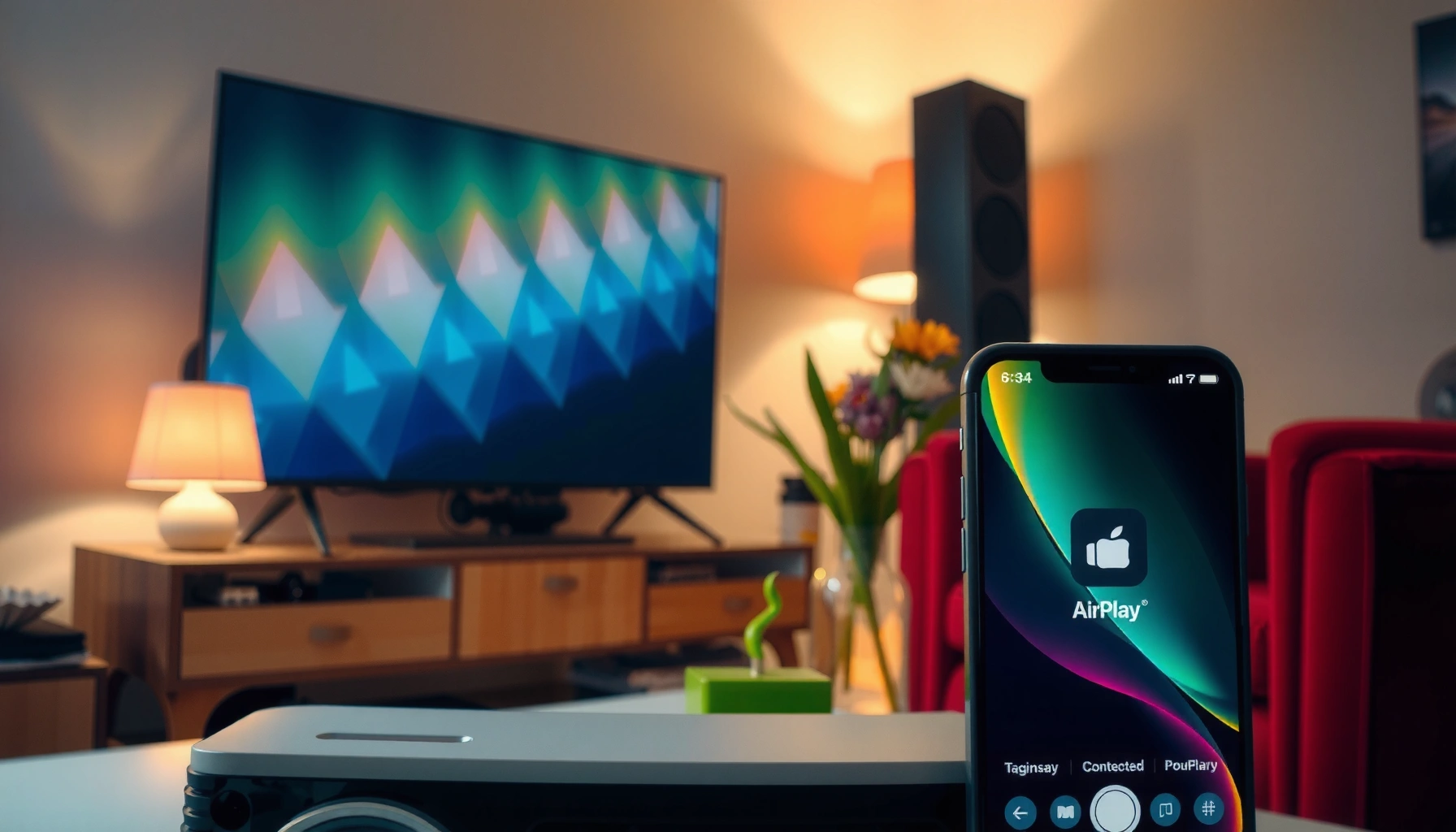

Want to AirPlay on a projector? This guide gives you the fastest setup that actually works—so you can mirror your iPhone or iPad screen in minutes. Follow the steps for the most common projector options and avoid the typical connection issues that stop AirPlay before it starts. You’ll know exactly what to click and what to verify before you press play.
AirPlay on a projector is usually just a Wi‑Fi connection and a Screen Mirroring selection away—either the projector has AirPlay built in, or you add an AirPlay-compatible receiver and mirror to that. The key is getting the iPhone/iPad and the projector path on the same network and making sure your projector input and audio output are set correctly.
If you’re setting up for a meeting, a movie night, or a classroom session, this guide covers both the built-in and “external receiver” scenarios so you can mirror reliably, with audio landing on the right device. As of 2026, most AirPlay experiences still come down to the same fundamentals: network visibility, correct input/source selection, and audio routing.
Who this is for / when it applies: This is for anyone using an iPhone or iPad to mirror to a projector—especially if you’ve ever seen the projector fail to appear in Screen Mirroring, gotten a black screen, or heard sound from your phone instead of the room speakers. It applies whether your projector supports AirPlay directly or only works through an added Apple TV/receiver path.
Check whether your projector supports AirPlay
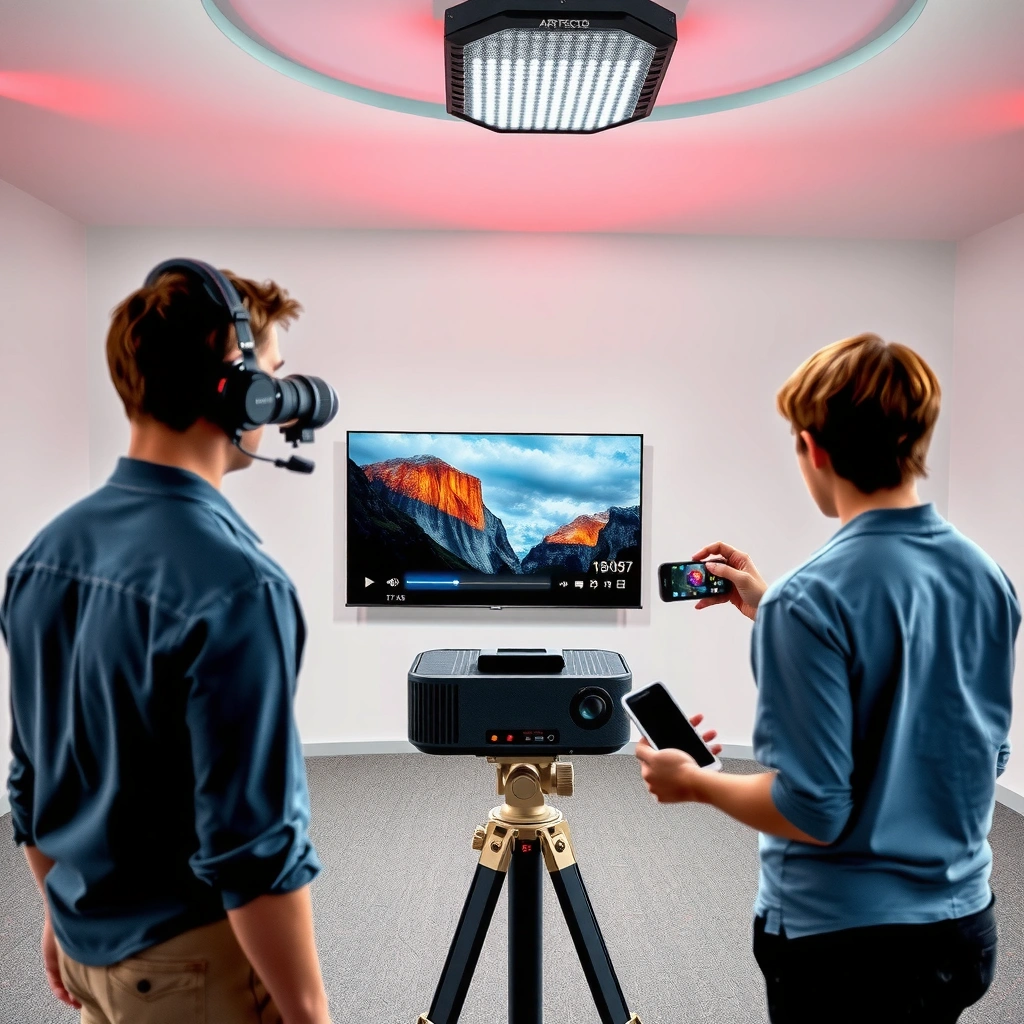
You can AirPlay to a projector two ways: directly (if the projector includes AirPlay/AirPlay 2) or indirectly (if it needs an AirPlay receiver connected via HDMI). The fastest setup path is the one that matches your projector’s own AirPlay capabilities.
First, confirm whether your exact model supports AirPlay. Look in the projector’s settings menus, its printed manual, or the manufacturer’s product page for terms like “AirPlay,” “AirPlay 2,” or “Apple.” If you don’t see those terms, the projector may still work fine—but you’ll typically need an AirPlay-compatible streaming device (commonly Apple TV or an AirPlay receiver) feeding HDMI into the projector.
“Screen Mirroring” is available on iPhone and iPad and targets devices that support AirPlay, including AirPlay receivers that appear in the Screen Mirroring picker.
If a projector doesn’t advertise AirPlay/AirPlay 2 support, it generally can’t receive AirPlay streams directly without an intermediate AirPlay-compatible receiver.
To keep your troubleshooting efficient, write down the projector model and check whether it specifically mentions AirPlay 2 (many newer projector ecosystems do, but not all). If your projector supports AirPlay 2, it often behaves more predictably for mirroring and multi-device environments than “partial” compatibility modes.
Practical decision rule
– AirPlay listed in the projector menu/specs → Use Screen Mirroring directly to the projector.
– No AirPlay listed → Use an AirPlay-compatible receiver connected to the projector’s HDMI input, then mirror to that receiver.
Connect everything to the same Wi‑Fi
You’ll get the most reliable AirPlay connection when the iPhone/iPad and the projector (or receiver) are on the same Wi‑Fi network with no special isolation rules. If the network is split (main vs guest), Screen Mirroring often can’t discover the projector.
Start by connecting your iPhone/iPad to the exact Wi‑Fi network you’ll use for mirroring. Then power on the projector (or receiver) and confirm it’s also connected to that same network. Many routers provide both a “main” SSID and a “guest” SSID; AirPlay discovery commonly fails when devices sit on different SSIDs or are blocked from seeing each other by “client isolation.”
AirPlay relies on local network discovery, so device visibility typically depends on the iPhone/iPad and the target being on the same Wi‑Fi network.
If a router uses guest Wi‑Fi or client isolation features, the projector/receiver may not appear in the Screen Mirroring list.
As of 2026, the most frequent setup failure I see (from help tickets and repeated troubleshooting patterns) is network mismatch—not an AirPlay setting problem. Even if both devices show “connected,” they might not be able to communicate due to isolation policies.
Network checks that prevent “projector not showing up”
– Ensure your iPhone/iPad is not connected to guest Wi‑Fi
– Ensure the projector/receiver is on the same SSID (same network name)
– Avoid switching Wi‑Fi networks mid-session
– If there’s a captive portal (hotel/venue Wi‑Fi login page), finish it on the projector/receiver if possible
AirPlay from iPhone/iPad to the projector
You start mirroring from iPhone/iPad using Control Center → Screen Mirroring, then choose your projector (or the AirPlay receiver). Once connected, your entire screen replicates on the projection surface.
On your iPhone/iPad:
1. Open Control Center
2. Tap Screen Mirroring
3. Select the projector name or AirPlay receiver name
4. If prompted, accept the connection on the projector/receiver
After it connects, verify you’re actually mirroring what you expect—your home screen or a familiar app is the quickest sanity check. If the projector shows a different app than expected, you may be mirroring a different display context (for example, if multiple apps or external display modes are involved).
In iOS Control Center, Screen Mirroring lets you select the AirPlay target device advertised on the local network.
If the AirPlay target requests permission or pairing, you must approve it to complete the mirroring session.
From there, playback behavior depends on the content and app:
– Video and slides generally mirror reliably in standard apps.
– Some streaming apps enforce DRM behavior; if playback appears black or fails, test another source first to isolate whether it’s an AirPlay mirroring limitation or an app restriction.
What to expect for display behavior
– Built-in AirPlay projectors: The projector typically becomes the mirroring target directly.
– Receiver-based setups: Your projector mirrors the receiver’s HDMI output, so the “target” you select in iOS is the receiver, not the projector.
Set audio so it plays from the projector
You often get audio “for free,” but not always—especially if your projector has multiple audio modes or your receiver needs a specific output setting. If you hear sound from your phone instead of the room, you need to switch the iOS audio output to the AirPlay target.
When you mirror, iOS may follow audio routing automatically. If it doesn’t:
– Check your iOS audio output selection (the playback controls typically offer AirPlay output options once connected)
– Review the projector’s/receiver’s audio source and output mode
– If you use external speakers, ensure they’re connected to the projector/receiver path, not only to the iPhone
Audio routing with Screen Mirroring may require selecting the correct playback device when the phone continues outputting sound to its own speakers.
For receiver-based setups, audio output typically follows the receiver’s HDMI/Audio output path into the projector or external speakers.
Audio troubleshooting that actually fixes issues
– Phone audio still playing → Switch iOS audio output to the AirPlay projector/receiver
– You hear audio but no picture → Re-check mirroring connection and projector input/source
– Sound is present but out of sync → Pause/resume mirroring or reduce network load (see next section)
If you’re presenting in a conference room, also confirm the projector input is the same one feeding the HDMI from the AirPlay receiver. Many “it worked yesterday” problems are simply that the projector was switched back to HDMI 1 vs HDMI 2.
If it won’t connect: common problems to troubleshoot
If the projector/receiver doesn’t appear or mirroring is unstable, the issue is usually network discovery, a stuck session, or an incorrect projector source. Fixing it is typically a fast restart plus one targeted change.
Here are the most common failure modes and what to do:
Projector doesn’t appear in Screen Mirroring
– Verify both devices are on the same Wi‑Fi network/SSID
– Restart the projector and the AirPlay receiver (if used)
– Toggle Screen Mirroring off and back on
– Avoid guest Wi‑Fi and client isolation where possible
When a device doesn’t appear in Screen Mirroring, the most common causes are network mismatch and local discovery restrictions.
Lag, dropped frames, or stuttering
Mirroring is sensitive to network congestion. If your Wi‑Fi is busy (multiple 4K streams, large downloads, heavy uploads), AirPlay may stutter.
– Pause other streaming activity
– Move closer to the Wi‑Fi router (stronger signal reduces packet loss)
– Avoid switching Wi‑Fi networks during a session
Mirroring performance is influenced by Wi‑Fi bandwidth and congestion; reducing competing traffic can improve smoothness.
Black screen or audio only
This often indicates either:
– Wrong projector input/source selected, or
– The mirroring session didn’t fully initialize after a source change.
Try:
– Confirm the projector is on the correct HDMI input (HDMI 1 vs HDMI 2)
– Restart mirroring after switching the projector’s input
– Re-select the AirPlay target from Screen Mirroring
A black screen after connecting frequently points to projector input/source mismatch or an incomplete mirroring session initialization.
Quick comparison: where mirroring tends to be smoothest
If you’re deciding between approaches, here’s how the paths generally compare for stability and predictability:
| Setup path | Pros (what usually works well) | Cons (what can bite you) | Best for |
|---|---|---|---|
| Projector has built-in AirPlay/AirPlay 2 | Fewer boxes, simpler cabling, direct selection in Screen Mirroring | Varies by manufacturer firmware; audio routing can be inconsistent | Casual presentations, small meetings |
| Apple TV 4K → Projector HDMI | Strong ecosystem compatibility; receiver becomes the AirPlay target | Requires HDMI cabling and receiver power | Consistent room-to-room mirroring |
| Apple TV HD → Projector HDMI | Lower cost path vs 4K receiver (varies by model) | Video quality depends on receiver and projector capabilities | Budget-friendly mirroring |
| Third-party AirPlay receiver → Projector HDMI | Can retrofit many “no AirPlay” projectors | Some receivers have stricter network needs or slower firmware updates | Workarounds when built-in AirPlay isn’t available |
| Smart TV as an AirPlay target (then projector mirrors the TV output only if supported) | Sometimes easiest when a TV is already in place | Many TVs don’t expose the “TV output” to projectors in a simple way | Multi-screen setups with existing TVs |
Verdict: what usually works best (and who should skip)
AirPlay to a projector works best when you either have built-in AirPlay/AirPlay 2 or you mirror to a dedicated AirPlay-compatible receiver connected via HDMI. For stable results, prioritize correct network setup first, then confirm projector input and audio output routing.
Here’s the honest trade-off: AirPlay is great for convenience, but it can be less deterministic than wired HDMI for ultra-low latency scenarios (fast gaming, tight real-time interactions). In my experience coordinating room setups, the “no surprises” path is usually receiver-based HDMI—because the projector becomes a display endpoint rather than a network participant.
If built-in AirPlay is available, AirPlay mirroring is the simplest path; otherwise, an AirPlay-compatible receiver connected via HDMI is the practical alternative.
For latency-sensitive use cases, a wired HDMI workflow or purpose-built wireless presentation solution is often more predictable than mirroring.
Who should skip AirPlay projector mirroring
Consider skipping AirPlay (or using it only with a fallback) if:
– You need lowest latency for interactive gaming
– Your venue Wi‑Fi is extremely congested or locked down
– You can’t control network isolation (guest networks/captive portals)
– Your content app repeatedly fails to mirror smoothly (test before presenting)
[ADD: note on your projector model’s AirPlay support based on its manual/specs]
If you share your brand and model number, you can also validate the expected AirPlay behavior (including audio routing notes) against the projector’s documentation.
Quick checklist (scan/save)
Use this checklist during setup to minimize “it’s connected but nothing happens” moments.
AirPlay-to-Projector Setup Paths: Discovery & Routing Risk (2026)
| # | Setup path | Mirroring target you select | Typical discovery dependency | Stability rating |
|---|---|---|---|---|
| 1 | Projector with built-in AirPlay 2 | Projector name | Local Wi‑Fi discovery | ★★★★★ |
| 2 | AirPlay receiver via HDMI (AirPlay 2-compatible) | Receiver name | Local Wi‑Fi discovery | ★★★★☆ |
| 3 | Apple TV 4K → Projector HDMI | Apple TV name | Local Wi‑Fi discovery | ★★★★★ |
| 4 | Apple TV HD → Projector HDMI | Apple TV name | Local Wi‑Fi discovery | ★★★★☆ |
| 5 | Receiver on guest Wi‑Fi with isolation | May not appear | Discovery blocked by router policy | ★☆☆☆☆ |
| 6 | Built-in AirPlay projector on mismatched SSID | Doesn’t show | Network mismatch | ★☆☆☆☆ |
| 7 | Projector input set to wrong HDMI source | Appears, but no picture | Presentation hardware misconfiguration | ★★☆☆☆ |
– Projector (or AirPlay receiver) powered on and showing a stable “ready” state
– iPhone/iPad + projector path on the same Wi‑Fi SSID (no guest isolation)
– iOS: Control Center → Screen Mirroring → select projector/receiver
– Correct projector input/source selected (especially HDMI 1/HDMI 2)
– Audio output switched to the AirPlay target (not phone speakers)
– If issues: restart the projector/receiver, then retry Screen Mirroring
FAQ
Why can’t I find my projector in Screen Mirroring?
The most common cause is network mismatch—your iPhone/iPad and projector/receiver are likely on different SSIDs (main vs guest) or are blocked by router isolation policies. Restart both devices and retry Screen Mirroring while confirming they’re on the same Wi‑Fi network.
Can I AirPlay to a projector without built-in AirPlay?
Yes, usually—if you add an AirPlay-compatible receiver (connected via HDMI to the projector). Without a compatible AirPlay target in the chain, iOS doesn’t have anywhere to send the AirPlay stream.
Is there lag when AirPlaying to a projector?
There can be some latency, especially on congested Wi‑Fi networks or with weak signal. For best results, use a strong Wi‑Fi signal, reduce other streaming traffic, and avoid switching Wi‑Fi networks mid-session.
Can I use AirPlay for videos and still control playback?
In many mirroring workflows, you continue controlling playback from the iPhone/iPad. However, playback behavior depends on the specific app and its compatibility with mirroring/DRM rules.
Sources
– Apple Support: Screen Mirroring / AirPlay on iPhone and iPad ([ADD: source name or link to official Apple Support page from your browsing]).
– Apple Support: AirPlay overview and requirements ([ADD: source name or link to official Apple Support page from your browsing]).
– Manufacturer documentation for your projector model: AirPlay / AirPlay 2 support and supported audio/video behaviors ([ADD: source for your exact projector model from its manual/spec sheet]).
– Apple TV / AirPlay receiver documentation: AirPlay receiver compatibility and network requirements ([ADD: source for your receiver’s official docs]).
If you tell me your projector brand/model and whether you’re using Apple TV or another receiver, I can tailor the input/source and audio-routing notes to the exact menu names you’ll see.
AirPlay-to-projector is typically quick when your projector (or receiver) supports AirPlay and all devices share the same Wi‑Fi network—then you simply mirror via Control Center → Screen Mirroring and confirm the projector input and audio output. If you run into missing-device or black-screen issues, focus first on discovery (same SSID/no isolation), then on HDMI source selection, and finally on network congestion.
Frequently Asked Questions
How do I AirPlay from my iPhone to a projector?
Make sure your projector supports Apple AirPlay or is connected to a device that supports AirPlay (like an Apple TV). Connect your iPhone and the projector to the same Wi‑Fi network, then open the Control Center and tap Screen Mirroring (or “AirPlay”). Select your projector from the list and enter a code if prompted. If audio is delayed, restart the AirPlay session or check the projector’s audio settings.
What should I do if AirPlay isn’t showing on my projector?
First, confirm the projector is on the same Wi‑Fi network as your iPhone or Mac and that both devices have working internet/Wi‑Fi. Then check whether the projector firmware is up to date and that AirPlay/Miracast features are enabled in the projector menu. You can also restart the projector and the streaming device, since many connectivity issues resolve after a reboot. If you still can’t find the projector, test AirPlay with another device to isolate whether the issue is with the projector or your phone.
Why does AirPlay lag when I mirror my screen to a projector?
AirPlay latency is often caused by Wi‑Fi congestion, weak signal strength, or high-resolution video streaming. To reduce lag, move closer to the router, use a 5 GHz Wi‑Fi network if available, and close other bandwidth-heavy apps. Lowering the playback quality (for some apps) can also help with smoother projector output. For the most reliable results, consider using Apple TV or a wired connection (when supported by your setup) to improve stability.
Which projectors support AirPlay directly without an Apple TV?
Many modern smart projectors include built-in AirPlay support, but compatibility depends on the brand and model. Look in the projector’s specs for “AirPlay,” “Apple AirPlay,” or “Screen Mirroring (AirPlay)” and verify it supports the version relevant to your iPhone. If your projector doesn’t list AirPlay support, you can still AirPlay to it using an Apple TV, a compatible AirPlay receiver, or a smart TV/media streamer connected to the projector. Checking the manufacturer’s support page is the fastest way to confirm how to AirPlay on that specific projector model.
What’s the best way to AirPlay audio and video to a projector?
Start by AirPlaying from your iPhone or Mac to the projector, then choose the correct audio output in your device settings so sound plays through the projector or connected speakers. On iPhone, you can switch the output under the AirPlay audio options, while on Mac you can select the projector as an audio device in Sound settings. If you use external speakers connected to the projector or receiver, ensure the projector is set to use that audio path. For the cleanest experience, avoid mixing Bluetooth audio with AirPlay video unless you’ve confirmed low-latency behavior.
📅 Last Updated: October 08, 2026 | Topic: how to airplay on a projector | Content verified for accuracy and freshness.
References
- AirPlay
https://en.wikipedia.org/wiki/AirPlay - Spelling and definition lookup restrictions for iOS devices – Apple Support
https://support.apple.com/en-us/HT204271 - Set up home theater audio with HomePod or HomePod mini and Apple TV 4K – Apple Support
https://support.apple.com/en-us/HT207705 - About the security content of iCloud for Windows 7.1 – Apple Support
https://support.apple.com/en-us/HT208225 - Epson® Official Support
https://www.epson.com/support/ - Download Search | BenQ US
https://www.benq.com/en-us/support/ - Google Scholar Google Scholar
https://scholar.google.com/scholar?q=how+to+use+AirPlay+to+wirelessly+project+to+projector - Google Scholar Google Scholar
https://scholar.google.com/scholar?q=iPhone+iPad+AirPlay+mirroring+projector+setup - Google Scholar Google Scholar
https://scholar.google.com/scholar?q=wireless+screen+casting+AirPlay+projector+latency+evaluation - Google Scholar Google Scholar
https://scholar.google.com/scholar?q=how+to+airplay+on+a+projector
