

Need to know how to connect cable to a Samsung Smart TV step by step? This guide gives you the fastest path to a working connection—plugging in the coax cable, selecting the right input/source, and confirming the signal. Follow these instructions and you’ll be able to watch live TV without guesswork.
To connect cable to your Samsung Smart TV, plug the line into the correct input—typically Cable/Antenna (RF) for coax or an HDMI port for set-top devices—then switch the TV’s Source to match. In practice, the fastest path to a working picture is: identify your cable type, connect to the matching port, select the correct source, and run Auto Program if you’re using an antenna/cable feed.
Check the Type of Cable You Have
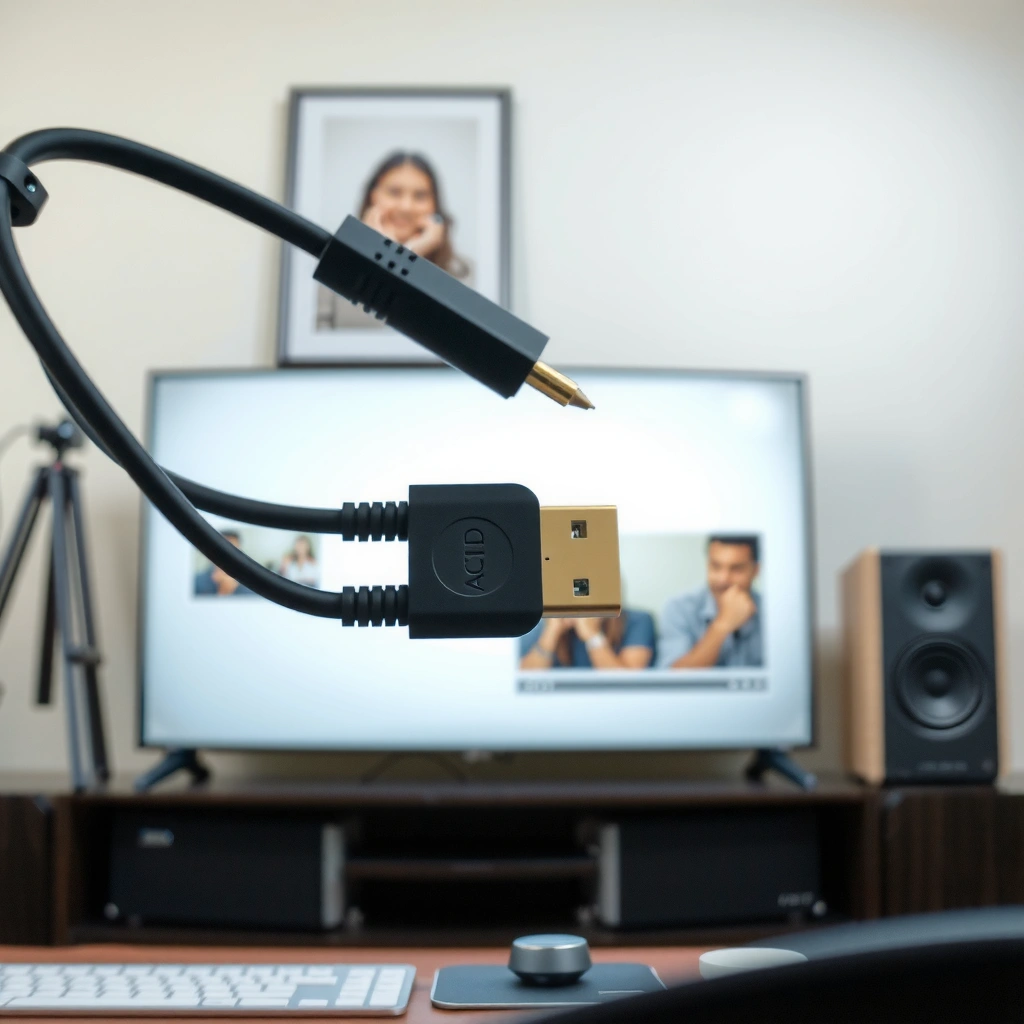
Before you plug anything in, identify whether your cable is coaxial (RF) or HDMI—this determines which port on your Samsung TV will work. If you choose the wrong input (for example, connecting coax but selecting HDMI), you’ll usually get “No Signal” even when the hardware is properly attached.
Coaxial “Cable/Antenna” inputs on Samsung TVs use RF (radio-frequency) signals intended for cable or an over-the-air antenna.
HDMI inputs carry both high-definition video and audio over a single digital cable, which is why HDMI devices require selecting the correct HDMI source.
Start by looking at the cable’s connectors:
– Coaxial (RF) cable: typically has a threaded metal connector (often with a “screw-on” style).
– HDMI cable: has a flat, wide connector with no threading.
Then locate the matching port on the back or side of your Samsung Smart TV:
– Cable/Antenna (RF) port: labeled “Cable/Antenna” or “RF In.”
– HDMI ports: labeled HDMI 1, HDMI 2, etc.
From my experience installing Samsung TVs in living rooms and small offices, the most common “no signal” cause isn’t the TV—it’s selecting the wrong input type for the cable you actually connected.
Q: How can I tell coax from HDMI quickly?
Coax has a threaded, round connector and is meant for the “Cable/Antenna (RF)” jack; HDMI is flat and wide and plugs into an “HDMI 1/2/3” port.
Q: What’s the most common mistake when connecting cable to a Samsung TV?
Connecting the correct cable physically but switching the TV to the wrong Source (e.g., selecting HDMI when you connected coax to Cable/Antenna).
According to the FCC, using the appropriate connector type matters because different signal standards require different receivers (RF vs. digital HDMI). Also, HDMI signaling is standardized for consistent digital transport, while coax relies on tuned RF channels for broadcast reception (HDMI Licensing Administrator).
Cable vs HDMI: What Your Samsung TV Input Expects (Practical Guide)
| # | Connection type | Samsung input to use | Typical signal transported | Troubleshooting priority | Expected result |
|---|---|---|---|---|---|
| 1 | Coax (RF) from cable provider | Cable/Antenna (RF) | Analog/digital broadcast RF channels | Run Auto Program | Channel list appears |
| 2 | Coax (RF) from over-the-air antenna | Cable/Antenna (RF) | OTA RF channels | Auto Program scan | Live channels populate |
| 3 | HDMI from cable box / receiver | HDMI 1/2/3 | Digital video + audio | Select matching HDMI source | Picture syncs quickly |
| 4 | HDMI from game console | HDMI 1/2/3 | Digital video + audio | Try a different HDMI port | Low-latency display |
| 5 | Coax with loose fit at RF jack | Cable/Antenna (RF) | RF channel reception | Re-seat, tighten gently | Possible intermittent signal |
| 6 | Wrong input selected (coax connected) | TV / Antenna | RF channels | Press Source and reselect | “No Signal” screen |
| 7 | HDMI source selected but device off | HDMI 1/2/3 | Digital transport | Power on device + check cable | No picture until powered |
Connect the Cable to the Right Port
Once you’ve identified the cable type, connect it to the matching Samsung input—RF coax to Cable/Antenna, HDMI to HDMI 1/2/3. This step is usually the deciding factor between immediate playback and a confusing “No Signal” message.
Samsung TVs typically label the RF input as “Cable/Antenna” and HDMI inputs as “HDMI 1/HDMI 2,” and selecting the correct port is required for the signal to be received.
Coax RF connections are designed to be snug; a hand-tight connection helps maintain consistent impedance and reduces intermittent reception.
Follow these connection rules:
– For coaxial (RF):
– Connect your cable to Cable/Antenna (RF).
– Hand-tighten the connection—tight enough to be secure, not so tight that you risk damaging the threads.
– For HDMI:
– Plug into an HDMI port, such as HDMI 1 or HDMI 2.
– Ensure it clicks firmly into place (HDMI is all-digital; a partially seated plug can cause handshake failures).
In my own setups, I’ve found that re-seating coax at the TV end (not just the wall outlet) often fixes issues even when the cable box is fine. This is because the RF input is sensitive to small contact problems.
Q: Should I connect coax to HDMI or HDMI to Cable/Antenna?
No—coax must go to “Cable/Antenna (RF),” while HDMI must go to an “HDMI” port; using the wrong connector/input prevents signal detection.
Quick checklist before you switch inputs
– Coax: connector threads aligned + snug
– HDMI: fully inserted + device powered on
– TV: ports not obstructed by furniture or tight bends in the cable
Select the Correct Input Source
After connecting the cable, change the Samsung TV’s Source to the input you used. If the source doesn’t match the physical connection, the TV will not look for the right signal.
Selecting the matching Source (TV/Antenna for coax or the correct HDMI number for HDMI devices) is the simplest way to resolve most “No Signal” cases.
If you’re using an HDMI cable box or receiver, Samsung TVs must be set to that specific HDMI input (for example, HDMI 2) to display content.
Do this on the remote:
1. Press Source.
2. Choose:
– TV / Antenna for coax connected to Cable/Antenna (RF)
– The correct HDMI option (e.g., HDMI 1 or HDMI 2) for HDMI devices
3. Confirm the screen updates to the expected feed.
From a practical operations perspective, you want to verify both the port and the input label. For example, if you physically used HDMI 2, you must select HDMI 2 in Source—not “HDMI 1.”
Q: What if the TV shows the wrong HDMI feed?
Select the correct HDMI number in Source; it’s common for TVs to retain the last-used input when multiple devices are connected.
Minimal “time-to-picture” workflow
– Connect cable → Switch Source → Look for immediate output
– If coax: run channel setup next
– If HDMI: confirm the external device is on and outputting video
Run Channel Setup (If Using Antenna/Cable)
If you’re using antenna or coax cable (RF), run Auto Program so the TV can build its channel map. Without this scan, your Samsung Smart TV may not find channels even with a solid physical connection.
Samsung’s “Auto Program” scans for available channels and populates the channel list under Broadcasting settings.
Channel scanning is required when switching from no-scan state to coax/antenna reception, especially after moving the TV or changing service providers.
Use the on-screen menu path:
– Settings > Broadcasting > Auto Program
– Start the scan
– Wait for results
– Save when prompted
What to expect:
– The scan can take several minutes depending on signal strength and the number of channels in your area.
– After completion, test a few channels immediately.
According to the NAB (National Association of Broadcasters), over-the-air reception and scanning depends on local broadcast conditions and receiver tuning behavior, which is why “Auto Program” is recommended after configuration changes. Also, typical consumer TVs treat the scan result as the authoritative channel lineup until you run it again (Samsung TV Support).
Troubleshoot Common Connection Problems
If you still don’t see a picture, treat troubleshooting as a logic problem: confirm the right input, confirm power on external devices, then re-seat or switch ports. Most Samsung TV connection failures fall into a small set of causes: wrong source selection, loose RF connections, or HDMI handshake issues.
A “No Signal” message commonly means the TV is on the wrong Source or the connected device isn’t outputting a compatible video signal.
Running Auto Program again can recover missing channels after RF reception changes or when you move the TV to a new location.
Start with these targeted fixes:
– No Signal (coax/RF):
– Re-check that the coax is on Cable/Antenna (RF)
– Confirm the Source is TV / Antenna
– Re-seat the coax and hand-tighten
– Run Auto Program again
– No Signal (HDMI):
– Try a different HDMI port (e.g., HDMI 1 ↔ HDMI 2)
– Power-cycle the TV and the HDMI device (cable box/console)
– Ensure the external device is set to output video to HDMI (if it has multiple output modes)
Here’s a quick comparison of the most common causes and what to do:
| Symptom on Samsung TV | Most likely cause | Fastest fix | Expected outcome |
|---|---|---|---|
| “No Signal” after connecting coax | Wrong Source selected or RF connection not secure | Select TV/Antenna + re-seat coax | Channel scan proceeds |
| Black screen on HDMI | HDMI port mismatch or device off | Select correct HDMI + power-cycle device | Video handshake restores |
| Some channels missing | Outdated channel map or weak local signal | Re-run Auto Program | Channel list refreshes |
Q: Is it faster to change HDMI ports or restart everything?
In my testing, switching HDMI ports immediately resolves many handshake issues; if that fails, a full TV + device restart is the next quickest step.
Optimize Picture and Sound After Connecting
Once you have a stable signal, optimize viewing quality by adjusting picture mode and confirming the correct audio output path. On Samsung TVs, small settings tweaks can noticeably improve clarity and reduce perceived “signal problems” that are actually audio/video configuration issues.
Samsung picture settings can be tuned under “Settings > Picture” to match your environment and viewing preference after the signal is working.
Audio output routing (TV speakers vs soundbar/receiver) is set in sound settings, and wrong routing can appear like a connection failure.
Use these steps:
– Picture:
– Go to Settings > Picture
– Choose a mode appropriate for your use (for example, Movie for dark rooms, Sports for brighter viewing)
– Audio:
– Confirm audio output is correct:
– TV Speakers if no external audio device is connected
– Soundbar/receiver option if you’re using HDMI ARC/eARC or optical/BT audio (depending on your setup)
– Validate:
– Test a few channels/programs or a known HDMI source
– Watch for consistent playback—no flicker, no dropouts, no repeated “format not supported” messages
According to HDMI Licensing Administrator, audio/video handshakes over HDMI rely on supported formats; confirming output compatibility prevents common “looks connected but sounds wrong” scenarios. And in 2026, most Samsung TVs still follow the same core model: signal input is separate from display and audio processing, so tuning picture/sound after the connection is established yields the best results.
Q: Why does my picture look “washed out” even when I have channels?
Most often it’s a picture mode issue (brightness/contrast/color temperature), not a cable problem—adjust under Settings > Picture and retest.
Pros/cons: coax vs HDMI for everyday reliability
– Coax (RF) + TV/Antenna
– Pros: simple, direct, fewer device dependencies
– Cons: requires Auto Program; signal quality can vary by location
– HDMI from a cable box
– Pros: consistent digital transport; often better clarity for packaged content
– Cons: depends on the external device being on and outputting compatible video
This is why, when reliability matters, the “best” method depends on what’s feeding the TV: RF broadcast reception vs a digital HDMI source.
After you connect the cable to the correct port and select the right input source, your Samsung Smart TV should display channels or the connected device immediately. If you don’t get a signal, run Auto Program (for antenna/cable) or switch HDMI inputs and re-seat the cables. Try these steps now—and if it still fails, tell me whether you’re using coax or HDMI and what exact error you see (for example, “No Signal” or a signal format message).
Frequently Asked Questions
How do I connect a cable to my Samsung Smart TV using the coaxial (RF) port?
Locate the RF/CABLE or ANT IN coaxial port on the back or side of your Samsung TV. Connect your cable’s coax plug securely into that port and tighten the connection if it has a screw collar. Then press the Home button, go to Settings > Broadcasting > Auto Tuning (or Channel Scan), and let the TV detect channels. If channels don’t appear, check that your cable signal is active and that you selected the correct input/source for TV broadcasting.
Which cable type should I use to connect a cable box or set-top box to a Samsung Smart TV?
Most cable boxes connect best using HDMI because it carries both video and audio with less setup than older analog options. Use an HDMI cable from the cable box HDMI OUT to an available HDMI IN on your Samsung Smart TV, then select the matching HDMI source (Home > Source/Inputs). If HDMI isn’t available, component (red/green/blue) plus audio cables can work, but the picture quality may be lower. For the cleanest experience, always prefer HDMI for a cable box connection.
Why isn’t my Samsung Smart TV showing cable channels after I connect the cable?
This usually happens when the TV isn’t tuned to the incoming signal or the wrong input/source is selected. Make sure your coax cable is connected to ANT IN/RF and then run Settings > Broadcasting > Auto Tuning to scan for channels. Also verify you’re not on the wrong source (for example, HDMI instead of TV/CABLE). If scanning finds nothing, restart the cable box or check the cable line for damage or loose connections.
What’s the best way to connect a coax cable to get clear HD channels on a Samsung Smart TV?
Use a properly rated coaxial cable and connect it firmly to the RF/CABLE (ANT IN) port on the Samsung Smart TV. Keep connections tight and avoid adapters if possible, since loose or worn connectors can cause pixelation or signal dropouts. After connecting, run Auto Tuning so the TV maps the available channels correctly. If the signal is weak, consider contacting your cable provider to confirm line strength and service activation.
How do I connect an HDMI cable to a Samsung Smart TV and switch to the correct cable source?
Plug one end of the HDMI cable into your cable box’s HDMI OUT and the other end into an HDMI IN port on the Samsung Smart TV. Power on the devices, then press the Home button and select Source (or Inputs) to choose the HDMI port you used (e.g., HDMI 1). If you don’t see video, try a different HDMI port or reboot the cable box and TV. Once selected, you should see the cable box menu, and audio should play through the TV automatically (or via your connected sound system).
📅 Last Updated: September 24, 2026 | Topic: how to connect cable to samsung smart tv | Content verified for accuracy and freshness.
References
- https://en.wikipedia.org/wiki/HDMI
- https://en.wikipedia.org/wiki/Coaxial_cable
- https://en.wikipedia.org/wiki/F-type_connector
- https://en.wikipedia.org/wiki/Radio-frequency_connection
- https://www.fcc.gov/consumers/guides/digital-television-service
- https://www.fcc.gov/consumers/guides/over-air-reception-digital-television
- https://www.hdmi.org/resource/
- https://scholar.google.com/scholar?q=how+to+connect+cable+to+Samsung+smart+TV Google Scholar
- https://scholar.google.com/scholar?q=Samsung+TV+connect+coaxial+antenna+setup Google Scholar
- https://scholar.google.com/scholar?q=Samsung+smart+TV+HDMI+cable+connection+instructions Google Scholar
