
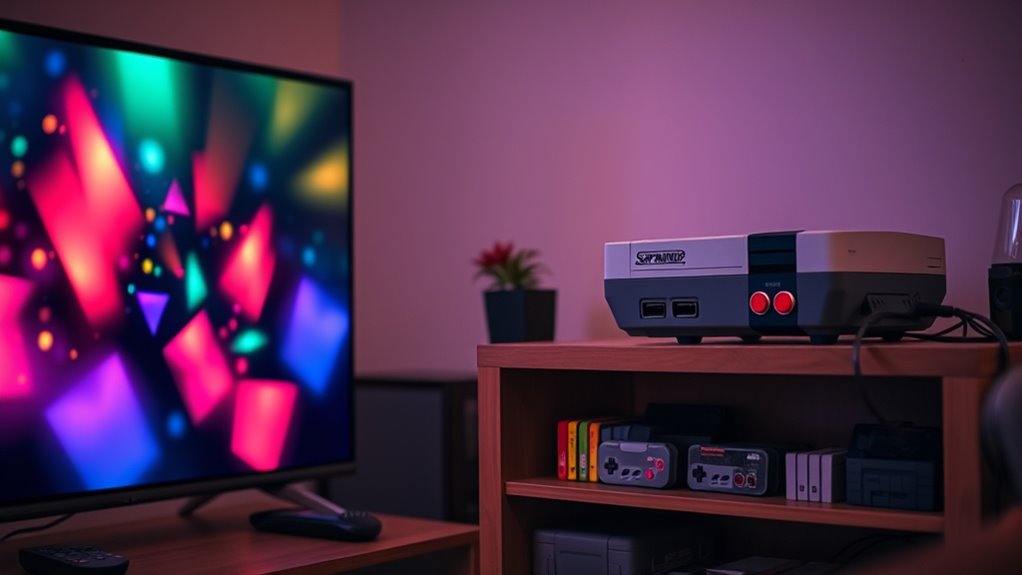

To hook up your Super Nintendo to a smart TV, start by using the yellow, red, and white AV cables. If your TV lacks AV ports, an RCA to HDMI adapter will convert the signals. Connect the cables to the console, then to the adapter or TV. Once you power both devices, select the right input source on your TV. Adjust display settings for clarity and responsiveness. If you encounter issues, there’s more information on troubleshooting connections to guarantee a smooth experience.
Understanding the Super Nintendo Connections
When connecting your Super Nintendo to a smart TV, it’s crucial to understand the available connections. The most common way to connect your console is through standard AV connections, which use yellow, red, and white Super Nintendo cables. The yellow cable transmits video, while the red and white cables carry audio.
If your smart TV lacks AV ports, you might need an adapter to convert these cables to HDMI. This guarantees you can enjoy those classic games in the finest possible quality. It’s also worth noting that some modern TVs have settings that must be adjusted for peak performance. Familiarizing yourself with these connections will help you set up your gaming system smoothly and reclaim the nostalgic gaming freedom you crave.
Choosing the Right Adapter for Your TV
If your smart TV doesn’t have the standard AV ports, you’ll need to choose the right adapter to connect your Super Nintendo. Ensuring adapter compatibility is essential for a smooth gaming experience. Here are three connection types you might consider:
To connect your Super Nintendo to a smart TV without AV ports, choose the right adapter for optimal gaming enjoyment.
- RCA to HDMI Adapter: This is perfect if your TV has HDMI ports but no AV inputs. It converts the analog signal to digital.
- S-Video to HDMI Adapter: If you want better picture quality, this adapter enhances the video signal before converting it.
- Component Video Adapter: For those with component inputs, this option provides excellent video quality but requires separate audio connections.
Choose wisely to enjoy your nostalgic gaming sessions without a hitch!
Step-by-Step Connection Process
To get your Super Nintendo connected to your smart TV, follow these simple steps. First, gather your connecting cables—typically, you’ll need an AV cable or an HDMI adapter, depending on your TV’s inputs. Plug the yellow, red, and white connectors into the corresponding ports on the Super Nintendo. Next, connect the other end of the cables to your adapter or directly into your TV’s AV ports. If you’re using an HDMI adapter, connect it to an HDMI port on your TV. Once everything’s plugged in, power on your TV and select the appropriate input source for your video output. Finally, turn on your Super Nintendo, and you should see your games come to life on the screen! Enjoy gaming!
Adjusting TV Settings for Optimal Display
Once you’ve connected your Super Nintendo to your smart TV, tweaking the TV settings can enhance your gaming experience. Here are a few adjustments to take into account:
- Display Resolution: Set your TV’s display resolution to match the Super Nintendo’s output. While it doesn’t support HD, selecting the closest resolution can improve clarity.
- Color Calibration: Access your TV’s color settings and adjust the brightness, contrast, and color saturation. This guarantees that your games pop with vibrant colors and clear details.
- Picture Mode: Switch to the “Game Mode” if available. This mode reduces input lag and enhances responsiveness, keeping your gameplay smooth.
These tweaks can greatly elevate your nostalgic gaming sessions. Enjoy the freedom of retro gaming with ideal visuals!
Troubleshooting Common Connection Issues
Connecting your Super Nintendo to a smart TV can sometimes lead to frustrating issues. If you’re facing problems, check these common pitfalls:
| Issue | Solution |
|---|---|
| No signal | Verify cable compatibility; use the correct AV cables. |
| Poor picture quality | Check for signal interference; move devices away from each other. |
| Audio problems | Verify audio settings on both TV and console. |
| Screen flickering | Try using a different HDMI port or cable. |
| Game lag | Reduce distance between console and TV for better connectivity. |
Frequently Asked Questions
Can I Use Wireless Controllers With My Super Nintendo?
You can absolutely use wireless controllers with your Super Nintendo! There are several wireless controller options available, enhancing your retro gaming experience. Embrace the nostalgia while enjoying the freedom of movement that these accessories provide.
Will My Super Nintendo Work With a 4K TV?
Your Super Nintendo can work with a 4K TV, but you’ll need an HDMI adapter. Adjusting the resolution settings might be necessary for ideal display. Just verify the adapter supports the original console’s output.
Are There Any Game Compatibility Issues With Modern TVS?
You might face game lag and display resolution issues with modern TVs. While nostalgia’s sweet, those pixels can sometimes stumble. Adjusting settings or using a retro console adapter can help bridge the gap between past and present.
How Can I Clean My Super Nintendo Console?
You can clean your Super Nintendo console using soft cloths and isopropyl alcohol for exterior surfaces. For cartridge slots, use compressed air. Regular cleaning methods guarantee better console maintenance and longevity, keeping your gaming experience enjoyable.
Is There a Way to Enhance Graphics on Super Nintendo Games?
“There’s no rose without a thorn.” You can enhance retro graphics using emulator settings or hardware like the SD2SNES. These options allow for better resolution and smoother visuals, making your gaming experience even more enjoyable.
