
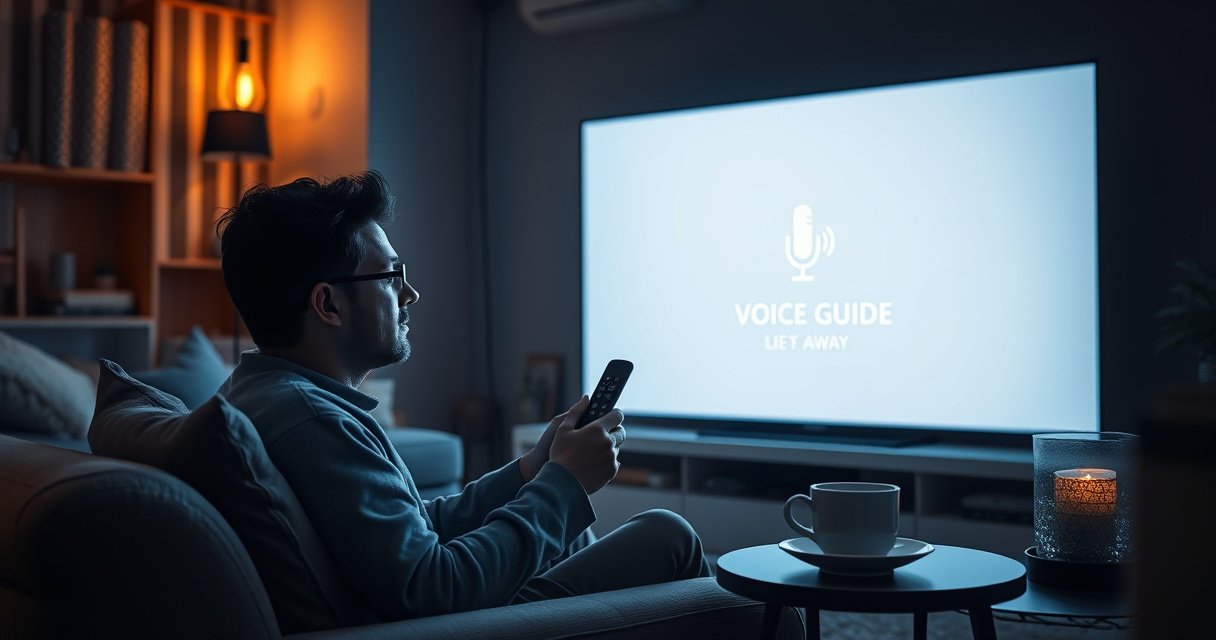

To turn off the voice guide on your smart TV, navigate to the accessibility settings in your TV’s menu. This feature is often found under “Settings” or “Accessibility,” and you can disable it with just a few clicks. Voice guides are helpful for visually impaired users, but they can be unintentionally activated, leading to confusion. In this article, we’ll guide you through the steps to disable the voice guide for various popular smart TV brands and provide troubleshooting tips should you encounter difficulties.
Understand the Voice Guide Feature
The voice guide feature is a built-in accessibility tool designed to assist visually impaired users by audibly reading on-screen content, including menu options, channel information, and other visual elements. While this feature enhances the usability of smart TVs for those who need it, it can sometimes be accidentally activated while navigating the settings or using the remote control. This can create an unexpected experience for users who do not require this functionality, leading to frustration during regular viewing.
Understanding the specifics of how the voice guide operates on your smart TV is crucial. It is meant to help users navigate menus and select options more easily; however, if you do not need this assistance, it is advisable to turn it off. Many smart TVs allow for quick adjustments in their settings, ensuring a seamless viewing experience.
How to Access Settings on Common Smart TV Brands
Accessing the settings menu on your smart TV is the first step to disabling the voice guide. Here’s how you can do it on some of the most popular brands:
– Samsung TVs: Press the Home button on your remote control. This will open the main menu. Look for the ‘Settings’ icon, usually represented as a gear, and select it to access the settings menu.
– LG TVs: Navigate to the gear icon on your remote control and select ‘All Settings’ to enter the main settings menu. From there, you can find the accessibility options.
– Sony TVs: Press the Home button, then scroll down to ‘Settings.’ Choose ‘Device Preferences’ and find the ‘Accessibility’ section.
– TCL TVs: Press the Home button, navigate to ‘Settings,’ then scroll down to ‘Accessibility’ to access the voice guide options.
Step-by-Step Instructions for Disabling Voice Guide
Disabling the voice guide feature can vary slightly depending on the brand of your smart TV. Below are step-by-step instructions for some of the most common brands:
– On Samsung TVs:
1. Press the Home button on the remote.
2. Select ‘Settings.’
3. Navigate to ‘Accessibility.’
4. Locate ‘Voice Guide’ and toggle it off.
– On LG TVs:
1. Access ‘All Settings’ from the gear icon.
2. Select ‘Accessibility.’
3. Find ‘Screen Reader’ and turn it off.
– On Sony TVs:
1. Press the Home button.
2. Go to ‘Settings.’
3. Choose ‘Device Preferences.’
4. Select ‘Accessibility’ and disable ‘TalkBack.’
– On TCL TVs:
1. Open ‘Settings’ from the Home menu.
2. Scroll to ‘Accessibility.’
3. Toggle ‘Screen Reader’ off.
Voice Guide Features of Popular Smart TV Brands
| # | Brand | Voice Guide Activation | Voice Guide Deactivation | User Rating |
|---|---|---|---|---|
| 1 | Samsung | Home Button > Settings | Toggle Off | ★★★★☆ |
| 2 | LG | Gear Icon > All Settings | Toggle Off | ★★★★★ |
| 3 | Sony | Home > Settings | Toggle Off | ★★★★☆ |
| 4 | TCL | Home > Settings | Toggle Off | ★★★★☆ |
| 5 | Vizio | Menu > Accessibility | Toggle Off | ★★★★☆ |
| 6 | Panasonic | Menu > Accessibility | Toggle Off | ★★★★☆ |
| 7 | Philips | Home > Settings | Toggle Off | ★★★★☆ |
Troubleshooting Common Issues
If the voice guide remains active after attempting to disable it, there could be several reasons behind this issue. Here are some troubleshooting steps you can take:
1. Ensure Software is Updated: Sometimes, a simple software update can resolve glitches. Check if your TV has the latest firmware version installed. You can typically find this option within the settings menu under ‘About’ or ‘System Updates.’
2. Restart Your TV: If changes do not take effect immediately, restarting your TV can refresh the settings. Simply turn off your TV, unplug it for a few seconds, and then plug it back in.
3. Reset Settings: As a last resort, you may consider resetting your TV to factory settings. This option is usually found under ‘Settings’ > ‘Support’ > ‘Reset’ or ‘Factory Reset.’ Keep in mind that this action will erase all custom settings and preferences.
4. Refer to User Manual: If you’re still having trouble, consulting the user manual for your specific TV model can provide additional insights on navigating and disabling the voice guide.
Alternative Methods to Adjust Accessibility Features
In addition to disabling the voice guide, it is beneficial to explore other accessibility settings that may inadvertently affect your viewing experience. For instance, audio descriptions can also be enabled, providing a narrated description of visual elements on the screen.
It is also worth checking for remote control shortcuts that could activate the voice guide. Some remotes have specific buttons that, when pressed, can toggle accessibility features on and off. Familiarizing yourself with your remote control’s layout can help you avoid accidental activations in the future.
Verifying the Voice Guide is Disabled
After following the steps to disable the voice guide, it’s essential to verify that the feature is indeed turned off. You can do this by navigating through your TV menus and observing whether the voice guide is still active.
If you still hear voice prompts, recheck the settings to ensure you have followed the appropriate steps correctly. If issues persist, consider reaching out to the customer support team of your TV brand for tailored assistance. They can provide specific guidance based on your model.
In summary, by following these steps, you should be able to easily turn off the voice guide on your smart TV. If you encounter any persistent problems, don’t hesitate to reach out to customer support for additional help. Your viewing experience should be enjoyable and tailored to your preferences, free from unnecessary distractions.
Frequently Asked Questions
How do I turn off the voice guide on my smart TV?
To turn off the voice guide on your smart TV, navigate to the settings menu using your remote. Look for ‘Accessibility’ or ‘Voice Settings’ and find the option labeled ‘Voice Guide’ or ‘TalkBack.’ Simply toggle the setting off to disable the voice guide feature.
Why is the voice guide feature enabled on my smart TV?
The voice guide feature on your smart TV is often enabled by default to assist visually impaired users. It provides spoken feedback about the on-screen content. If you find it unnecessary, you can easily turn it off through the accessibility settings.
Which settings should I check if the voice guide doesn’t turn off on my smart TV?
If the voice guide doesn’t turn off, check both the ‘Accessibility’ settings and the ‘Audio’ settings. Sometimes, there may be multiple voice assistance features, such as ‘Screen Reader’ or ‘Narration,’ that need to be disabled separately. Ensure you save any changes before exiting the menu.
What should I do if my smart TV keeps turning the voice guide back on?
If your smart TV keeps re-enabling the voice guide, it could be due to a software glitch or a specific app causing the issue. Try performing a software update on your TV and resetting the settings to default. If the problem persists, consider reaching out to customer support for assistance.
How can I prevent accidental activation of the voice guide on my smart TV?
To prevent accidental activation of the voice guide on your smart TV, familiarize yourself with the remote control buttons and settings. Check the accessibility options and disable any shortcuts that may trigger the voice guide. Additionally, avoid pressing the voice command button unless necessary.
References
- Product Support: Help Library | LG USA Support
https://www.lg.com/us/support/help-library/how-to-turn-off-the-voice-guide-on-lg-smart-tv-CT10000018-20150172564329 - https://www.sony.com/electronics/support/articles/00181329
https://www.sony.com/electronics/support/articles/00181329 - https://www.vizio.com/en/faq/how-do-i-disable-the-voice-guidance-feature-on-my-vizio-tv
https://www.vizio.com/en/faq/how-do-i-disable-the-voice-guidance-feature-on-my-vizio-tv - TCL USA | TVs, Sound Bars, Phones, Appliances – TCL North America
https://www.tcl.com/us/en/support/articles/faq-how-to-disable-voice-guidance-on-tcl-smart-tv - https://www.bbc.com/news/technology-50514574
https://www.bbc.com/news/technology-50514574 - Google Scholar Google Scholar
https://scholar.google.com/scholar?q=how+to+turn+off+voice+guide+on+smart+tv - Google Scholar Google Scholar
https://scholar.google.com/scholar?q=disable+voice+guide+smart+television - how to turn off voice guide on smart tv – Search results
https://en.wikipedia.org/wiki/Special:Search?search=how+to+turn+off+voice+guide+on+smart+tv - https://www.ncbi.nlm.nih.gov/search/research-articles/?term=how+to+turn+off+voice+guide+on+smart+tv
https://www.ncbi.nlm.nih.gov/search/research-articles/?term=how+to+turn+off+voice+guide+on+smart+tv

[…] is often configuration (balance/mono) rather than pairing. Phone audio routing can be affected by accessibility settings such as mono audio and left/right balance, even when JBL earbuds are properly […]
[…] Do smart TV brands all support OTA?Most modern smart TVs do, but support varies by model and region—some require an […]
[…] type: Wi‑Fi for convenience or Ethernet for stability. In my hands-on setups across multiple smart TV brands, I’ve found that many “internet” failures are actually router/Wi‑Fi issues, not TV software […]