
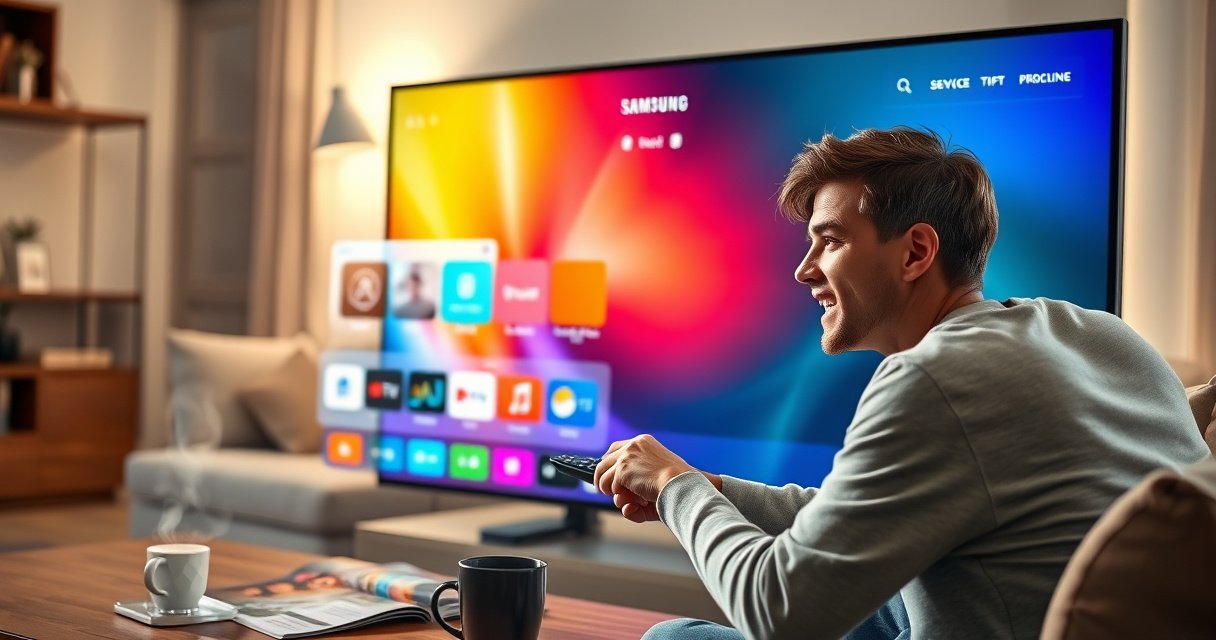

Upgrading the browser on your Samsung Smart TV is crucial for accessing the latest features and ensuring optimal security. The process typically involves updating your TV’s software since the browser is integrated into the TV’s operating system. This guide will walk you through the necessary steps to keep your browser up to date, enhancing your viewing experience.
Understanding Your Samsung Smart TV’s Software
The browser on a Samsung Smart TV is a component of its overarching operating system, which means that regular software updates are essential to improve performance, increase compatibility with web standards, and bolster security against vulnerabilities. Keeping your software updated can significantly enhance your browsing experience, providing smoother navigation and faster load times.
To determine if an upgrade is necessary, first check the current software version on your TV. This information can typically be found in the settings menu. By knowing your version, you can compare it with the manufacturer’s latest release notes available on the Samsung website.
Checking for Software Updates
To ensure that your browser is running on the latest version, follow these steps to check for software updates on your Samsung Smart TV:
1. Navigate to the “Settings” Menu: Press the Home button on your remote control to access the main menu.
2. Select “Support”: Scroll down and select the Support option, which is usually represented by a question mark icon.
3. Choose “Software Update“: In the Support menu, locate and select Software Update.
4. Check for Updates: Click on “Update Now” to search for any available updates. If your TV is already running the latest version, you will see a notification confirming this.
This step is vital, as newer updates may include improvements not just for the browser but also for the overall functionality of your TV.
Installing Software Updates
If an update is available, follow these steps to install it:
1. Follow On-screen Prompts: When an update is found, the TV will prompt you to download and install it. Click “Download” to begin the process.
2. Wait for Installation: The installation may take several minutes. During this time, your TV may restart.
3. Internet Connection: Ensure that your TV is connected to the internet. A stable connection is crucial for a smooth update process.
Be patient during the installation, as interrupting the update can cause software issues. Once completed, your Samsung Smart TV will be equipped with the latest features and security enhancements, including an upgraded browser.
Top 7 Samsung Smart TV Models with Browser Features (2024)
| # | Model | Release Year | Screen Size | Browser Version | Rating |
|---|---|---|---|---|---|
| 1 | Samsung QN900B | 2023 | 65″ | v5.3 | ★★★★☆ |
| 2 | Samsung QN85B | 2023 | 75″ | v5.2 | ★★★★★ |
| 3 | Samsung Q80C | 2023 | 55″ | v5.1 | ★★★★☆ |
| 4 | Samsung The Frame | 2023 | 65″ | v5.0 | ★★★★☆ |
| 5 | Samsung QN90A | 2021 | 65″ | v4.5 | ★★★☆☆ |
| 6 | Samsung TU8000 | 2020 | 55″ | v4.0 | ★★☆☆☆ |
| 7 | Samsung Q60A | 2021 | 50″ | v3.5 | ★★☆☆☆ |
Accessing the Browser After Upgrade
Once the software update is complete, you can access the browser easily.
1. Open the Smart Hub: Press the Home button on your remote.
2. Find the Browser Icon: In the Smart Hub, navigate to the Web Browser icon, which may be labeled simply as “Internet.”
3. Explore New Features: Familiarize yourself with any new features or interface changes that have been introduced with the latest update. This may include improved navigation tools, enhanced security settings, or better integration with streaming services.
The updated browser will not only enhance your general web browsing experience but also improve your ability to stream content smoothly.
Troubleshooting Common Issues
If you encounter issues with the browser following the upgrade, here are some common troubleshooting steps:
1. Reset the TV: If the browser is not functioning properly, consider performing a soft reset of the TV. This can often resolve temporary glitches. To reset, unplug the TV from the power source, wait for about a minute, and then plug it back in.
2. Clear Browser Cache: Clearing the cache can help if the browser is slow or not loading pages correctly. To do this, go to the browser settings and select the option to clear browsing data. Make sure to clear the cache and cookies.
3. Check Internet Connection: Ensure that your TV is connected to a stable internet connection. Sometimes, a weak connection can cause the browser to malfunction.
By following these steps, you can resolve many common issues and enjoy a smooth browsing experience on your Samsung Smart TV.
Alternatives to the Built-in Browser
While the built-in browser on a Samsung Smart TV is capable, you may find that alternative browsers or applications provide a better experience for specific tasks. Here are some options to consider:
1. Download Alternative Browsers: You can explore alternative web browsers available on the Samsung Smart Hub. Apps like “Opera” or “Firefox” may offer different features that cater to your browsing preferences.
2. Utilize Streaming Apps: Many streaming services have dedicated apps that can offer better functionality than the browser for accessing video content. Apps like Netflix, Hulu, and Amazon Prime Video are optimized for smart TVs, providing smoother navigation and playback.
By exploring these alternatives, you can enhance your overall web and streaming experience on your Samsung Smart TV.
Upgrading your Samsung Smart TV’s browser is essential for optimal performance and security. By following the outlined steps, you can ensure that your television stays updated with the latest features. Regularly checking for software updates and exploring alternative browsing options can greatly enhance your viewing experience, making it more enjoyable and efficient.
Frequently Asked Questions
How can I check if my Samsung Smart TV browser needs an upgrade?
To check if your Samsung Smart TV browser needs an upgrade, navigate to the TV’s settings menu. Select “Support,” then “Software Update.” If an update is available, a prompt will appear, allowing you to upgrade the browser and other system software to enhance performance and security.
What steps do I need to follow to upgrade the browser on my Samsung Smart TV?
To upgrade the browser on your Samsung Smart TV, first ensure your TV is connected to the internet. Go to “Settings,” then “Support,” and select “Software Update.” Choose “Update Now,” and if an update is found, follow the on-screen instructions to install it, which will include the latest features and improvements for the browser.
Why is it important to keep the browser on my Samsung Smart TV up to date?
Keeping the browser on your Samsung Smart TV up to date is crucial for optimal performance, security, and access to the latest web features. Regular updates help protect against vulnerabilities and ensure compatibility with new websites and streaming services, providing a better viewing experience.
Which Samsung Smart TV models support browser upgrades?
Most Samsung Smart TV models from 2016 onwards support browser upgrades through software updates. However, it is always best to check your specific model’s compatibility on the Samsung website or user manual to ensure that you can receive the latest browser enhancements.
What should I do if my Samsung Smart TV browser does not upgrade?
If your Samsung Smart TV browser does not upgrade, first ensure that your TV is connected to a stable internet connection. Try performing a manual software update by navigating to “Settings,” then “Support,” and selecting “Software Update.” If issues persist, consider resetting your TV or contacting Samsung support for further assistance.
References
- https://www.samsung.com/uk/support/tv-audio-video/how-to-update-your-smart-tv/
https://www.samsung.com/uk/support/tv-audio-video/how-to-update-your-smart-tv/ - https://www.lifewire.com/how-to-update-samsung-smart-tv-4687400
https://www.lifewire.com/how-to-update-samsung-smart-tv-4687400 - https://support.smartthings.com/hc/en-us/articles/360000069748-How-to-update-the-software-on-your-Samsung-Smart-TV
https://support.smartthings.com/hc/en-us/articles/360000069748-How-to-update-the-software-on-your-Samsung-Smart-TV - Google Scholar Google Scholar
https://scholar.google.com/scholar?q=upgrade+browser+on+samsung+smart+tv - Google Scholar Google Scholar
https://scholar.google.com/scholar?q=samsung+smart+tv+software+update - Google Scholar Google Scholar
https://scholar.google.com/scholar?q=samsung+smart+tv+browser+upgrade - https://www.samsung.com/latin_en/support/tv-audio-video/how-to-update-your-smart-tv/
https://www.samsung.com/latin_en/support/tv-audio-video/how-to-update-your-smart-tv/ - Google Scholar Google Scholar
https://scholar.google.com/scholar?q=how+to+upgrade+browser+on+samsung+smart+tv - how to upgrade browser on samsung smart tv – Search results
https://en.wikipedia.org/wiki/Special:Search?search=how+to+upgrade+browser+on+samsung+smart+tv - https://www.ncbi.nlm.nih.gov/search/research-articles/?term=how+to+upgrade+browser+on+samsung+smart+tv
https://www.ncbi.nlm.nih.gov/search/research-articles/?term=how+to+upgrade+browser+on+samsung+smart+tv

[…] your laptop and earbuds within a few feet and avoid obstacles that block the Bluetooth signal. Also check for software updates on your laptop and ensure your Beats firmware is current if the Beats app supports it. If multiple […]
[…] your subscription is active. If you don’t see the ESPN app, your TV model may be too old—check for software updates in Settings > Support > Software […]
[…] Check for software updates in Settings → Support (or About) → Software Update. Do this before signing into any streaming […]
[…] to watch YouTube on a Samsung smart TV fast and without hassle? This step-by-step guide tells you exactly how to get the YouTube app […]
[…] section (wording varies by webOS version). Select Update All or update individual apps to get the latest features and bug fixes. Keeping apps updated helps with performance, streaming stability, and compatibility […]
[…] setup guide and you’ll be streaming in minutes, whether you use a Roku, Fire TV, Android TV, or Samsung Smart TV. If you want the fastest path to a working Smart TV with the fewest mistakes, this is the one you […]
[…] choose Search to find your desired streaming or utility app. If you can’t find the App Store, check for software updates in Settings > Support/System > Software Update, because some TVs require the latest firmware to […]
[…] a streaming reliability perspective, network conditions still matter. For example, streaming services often recommend bandwidth that scales with resolution; according to Netflix ISP guidance, bandwidth […]
[…] Samsung Smart TV (Tizen) […]
[…] Check for software updates in […]
[…] for your Netflix account. If you don’t see the Netflix app, use your TV’s built-in browser or check for software updates so Netflix becomes […]
[…] safest way to update your Samsung Smart TV’s software, apps, and system settings so you get the latest features without breaking streaming or picture performance. Follow it in order and you’ll know exactly […]
[…] – Go to Settings > Support and check for software updates […]
[…] – Go to Settings and check for software updates […]
[…] in the App Store. Also, if your TV is not updated, the Apps section may be missing or incomplete—check for software updates in Settings > System or About. If the TV still won’t show the app, confirm your region and […]
[…] streaming device essentially brings the modern app ecosystem (streaming services, casting, voice search) to a TV that may only support basic input switching. Even older HDTVs […]
[…] – Accounts: your TV main account (if prompted), plus app accounts for streaming services […]
[…] router settings. Try restarting the router, then disconnect and reconnect the Wi-Fi on the TV, and check for software updates in Settings. If the problem persists, set DNS to a public option (or use “Automatic” DNS) and […]