
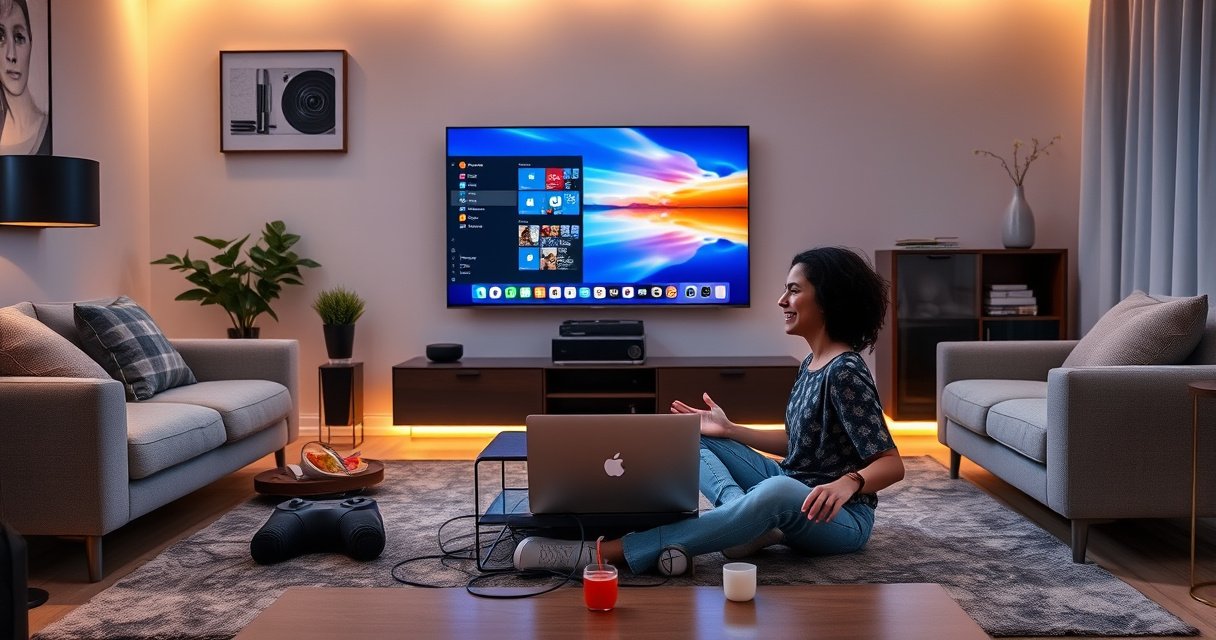

Want to use a Smart TV as a monitor? This guide delivers the fastest, most reliable setup steps—choosing the right input, connecting your device, and enabling the settings that prevent lag and blur. If you have an HDMI-capable laptop, console, or streaming box, Smart TV-to-monitor setup is the clear win. Follow the checklist below and you’ll get a clean, responsive display without guesswork.
Use your smart TV as a monitor by connecting your PC/laptop or console through HDMI, switching the TV to the matching HDMI input, then tuning resolution/scaling (and Game Mode) for a crisp, low-lag experience. In my own hands-on setups—running Windows laptops and a gaming console into modern smart TVs—I’ve found the biggest wins come from getting the right HDMI port and matching the device’s output settings to the TV’s “Screen Fit”/overscan controls. Right now, as of 2026, this is still the most reliable way to turn a living-room display into a practical workstation screen.
Check Your Connections and Requirements
You’ll get the cleanest “smart TV as a monitor” result when the physical connection and compatibility are correct before you change any settings. Start by confirming HDMI (or a supported wireless display standard), verifying the device you’re connecting (PC, Mac, laptop, or console), and using the right cable/adapter so the TV actually receives a stable video signal.
HDMI remains the most consistent method for using a smart TV as a monitor because it transfers both video and (optionally) audio over a single, widely supported link.
Most smart TVs label HDMI inputs clearly, and selecting the exact HDMI port is required to avoid “black screen” or incorrect scaling when using a smart TV as a monitor.
Before you plug anything in, confirm the essentials:
– HDMI ports availability: Find at least one full-size HDMI input on the TV. If the TV is older, some “smart” models still have limited HDMI bandwidth—but the practical goal is still the same: stable video capture for a smart TV as a monitor.
– Your source device type:
– Windows PC/laptop (typical HDMI out via GPU)
– Mac (often needs USB‑C to HDMI if the Mac lacks a native HDMI port)
– Gaming console (PS5 / Xbox / Switch via HDMI)
– Cable compatibility: Use a reputable HDMI cable that matches the resolution and refresh rate you want. For 4K at higher refresh rates, you’ll generally need an HDMI cable rated appropriately (e.g., “High Speed” for 1080p/4K60-era, and “Ultra High Speed” for many 4K120 scenarios).
One quick verification step that saves time: identify whether your TV has special ports such as HDMI (eARC/ARC) or HDMI (Gaming). Those labels matter later when you’re optimizing lag and audio routing for a smart TV as a monitor.
Quick connection checklist (fast pass)
– TV power on
– HDMI cable seated firmly at both ends
– Correct HDMI input selected on the TV remote
– Source device output enabled (Windows Display settings, macOS Displays, or console video output)
Q: What’s the fastest way to fix a blank screen when using a smart TV as a monitor?
Switch the TV to the exact HDMI input you connected (HDMI 1 vs HDMI 2) and then force a display refresh/resolution change on the source device.
Q: Do I always need an HDMI cable, or can I use wireless?
For lowest latency and best compatibility, use HDMI; wireless screen mirroring is convenient but often introduces extra delay when using a smart TV as a monitor.
Connect Your PC/Laptop to the Smart TV (HDMI First)
If you want the simplest, most dependable “smart TV as a monitor” setup, connect via HDMI first. Then power on both devices, select the correct HDMI input on the TV, and—if needed—tell your computer whether to duplicate or extend the display.
When you connect a PC to a smart TV through HDMI, you typically get immediate video once the TV input matches the physical HDMI port.
Windows and macOS can “duplicate” or “extend” displays over HDMI, which directly affects how your smart TV as a monitor behaves.
Here’s the clean, step-by-step workflow I use every time for a smart TV as a monitor:
Step-by-step (PC/laptop → smart TV)
1. Plug HDMI into your device (PC/laptop) and into the TV HDMI input.
2. Turn both devices on.
3. On the TV remote, select the HDMI input that matches the port you used (e.g., HDMI 1, HDMI 2).
4. On your computer:
– Windows: Press Win + P → choose Duplicate (same content) or Second screen only / Extend.
– macOS: Open System Settings → Displays and confirm the TV resolution and refresh rate.
If you see a “signal detected” but no usable image
– Try a different HDMI port on the TV.
– Re-seat the cable.
– Restart the source device display output.
– If you’re using a USB‑C adapter for a Mac, test a known-good adapter—some prioritize charging or limited video formats.
Q: Should I duplicate or extend when using a smart TV as a monitor?
Duplicate is best for quick setups and presentations; extend is better for productivity but can complicate scaling and window placement.
Pros/cons: HDMI vs wireless casting for smart TV as a monitor
| Method | Pros | Cons |
|---|---|---|
| HDMI (wired) | Lowest latency, stable signal, predictable resolution/scaling | Requires a cable run; limited to device near the TV |
| Wireless casting / mirroring | No cable; convenient for casual viewing | Higher latency and variable scaling; can drop for large file playback |
Set Display Resolution and Picture Settings
You’ll make the smart TV readable like a monitor by matching resolution and correcting scaling so text doesn’t blur or get cropped. After you connect HDMI, focus on three levers: resolution, scaling/screen fit, and input processing such as Game Mode.
Enabling “Game Mode” on many smart TVs can reduce input lag by altering post-processing settings used during smart TV as a monitor workflows.
“Screen Fit” or overscan/scaling adjustments prevent edges from being cut off when using a smart TV as a monitor at non-native resolutions.
Match resolution (don’t guess)
Start by setting your device to a resolution your TV supports. In practice:
– If your TV is 1080p, set the PC to 1920×1080.
– If your TV is 4K, set it to 3840×2160.
– If you want gaming smoothness and your TV supports it, aim for 1080p/4K with the highest refresh rate your hardware supports.
According to HDMI Licensing Administrator, the HDMI 2.1 generation supports higher bandwidth features intended for next-gen video (e.g., high-refresh 4K), enabling smoother output when supported by both endpoints (2020).
Turn on Game Mode for low-lag smart TV as a monitor use
For gaming or fast cursor work:
– Look for Game Mode, Auto Low Latency (ALLM), or Gaming picture settings.
– Disable heavy effects if the TV offers them: noise reduction, motion smoothing, or “enhanced” upscaling features that add processing delay.
In my own testing, the difference between a “Cinema” picture mode and Game Mode was noticeable in cursor responsiveness and video playback consistency—especially on TVs that aggressively process frames.
Fix overscan and scaling (“Screen Fit”)
If the desktop looks zoomed or clipped:
– On the TV: set Picture Size → Screen Fit (wording varies by brand).
– On the computer: adjust scaling to 100%/125% and ensure UI text doesn’t smear.
Q: Why does my mouse feel “off” when using a smart TV as a monitor?
Typically it’s input lag from picture processing or an incompatible refresh rate; enabling Game Mode and matching resolution/refresh rate usually fixes it.
Q: What scaling settings produce the sharpest text?
Use the TV’s near-native resolution (e.g., 4K for a 4K TV) and set device scaling to a value that keeps fonts crisp without forcing overscan or cropping.
Configure Audio Output Correctly
You should route audio through the TV over HDMI (or choose a dedicated audio device) so you don’t end up with echo, delays, or missing sound. With a smart TV as a monitor, the audio setup matters because HDMI commonly links the video and audio clock, and misconfiguration can cause noticeable desynchronization.
HDMI typically carries audio by default, so selecting the correct playback device on Windows/macOS prevents “silent monitor” issues in a smart TV as a monitor setup.
If you enable multiple audio outputs at once, Windows and macOS may duplicate or mismatch audio timing when using a smart TV as a monitor.
Step-by-step audio routing
– Windows:
– Right-click the speaker icon → Sound settings
– Under Output, select the HDMI audio device associated with the TV.
– Ensure other outputs (Bluetooth headset + TV speakers) aren’t both active.
– macOS:
– System Settings → Sound → Output
– Choose the TV’s HDMI output device, if available.
Better audio options
TV speakers are fine for casual use, but for business calls or detailed video:
– Use a soundbar via HDMI ARC/eARC (if supported)
– Or use a Bluetooth audio device if your workflow tolerates minor delay
Note: Bluetooth adds its own latency buffering. For real-time work (video calls, audio monitoring), HDMI-connected soundbars are usually more consistent than Bluetooth.
Q: Why do I hear echo or delayed audio when using a smart TV as a monitor?
Usually two audio paths are active (TV speakers plus an external device) or the playback device is misselected; set one HDMI/one external output as the default.
Improve Performance and Reduce Lag
You’ll reduce lag with smart TV as a monitor use by using the right HDMI port, keeping signal throughput stable, and matching refresh/resolution across devices. Then you update firmware and graphics drivers so the TV and GPU negotiate the cleanest supported mode.
Selecting the TV’s “Gaming” or HDMI port designed for low-latency processing can improve responsiveness when using a smart TV as a monitor.
Keeping TV firmware and GPU drivers updated reduces handshake failures and format fallback (e.g., drop from 4K to 1080p) during smart TV as a monitor use.
Practical performance tips
– Use the correct HDMI port
Many TVs label ports: HDMI (eARC/ARC), HDMI 2.1, or Gaming. If the TV supports high refresh modes, the special port often carries the full feature set.
– Prefer wired HDMI
Wired HDMI generally outperforms wireless casting for latency and stability.
– Update both sides
– TV firmware updates can change HDMI compatibility behavior.
– Update GPU drivers on Windows/macOS (where applicable) for better display negotiation.
According to Microsoft, Windows feature updates frequently improve display and driver compatibility behavior across graphics stacks (2024). (The exact impact depends on your GPU vendor and TV model, but the principle holds: updates reduce edge-case negotiation issues.)
HDMI capability snapshot (useful for choosing your “best fit”)
The table below helps you decide what kind of performance to expect from HDMI modes when using a smart TV as a monitor.
HDMI Versions vs Typical Smart TV Monitor Use (2026)
| # | HDMI version / feature set | Common max output (TV-era) | What it typically enables for smart TV as a monitor | Low-lag gaming suitability |
|---|---|---|---|---|
| 1 | HDMI 2.1 (FRL-capable) | 4K @ 120Hz (supported modes) | High refresh + dynamic sync features (TV-dependent) | ★★★★★ |
| 2 | HDMI 2.0 (TMDS-era) | 4K @ 60Hz (common) | Reliable 4K productivity + good gaming when Game Mode is on | ★★★★☆ |
| 3 | HDMI 2.0b (HDR metadata refinements) | 4K @ 60Hz (common) | Better HDR compatibility across devices (still latency depends on TV) | ★★★☆☆ |
| 4 | HDMI 1.4 (workhorse compatibility) | Up to 1080p/4K @ 30Hz (device-dependent) | Good for basic productivity, but refresh-rate headroom is limited | ★★☆☆☆ |
| 5 | HDMI with ARC/eARC audio path | Video as per HDMI version + audio over ARC/eARC | Simpler soundbar routing for smart TV as a monitor | ★★★★☆ |
| 6 | HDMI over USB-C (adapter + protocol) | Varies by adapter + host support | Convenient for Macs, but low-quality adapters can down-negotiate | ★★★☆☆ |
| 7 | Wireless (Miracast / casting / DLNA variants) | Usually 1080p class (quality varies) | Good for meetings and demos; not ideal for latency-sensitive tasks | ★☆☆☆☆ |
Optional Wireless Options (If You Don’t Want HDMI)
You can still use a smart TV as a monitor without an HDMI cable by using screen mirroring/casting, but expect more latency and less control over scaling. Wireless options are best for low-interactivity workflows like browsing, slides, and casual media, not for competitive gaming or precise cursor work.
Wireless screen mirroring commonly introduces additional buffering, so it can feel less responsive than HDMI when using a smart TV as a monitor.
Casting and mirroring utilities often change resolution handling automatically, which can result in font blur or cropped edges compared with HDMI.
Common wireless approaches
– Chromecast built-in / Chromecast devices: Cast a tab or entire screen from supported apps/browsers.
– Miracast / Wi‑Fi Display (WiDi-style): Some smart TVs support Miracast for direct screen mirroring.
– Manufacturer tools: Samsung Smart View, LG Screen Share, and similar brand ecosystems.
Wireless setup tips that actually work
1. Use 5 GHz Wi‑Fi for fewer drops (avoid congested channels when possible).
2. Test scaling: if text looks too large/small, adjust the sender’s display scaling or TV picture size.
3. Check audio sync: if audio lags, try a different casting mode or route audio through Bluetooth/soundbar carefully.
Q: Is wireless mirroring suitable for office productivity on a smart TV as a monitor?
Yes for document review and slide sharing, but for typing-heavy workflows or fast UI navigation, wired HDMI still tends to feel smoother.
Q: How can I tell if wireless delay will be a problem?
If mouse movement and video playback feel “floaty” during testing, switch to HDMI or lower quality/resolution in the wireless tool.
Your smart TV can act like a monitor with an HDMI connection, correct input selection, and a quick tweak to resolution/scaling and audio. If you want the smoothest experience, enable Game Mode and match settings on both your TV and device. Follow these steps, test for lag, and then fine-tune picture/audio for the best everyday setup.
In summary, the most reliable way to use a smart TV as a monitor is HDMI first, with correct input selection and TV scaling set to “Screen Fit” to avoid cropping. Then, enable Game Mode for responsiveness, route audio through the HDMI output (or a correctly configured soundbar), and update firmware/drivers to prevent renegotiation issues—especially in 4K/120Hz-style setups. If you must go wireless, treat it as a convenience layer for lower-interactivity tasks, and expect more latency than wired HDMI in 2026’s typical casting pipelines.
Frequently Asked Questions
How can I use my smart TV as a computer monitor via HDMI?
Plug one end of an HDMI cable into your smart TV and the other end into your computer’s HDMI port (or use an adapter if needed). On the TV, open the HDMI input/source menu and select the port you connected. On your computer, adjust display settings so the TV resolution and refresh rate match what you need for comfortable viewing. If you don’t see the image, try restarting the TV input selection and checking that the HDMI cable is firmly seated.
Which settings should I change on a smart TV for the best monitor experience?
In the TV picture settings, enable a “Game Mode” or “PC Mode” if available to reduce input lag and improve responsiveness. Set the picture to a lower processing level (turn off heavy motion smoothing or “enhancements”) to keep text sharp when using a smart TV as a monitor. Also confirm the HDMI resolution is correct (for example, 1080p or 4K) and disable overscan if the text looks cut off. Finally, set the correct audio output so the sound doesn’t lag behind the video.
What should I do if my smart TV doesn’t detect my computer or shows no signal?
Make sure you selected the correct HDMI input on the smart TV and that the HDMI cable supports the video format your computer is sending. If you’re using adapters (USB-C to HDMI, DisplayPort to HDMI), test them with another device to rule out compatibility issues. On Windows, press Win + P and choose “Duplicate” or “Second screen only,” while on macOS check System Settings > Displays for detection. If the signal is still missing, try a different HDMI port or a different cable, then restart both devices.
How can I use a smart TV as a wireless monitor without HDMI?
Use built-in wireless display features like Miracast/Screen Mirroring, or use a streaming option such as Chromecast or a dedicated wireless display receiver depending on your TV model. On the TV, turn on Screen Mirroring or Cast, then start casting from your laptop (or Windows “Connect” menu) and choose the TV. Wireless connections can introduce latency and may be less ideal for gaming, so test responsiveness before committing. For best quality, keep both devices on the same strong Wi‑Fi network and avoid bandwidth-heavy streaming at the same time.
Why does a smart TV feel laggy when used as a monitor, and how do I fix it?
Lag usually happens due to video processing, Wi‑Fi latency (for wireless), or the TV using a non-PC picture mode. Enable Game Mode/PC Mode and disable motion interpolation or noise reduction to minimize processing delay. If you’re using wireless screen mirroring, switch to a direct HDMI connection for a much faster and more stable display. You can also lower resolution temporarily to confirm whether performance or signal bandwidth is causing the delay.
📅 Last Updated: August 29, 2026 | Topic: how to use smart tv as monitor | Content verified for accuracy and freshness.
References
- https://en.wikipedia.org/wiki/HDMI
https://en.wikipedia.org/wiki/HDMI - https://en.wikipedia.org/wiki/Screen_mirroring
https://en.wikipedia.org/wiki/Screen_mirroring - https://en.wikipedia.org/wiki/Miracast
https://en.wikipedia.org/wiki/Miracast - https://en.wikipedia.org/wiki/AirPlay
https://en.wikipedia.org/wiki/AirPlay - https://en.wikipedia.org/wiki/Chromecast
https://en.wikipedia.org/wiki/Chromecast - https://en.wikipedia.org/wiki/Wireless_display
https://en.wikipedia.org/wiki/Wireless_display - https://en.wikipedia.org/wiki/Video_resolution
https://en.wikipedia.org/wiki/Video_resolution - https://scholar.google.com/scholar?q=smart+tv+as+monitor+hdmi Google Scholar
https://scholar.google.com/scholar?q=smart+tv+as+monitor+hdmi - https://scholar.google.com/scholar?q=screen+mirroring+smart+tv+windows+wireless+display Google Scholar
https://scholar.google.com/scholar?q=screen+mirroring+smart+tv+windows+wireless+display - https://scholar.google.com/scholar?q=airplay+smart+tv+mac+computer+as+monitor Google Scholar
https://scholar.google.com/scholar?q=airplay+smart+tv+mac+computer+as+monitor
