
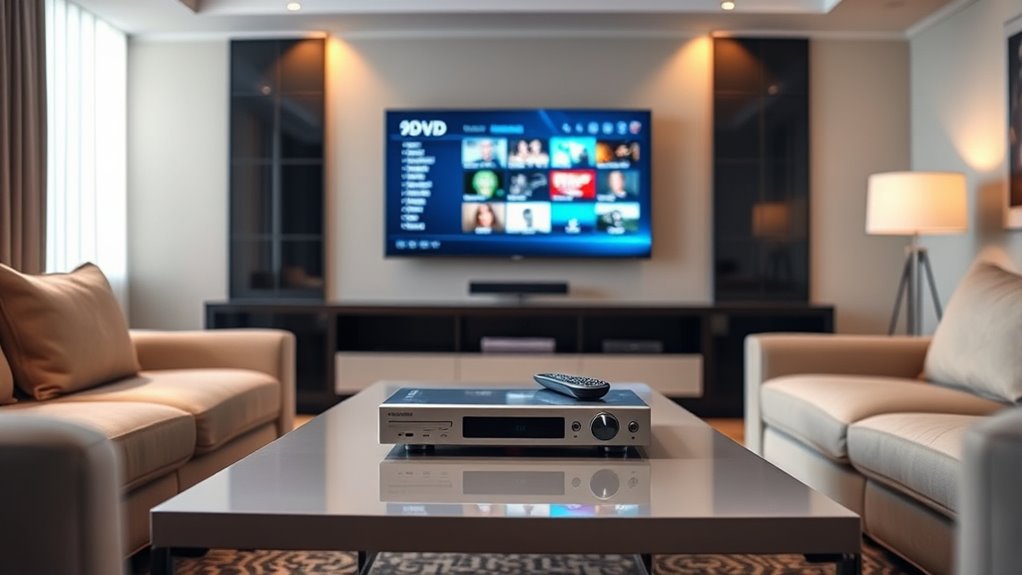

To watch DVDs on your Smart TV, first check if your TV has an HDMI port and if your DVD player supports HDMI or RCA connections. Connect the DVD player to the TV using an HDMI cable. Turn on both devices and use your TV remote to select the correct input source. If there’s an issue, make sure the cables are secure and the devices are powered on. Want to know more about optimizing your setup?
Understanding Your Smart TV and DVD Player Compatibility
Before diving into how to watch DVDs on your Smart TV, it’s vital to understand the compatibility between your TV and DVD player. Different smart TV features can enhance your viewing experience, but they only work if your DVD player types are compatible. Most modern Smart TVs support HDMI connections, so check if your DVD player has an HDMI output. If you’re using an older model, you might need RCA connectors. Additionally, some Smart TVs come with built-in DVD players, simplifying the process. Knowing the specs of both devices guarantees you won’t run into frustrating issues when trying to connect. This compatibility check is a significant first step towards enjoying your favorite DVDs on a larger screen.
Gathering the Necessary Equipment
To watch DVDs on your Smart TV, you’ll need a few essential pieces of equipment. First, get a DVD player that supports various DVD format types, including DVD-R, DVD-RW, and DVD+R. This guarantees compatibility with your collection. Next, you’ll need an HDMI cable to connect your DVD player to your Smart TV. HDMI cables transmit both audio and video signals in high quality, so they’re ideal for a great viewing experience. Make certain the cable is long enough to reach from your DVD player to your TV. Finally, check that your TV has an available HDMI port. Once you have these items ready, you’ll be set to enjoy your DVDs on the big screen!
Connecting Your DVD Player to the Smart TV
Once you’ve gathered your equipment, connecting your DVD player to the Smart TV is straightforward. First, identify the type of DVD player you have—standard, Blu-ray, or 4K. Each type may offer different HDMI standards, so make sure your HDMI cable matches your player’s output.
| DVD Player Type | HDMI Standard | Compatibility with Smart TV |
|---|---|---|
| Standard DVD | HDMI 1.4 | Yes |
| Blu-ray | HDMI 2.0 | Yes |
| 4K Ultra HD | HDMI 2.1 | Yes |
Next, connect one end of the HDMI cable to the DVD player and the other to the Smart TV. That’s it! You’re now ready to enjoy your favorite DVDs on the big screen.
Selecting the Right Input Source
How do you guarantee your Smart TV recognizes the DVD player? The key is selecting the right input source. Here’s how to do it effectively:
- Turn on your Smart TV and DVD player.
- Grab your remote and look for the “Input” or “Source” button.
- Cycle through the input icons until you find the one corresponding to your DVD player (like HDMI 1 or AV).
- Select that source for the TV to display the DVD content.
Once you’ve made the right source selection, your TV should seamlessly connect to your DVD player. Enjoy the freedom to watch your favorite movies without hassle!
Setting Up Your DVD Player
To set up your DVD player, start by choosing the right connections for your TV, whether it’s HDMI, composite, or another option. Once you’ve connected everything, power up the device and verify it’s ready to go. Finally, configure your TV settings to recognize the DVD player so you can enjoy your movies seamlessly.
Choosing the Right Connections
Choosing the right connections for your DVD player is essential for ensuring a seamless viewing experience on your smart TV. The quality of your connection can greatly impact picture and sound. Here are some cable types to evaluate:
- HDMI Cable: Offers the best connection quality for both video and audio in one cable.
- Component Cables: Provides high-quality video by splitting the signal into three parts, but requires separate audio cables.
- Composite Cables: A basic option, combining video and audio in one connection, but yields lower quality.
- S-Video Cables: Better than composite, these enhance video quality while needing separate audio cables.
Choose wisely to enjoy your DVDs with the best clarity and sound possible.
Powering Up the Device
Setting up your DVD player is a straightforward process that guarantees you’re ready to enjoy your favorite films. First, locate the power button on your DVD player and press it to turn the device on. Confirm it’s connected to your TV and power source. Once powered, you’ll want to check the device settings. This usually involves finding your way to the setup menu using the remote control, allowing you to adjust options like video output and audio settings. Make sure to select the correct output that corresponds with your TV’s input. Once you’ve configured these settings, you’re all set to insert your DVD and start watching. Enjoy your cinematic experience without hassle!
Configuring TV Settings
Once your DVD player is powered up, it’s important to configure your TV settings for ideal viewing. Here’s how you can enhance your experience:
- Configuring Picture Settings: Adjust the brightness, contrast, and sharpness to make the visuals pop.
- Selecting the Right Input: Verify your TV’s input source matches the DVD player’s output.
- Adjusting Sound Settings: Tweak bass and treble levels for a balanced audio experience. You might also want to switch to surround sound if your setup allows it.
- Screen Format: Set your TV to the correct aspect ratio to avoid stretched or distorted images.
Troubleshooting Common Connection Issues
When you encounter issues connecting your DVD player to your Smart TV, it’s essential to troubleshoot methodically to identify the problem. Start by checking your cables—loose or damaged connections often cause common error messages. Verify you’re using the right input source on your TV, as it might be set to a different HDMI or AV channel. If the connection still fails, try restarting both devices. This can resolve temporary glitches. For further connection troubleshooting tips, consult the user manuals for both your DVD player and Smart TV. Finally, confirm your DVD player is powered on and functioning properly. Addressing these areas should help you establish a successful connection and enjoy your DVDs without hassle.
Adjusting Audio and Video Settings
After successfully connecting your DVD player to your Smart TV, the next step involves adjusting the audio and video settings for the best viewing experience. To guarantee you’re getting the most out of your setup, follow these steps:
After connecting your DVD player to your Smart TV, fine-tune the audio and video settings for an optimal viewing experience.
- Audio Calibration: Access the audio settings on your Smart TV and adjust the output format to match your system, whether it’s stereo or surround sound.
- Video Enhancement: Enable features like HDR or 4K upscaling if your TV supports them.
- Brightness & Contrast: Tweak brightness and contrast settings to improve picture quality based on your viewing environment.
- Aspect Ratio: Set the correct aspect ratio to avoid distortion and enjoy your DVD as intended.
With these adjustments, you’re all set for an enjoyable viewing experience!
Exploring Additional Features on Your Smart TV
Now that you’ve adjusted your audio and video settings, it’s time to explore the additional features your Smart TV offers. You can take advantage of various apps for streaming content or use screen mirroring options to display your devices on the big screen. These features can enhance your viewing experience and make your Smart TV even more versatile.
Smart TV Apps
Although your Smart TV is designed primarily for streaming and viewing content, it also offers a variety of apps that can enhance your viewing experience. These smart TV features allow you to customize your entertainment options. Here are some popular apps you might consider:
- Netflix – Stream thousands of movies and shows.
- YouTube – Access endless videos and user-generated content.
- Spotify – Enjoy music and podcasts right on your TV.
- Hulu – Watch current TV shows and exclusive content.
With these apps, you can easily switch between different types of entertainment, making your Smart TV a versatile hub for all your viewing needs. Explore these options to maximize your experience!
Screen Mirroring Options
Have you ever wondered how to effortlessly share content from your devices to your Smart TV? Screen mirroring and wireless casting are two fantastic options to evaluate. With screen mirroring, you can display your smartphone or tablet’s screen directly on your TV, making it easy to browse photos, stream videos, or even present slideshows. Wireless casting, on the other hand, allows you to send specific content from apps directly to your TV without duplicating your entire screen. Most Smart TVs support these features, often using technologies like Miracast or Chromecast. To get started, make sure both devices are connected to the same Wi-Fi network, and follow the prompts on your Smart TV. Enjoy the freedom to share your favorite moments with ease!
Enjoying Your DVD Collection on the Big Screen
While it might seem challenging to bring your cherished DVD collection to your smart TV, it’s actually quite simple. Here’s how you can enhance your viewing experience:
- Connect a DVD Player: Use HDMI cables to connect your DVD player directly to your smart TV.
- Use a Streaming Device: If you have a streaming device, check if it supports DVD playback through apps.
- Convert DVDs: Consider digitizing your DVDs into digital files that can be streamed on your smart TV.
- Screen Mirroring: If your DVD player has screen mirroring capabilities, use this feature to cast your collection directly to the TV.
Frequently Asked Questions
Can I Watch DVDS Without a DVD Player?
Yes, you can watch DVDs without a DVD player by using digital alternatives. Consider converting your DVDs to digital files or exploring streaming options that might offer the content you’re looking for. Enjoy the freedom of choice!
Are There Smart TVS With Built-In DVD Players?
Yes, some smart TVs do have built-in DVD players, offering seamless smart TV compatibility with added convenience. However, these models are less common, so check for those specific built-in features before purchasing.
What Formats Do DVDS Support on Smart TVS?
DVD formats typically support MPEG-2 video codecs and PCM audio. However, some smart TVs may also play DVDs with additional formats like DivX and MP3. Check your TV’s specifications for specific supported codecs to guarantee compatibility.
Do I Need an Internet Connection to Watch DVDS?
You don’t need an internet connection to watch DVDs. Your DVD player handles playback, delivering excellent DVD quality without online help. Just pop in your disc, and enjoy a cinematic escape from the digital age!
Can I Use a Gaming Console as a DVD Player?
Yes, you can use a gaming console as a DVD player. Most consoles offer DVD playback options, ensuring gaming console compatibility. Just insert the disc, and you’re ready to enjoy your favorite movies!
