
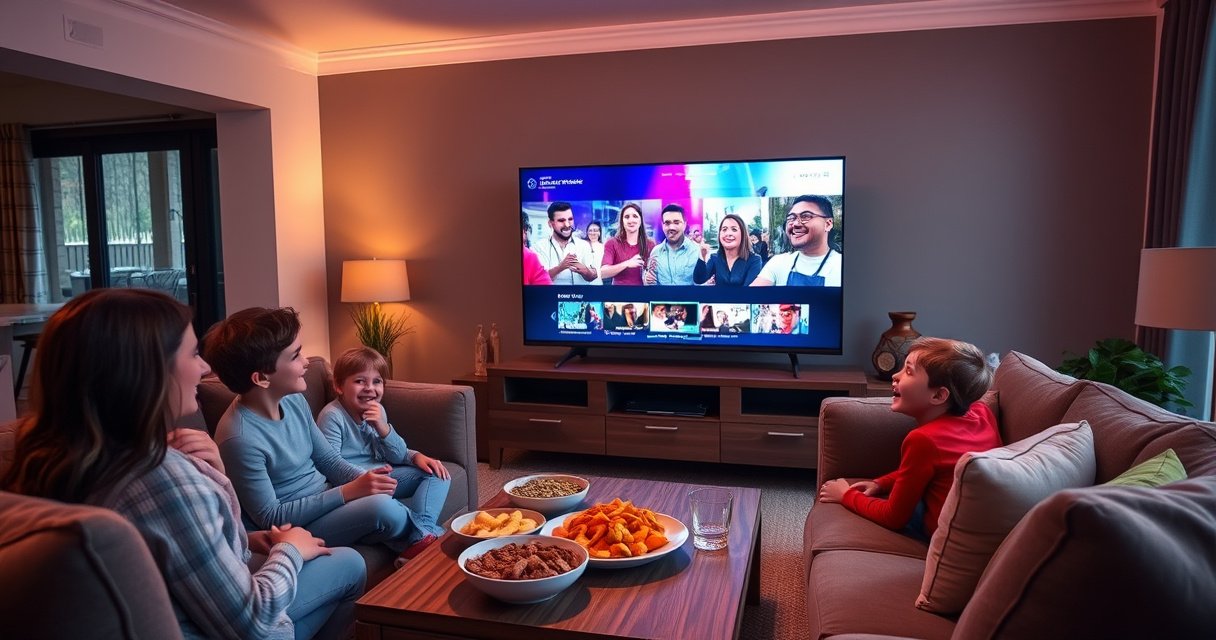

Watching live streams on your smart TV is straightforward and can be done in just a few simple steps. Whether you want to catch your favorite sports games, live events, or broadcasts, you’ll learn how to access various streaming services and apps that make it easy for you to enjoy live content on a bigger screen. With the right setup and tools, you can transform your living room into a hub for live entertainment, making it an ideal way to experience events as they unfold.
Choose the Right Streaming Service
The first step in watching live streams on your smart TV is selecting the right streaming service that meets your viewing preferences. Popular options include YouTube TV, Hulu + Live TV, and Sling TV, among others. Each service offers a unique set of channels and features, so it’s essential to consider what you want to watch.
YouTube TV provides access to a wide range of live channels, including local networks, making it a solid choice for those who want to watch news and sports. Hulu + Live TV combines live streaming with an extensive on-demand library, perfect for viewers interested in both live content and popular shows. Sling TV, on the other hand, is often praised for its flexible pricing and customizable channel packages, allowing users to tailor their subscriptions based on personal preferences and budget.
When choosing a service, also consider subscription costs, available channels, and any additional features such as cloud DVR capabilities or simultaneous streams. This will help you find the best fit for your needs and ensure you get the most value for your investment.
Connect Your Smart TV to the Internet
To access live streams, your smart TV must be connected to the internet. This can typically be done via Wi-Fi or an Ethernet connection.
1. Wi-Fi Connection: If you choose to connect via Wi-Fi, navigate to your TV’s settings menu, select ‘Network’, and choose your Wi-Fi network from the list. Enter your password when prompted.
2. Ethernet Connection: For a more stable connection, consider using an Ethernet cable to connect your TV directly to your router. Simply plug one end of the cable into your TV’s Ethernet port and the other into an available port on your router.
Once connected, it’s a good practice to test the connection to confirm that your TV can access the internet. You can usually find a ‘Network Test’ option in the settings menu, which will ensure that everything is functioning correctly.
Download Necessary Streaming Apps
After ensuring your smart TV is online, the next step is to download the necessary streaming apps. Access your TV’s app store—this may be branded as the Google Play Store, Samsung Smart Hub, or another proprietary store depending on your TV’s manufacturer.
1. Search for Streaming Apps: Use the search function to find apps like YouTube TV, Hulu + Live TV, or Sling TV.
2. Download and Install: Once you locate the desired app, select it and choose the ‘Install’ or ‘Download’ option. Follow any on-screen prompts to complete the installation.
3. Create Accounts: If you haven’t already, you will need to create an account for your chosen streaming service. This may require personal information and payment details, especially for subscription-based services.
It’s advisable to download multiple apps if you’re interested in accessing different types of content, as many streaming services offer unique live events and channels.
Top Streaming Services for Live TV (2024)
| # | Service | Monthly Cost | Channels | DVR Storage |
|---|---|---|---|---|
| 1 | YouTube TV | $72.99 | 85+ | Unlimited |
| 2 | Hulu + Live TV | $69.99 | 75+ | 50 hours |
| 3 | Sling TV | $40.00 | 30+ | No Free DVR |
| 4 | FuboTV | $74.99 | 100+ | 1000 hours |
| 5 | AT&T TV | $69.99 | 65+ | 20 hours |
| 6 | Philo | $25.00 | 60+ | No Free DVR |
| 7 | Sony PlayStation Vue | $49.99 | 50+ | No Free DVR |
Navigate to Live Streaming Options
With your streaming apps installed, it’s time to navigate to the live streaming options. Open the app you wish to use and look for the live streaming section, which is typically located in the main menu.
1. Main Menu: Most apps will have a clearly labeled section for live TV or live events. Familiarize yourself with the layout of the app to find your preferred channels quickly.
2. Search Function: If you’re looking for a specific event or channel, utilize the search function within the app. This feature can save you time and help you locate content easily.
3. Live Guide: Some services provide a live TV guide, similar to traditional cable TV, that allows you to see what’s currently airing and upcoming shows.
By becoming familiar with the interface, you can easily switch between live channels, ensuring you never miss your favorite events.
Customize Your Viewing Experience
To enhance your live streaming experience, take advantage of the customization options available within your streaming apps.
1. Settings Adjustments: Navigate to the settings menu within the app and look for options to customize notifications, favorites, and channel preferences. This can help prioritize the content you want to see and streamline your viewing experience.
2. Picture-in-Picture Mode: If you want to multitask while watching, explore features like picture-in-picture mode, which allows you to watch a live stream while accessing other apps or content on your TV.
3. Audio and Video Settings: Adjust audio and video settings for optimal performance. Many apps allow you to change the resolution and audio format, which can significantly affect the quality of your viewing experience.
These customization features ensure that you enjoy your live streaming sessions to the fullest, tailoring them to your personal preferences.
Troubleshoot Common Issues
While watching live streams on your smart TV is generally a seamless experience, you may encounter common issues that can hinder your viewing. Here are some troubleshooting tips:
1. Check for Software Updates: Regularly check for software updates for your smart TV and the streaming apps you are using. Outdated software can lead to performance issues and bugs.
2. Restart Your Devices: If you experience buffering or disconnections, restart your smart TV and router. This can resolve many connectivity issues and refresh your network connection.
3. Contact Support: If problems persist, consider contacting the customer support of your streaming service or TV manufacturer for further assistance.
By addressing issues promptly, you can maintain a smooth streaming experience and enjoy your favorite live content without interruptions.
Explore Additional Features
Many streaming services offer additional features beyond just live streaming that can enhance your overall viewing experience.
1. DVR Capabilities: Some services allow you to record live streams, enabling you to watch events at your convenience. This is particularly useful for sports games or events that you cannot watch live.
2. On-Demand Content: Explore on-demand options available within your streaming app. Many services include a library of previously aired content that you can watch anytime.
3. Device Compatibility: Investigate whether your smart TV is compatible with devices like game consoles, streaming sticks (such as Roku or Amazon Fire Stick), or mobile devices. This can expand your viewing options and make it easier to access content from various platforms.
Exploring these additional features can greatly enhance your streaming experience, providing more flexibility and options for watching live events.
In summary, watching live streams on your smart TV is a simple process that involves selecting the right service, connecting to the internet, and downloading apps. By following these steps and taking advantage of customization options and additional features, you can maximize your viewing experience and enjoy live broadcasts from the comfort of your home. Start exploring your favorite live content today!
Frequently Asked Questions
What devices can I use to watch live streams on my smart TV?
You can watch live streams on your smart TV using various devices, including built-in apps, streaming devices like Roku, Amazon Fire Stick, or Apple TV, and gaming consoles such as PlayStation and Xbox. Additionally, many smart TVs come with pre-installed streaming services like Netflix, Hulu, or YouTube, which often offer live streaming options.
How do I set up live streaming on my smart TV?
To set up live streaming on your smart TV, start by connecting your TV to the internet via Wi-Fi or Ethernet. Next, download the appropriate live streaming app from your TV’s app store, such as YouTube TV or Sling TV. After installing the app, log in with your account or create a new one, and you’ll be ready to watch live streams.
Why is my smart TV not showing live streams even when the app is installed?
If your smart TV is not showing live streams despite having the app installed, it may be due to a poor internet connection or an outdated app version. Ensure your internet speed is sufficient for streaming and check for any available updates for the app or your TV firmware. Restarting both the app and the TV can also resolve temporary glitches.
What is the best live streaming service for smart TVs?
The best live streaming service for smart TVs largely depends on your viewing preferences. Popular options include Hulu + Live TV for a wide range of channels, YouTube TV for its extensive channel lineup and cloud DVR capabilities, and Sling TV for its customizable packages at lower prices. Consider trialing a few services to find the best fit for your entertainment needs.
Which smart TVs have the best built-in live streaming capabilities?
Smart TVs from brands like Samsung, LG, and Sony are known for their excellent built-in live streaming capabilities, often featuring a variety of pre-installed apps and easy access to popular streaming services. Models that support 4K HDR can enhance your viewing experience even further. Look for TVs that offer user-friendly interfaces and regular software updates to ensure the best streaming experience.
References
- https://www.bbc.com/news/technology-57219430
https://www.bbc.com/news/technology-57219430 - https://www.theguardian.com/technology/2020/jul/21/how-to-watch-live-tv-on-smart-tvs
https://www.theguardian.com/technology/2020/jul/21/how-to-watch-live-tv-on-smart-tvs - https://www.pcmag.com/how-to/how-to-watch-live-tv-on-a-smart-tv
https://www.pcmag.com/how-to/how-to-watch-live-tv-on-a-smart-tv - Google Scholar Google Scholar
https://scholar.google.com/scholar?q=how+to+watch+live+stream+on+smart+tv - Google Scholar Google Scholar
https://scholar.google.com/scholar?q=live+streaming+on+smart+TV - https://www.lifewire.com/how-to-watch-live-tv-on-smart-tv-5075233
https://www.lifewire.com/how-to-watch-live-tv-on-smart-tv-5075233 - how to watch live stream on smart tv – Search results
https://en.wikipedia.org/wiki/Special:Search?search=how+to+watch+live+stream+on+smart+tv - https://www.ncbi.nlm.nih.gov/search/research-articles/?term=how+to+watch+live+stream+on+smart+tv
https://www.ncbi.nlm.nih.gov/search/research-articles/?term=how+to+watch+live+stream+on+smart+tv

[…] 5. Start playback in the app (video, music, or supported streaming service). […]