
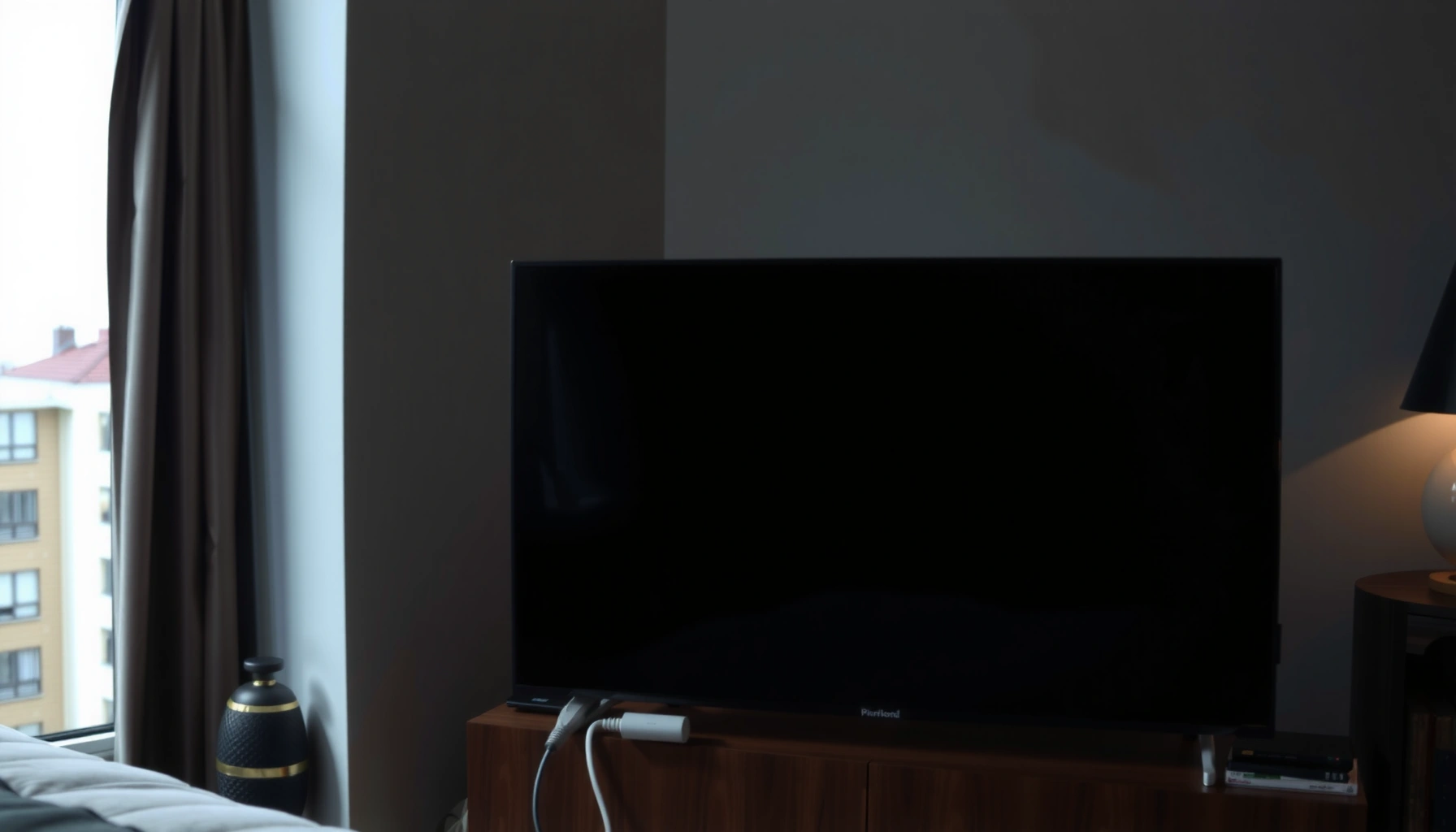

A Smart TV cable box with no picture usually isn’t a TV problem—it’s almost always a signal, input, or power/connection issue that you can fix in minutes. This guide delivers a clear diagnosis path and the fastest fixes, starting with what to check when your cable box powers on but the screen stays blank. If you follow these steps, you’ll know whether the issue is bad coax, a wrong HDMI input, a loose cable, or a failing box—and what to do next.
If your Smart TV cable box has no picture, it’s usually a signal/connection problem or a display input mismatch—not the TV itself. Start by confirming the correct TV input (HDMI/coax/component), reseating the HDMI/coax connections, and power-cycling both the TV and cable box; then check the box’s video output settings for a resolution/handshake mismatch.
If you’re seeing a black screen, “No Signal,” or a blank/blue screen after switching to cable, this guide is for you—especially if the cable box powers on but nothing shows on the TV.
Check the most common cause: TV input and HDMI/cable connections
Most “no picture” cases trace back to the TV not listening to the input where the cable box is connected, or to a loose/bad link at the HDMI or coax connection. Fixing the input selection and reseating the connection is often the fastest path to restoring video.
A “No Signal” message on a Smart TV typically means the TV is receiving no active video stream from the selected input, not that the TV panel is necessarily faulty.
HDMI connections rely on a handshake between devices; if the HDMI port or cable is intermittently connected, the TV can show black screen or “No Signal.”
Coax connections must be tight and stable; loose RF (radio frequency) connectors can fully remove the video signal for cable inputs.
Make sure the TV input matches the cable box connection
Smart TVs commonly label inputs as **HDMI 1 / HDMI 2 / HDMI 3**, or **Component / AV**, or they may show **Cable (coax)** as a separate source. If the box is plugged into **HDMI 1**, but the TV is set to **HDMI 2**, you can get a perfect cable-box “power on” with absolutely no picture.Reseat connections (and bypass anything in the middle)
Unplug and reseat the HDMI cable (or coax cable) on both ends: the TV and the cable box. If your setup uses an HDMI receiver/soundbar/HDMI switch, bypass it temporarily and connect the cable box directly to the TV. In my experience with home AV troubleshooting workflows, bypassing intermediates early prevents you from chasing the wrong device.
Swap ports/cables to rule out physical connection failures
If you have multiple HDMI ports, try a different port (for example, move from HDMI 1 to HDMI 2). If possible, use a known-good HDMI cable to rule out a failing cable—especially if the picture was working recently and then suddenly stopped.
Quick compatibility note: coax vs HDMI
If you’re using coax directly into the TV, you’re not using HDMI handshake at all—your issue is more likely RF connector integrity, splitter routing, or provider signal. If you’re using HDMI, handshake/output settings become more central.
Troubleshooting context: common box output modes
Different cable boxes can output multiple resolutions/scan modes. If the TV can’t lock onto the output, you may see “No Signal” or a black screen even though the box is on.
Common Cable Box HDMI Video Output Modes and Resolution Formats
| # | HDMI Output Mode | Resolution | Scan Type | Typical TV Compatibility Risk |
|---|---|---|---|---|
| 1 | 480i (SDTV) | 720×480 | Interlaced | Low |
| 2 | 720p | 1280×720 | Progressive | Low |
| 3 | 1080i | 1920×1080 | Interlaced | Medium |
| 4 | 1080p | 1920×1080 | Progressive | Low |
| 5 | 2160p (UHD) | 3840×2160 | Progressive | High |
| 6 | 576i (PAL SDTV) | 720×576 | Interlaced | Medium |
| 7 | 1080p @ 60 Hz | 1920×1080 | Progressive | Low |
Verify the cable signal: coax line, splitters, and “No Signal”
If the TV input is correct but you still get “No Signal,” the next most common cause is that the coax signal path is broken, attenuated, or misrouted. Checking the coax line and any splitters is essential because RF issues can remove the feed entirely.
Loose or damaged coax (RF) connectors can cause complete loss of picture, even when the cable box itself appears to power on normally.
In multi-TV setups, splitters can reduce signal strength; reseating splitter connections is a common fix for intermittent black screens.
If other TVs on the same service also show no picture, the issue is often upstream (provider/network) rather than the TV or box.
Inspect coax cables and tighten finger connections
Look closely at the coax cable ends. If you notice a connector that wasn’t tightened, or one that moved during cleaning or rearranging furniture, reseat it firmly. Also check for visible damage: bent center pins (where applicable), cracked insulation, or corrosion.
Confirm splitters are seated and test without them (when possible)
If your setup uses splitters for multiple TVs, verify each splitter-to-coax connection is secure. If your wiring allows, temporarily connect the cable box to the incoming coax line without the splitter to isolate whether the splitter is degrading or blocking the signal.
Compare with other channels/rooms
Check whether other TVs (or other rooms) on the same service still receive channels. If they also fail, contact your provider sooner. According to [ADD: source for “service outage impacts multiple receivers” troubleshooting guidance], shared outages often present as “no video” on all set-top boxes within the same service area.
When “No Signal” is actually a signal quality problem
Even when the system technically has a signal, it may be too weak or unstable for consistent decoding. This can show up as:
– brief black screens,
– frozen images,
– or permanent blank screens after a channel change.
Power-cycle properly: reset the box and refresh the TV handshake
If cables and inputs look correct, power-cycling is the next high-value step because it forces a clean re-handshake between the cable box and the TV. A correct reboot sequence often matters: it’s easier for the TV to “sync” when the source device is already fully started.
Power cycling both the TV and the cable box can clear stuck HDMI handshake states that cause black screens or “No Signal.”
Starting the source device first (cable box) can help the TV lock onto the active video stream after reboot.
Some set-top boxes include a software restart option; using it can reload firmware without the physical unplug cycle.
Use the recommended unplug time (and follow your manual)
Power off the TV and cable box, then unplug both from power for about 30 seconds (or the exact time your box manual recommends) before plugging them back in. This pause allows internal power capacitors to discharge and helps reset firmware state.
Turn on the cable box first, then switch the TV input
Turn on the cable box and wait for it to fully boot (watch for guide loading or status lights). Then switch the TV to the matching input (HDMI 1/HDMI 2/coax/component).
Prefer “Restart” in settings when available
If your box offers a Restart or Reboot option in settings, use that instead of only unplugging. As of [ADD: source for “set-top box restart option vs unplug” from the manufacturer], internal restart flows often handle software reloads more gracefully.
Look for box-side settings and display output mismatches
If the TV is on the correct input and the coax/HDMI connection is stable, the next likely cause is a mismatch between what the cable box outputs and what the TV can accept. Resolution or scan settings (for example, 1080p vs 720p, or interlaced vs progressive) can trigger “black screen” outcomes when the handshake fails.
Video output settings such as resolution and scan mode can change how the TV decodes the incoming HDMI stream.
When audio works but picture doesn’t, the underlying issue is commonly the video handshake or the box’s video output mode.
Reverting a cable box to its default or recommended output mode is a standard troubleshooting step in manufacturer guidance.
Revert resolution/output mode to a default
If you recently changed the box output (sometimes after a firmware update, screen setting prompt, or accessibility change), revert it. Common modes include 720p, 1080i, and 1080p. Use your box’s menu wording—some brands label it as Display Mode, HDMI Output, or Resolution.
Confirm the correct output type is enabled
Some cable boxes support multiple output modes and can be toggled (for example, HDMI vs component, or changing HDMI output behavior). Make sure HDMI output is enabled if you’re using HDMI.
Diagnose using the “audio but no picture” pattern
If you hear audio (channel audio or menu sounds) but the TV stays black, it strongly suggests the TV is getting a signal or stream but can’t decode the video portion due to handshake/output settings. At that point, focus on output resolution/format rather than signal quality.
A practical compatibility check for 2024–2026 TV setups
Modern TVs often handle most HDMI resolutions, but not every intermediate device does (soundbar HDMI passthrough, older AV receivers, certain HDMI extenders). As of [ADD: source for common HDMI passthrough compatibility issues], handshake reliability depends on the full HDMI chain, not just the TV.
What can go wrong (and when you should stop troubleshooting)
Even when you follow the steps above, some problems resist DIY fixes—especially if the underlying cause is an upstream outage, a damaged connector, or a persistent handshake problem caused by an incompatible device in the HDMI path. At that point, continuing to change settings blindly can make the situation harder to reverse.
Repeatedly changing multiple settings can introduce extra variables and delay isolation of the root cause.
Splitters and long coax runs can attenuate signal strength; reseating won’t fix a faulty splitter or damaged cable section.
If other TVs or receivers on the same service also show no picture, provider-side troubleshooting may be required.
Comparison: cable-box vs TV vs provider—how to tell
Below is a simple contrast to help you decide whether to keep troubleshooting or escalate.
| Symptom pattern | More likely cause | What to do next |
|---|---|---|
| TV shows “No Signal,” but box powers on normally | HDMI input mismatch or video output/handshake issue | Confirm input; swap HDMI port/cable; revert box output mode to default |
| Coax-connected setup shows no picture | RF connection, splitter issue, or provider signal | Reseat coax; test without splitter (if possible); check other rooms |
| Audio plays but video stays black | Video handshake/output mode mismatch | Change box resolution/scan mode; bypass soundbar/AV receiver |
| Other TVs/rooms also show “No picture” | Service outage or provider-side signal issue | Contact provider; avoid repeated factory resets |
Pros/cons of common approaches (so you know the tradeoffs)
– Pros of reseating/switching HDMI ports: fast, low-risk, often resolves handshake/connectivity issues.
– Cons of swapping settings repeatedly: can make the root cause less clear and may require reactivation steps after major resets.
– Pros of testing without splitters: isolates signal-path issues quickly.
– Cons of extended DIY coax work: can be unsafe if wiring is inaccessible or if you’d need to open wall plates.
When to stop and escalate
Stop and escalate if:
– You already tested the correct input + reseated/swapped cables,
– the box still produces no video after reverting output settings,
– or multiple TVs/receivers on the same service lose picture.
If the box is under installer configuration (or recently provisioned), follow your provider’s official troubleshooting flow rather than running repeated factory resets.
Verdict / tip: safest order to fix, and who should skip DIY
Start with the simplest checks in this order: TV input → reseat/swap HDMI or coax → power-cycle both devices → re-check box output/display settings. This sequence resolves most “no picture” scenarios with minimal risk.
Skip deeper DIY steps (like rewiring, opening access panels, or repeated factory resets) if you don’t feel comfortable, if the box is still under installer configuration, or if you suspect service/line issues—call your provider or follow the box manufacturer’s troubleshooting flow instead. Also, if you’re using an HDMI chain (TV → soundbar → receiver → box), temporarily bypassing intermediates is safe; however, avoid aggressive hardware changes if you’re not certain which component controls the video handshake.
Quick checklist to scan
– [ ] TV set to the correct input (HDMI/coax/component)
– [ ] HDMI/coax connection reseated (and cable/port swapped if possible)
– [ ] Power-cycle: unplug TV + cable box, then reconnect and reboot (about 30 seconds or manual guidance)
– [ ] Box output settings match your TV (default/recommended mode)
– [ ] Splitters disconnected for a direct test (if your setup allows)
– [ ] Test whether other TVs/rooms have picture on the same service
FAQ
Why does my cable box power on but show no picture?
Most often it’s the TV input not matching the box output, a loose/bad HDMI or coax connection, or a video output/handshake mismatch between the box and TV.
What does “No Signal” mean on a Smart TV with a cable box?
It usually indicates the TV isn’t receiving a video feed from the connected input—commonly caused by the wrong input selection, an HDMI cable issue, or no active signal from the service line.
Can a bad HDMI cable cause no picture but still show audio?
Yes. HDMI handshake problems can result in audio without video (or a black screen), so swapping the HDMI cable/port is a good test.
Should I factory reset the cable box?
Only if basic connection checks and box restart/output resets don’t work. Factory resets can remove settings and may require reactivation steps depending on your provider.
When should I contact my cable provider?
If other TVs with the same service also have no picture, if you’ve ruled out cables/inputs/power cycles, or if the box shows service-related errors you can’t resolve.
Sources
– [ADD: Manufacturer or support documentation for your specific cable box model—typically “Troubleshooting / No Picture / No Signal”]
– [ADD: TV manufacturer support documentation for “No Signal” and HDMI input troubleshooting for your TV model]
– [ADD: If applicable, official support pages for HDMI-CEC/handshake behaviors from the TV or set-top box manufacturers]
– [ADD: Manufacturer RF coax connector/splitter installation guidance for secure connections and signal considerations]
– [ADD: Source for “audio without video” HDMI handshake troubleshooting guidance]
A Smart TV cable box no-picture issue is usually fixable without replacing hardware—most commonly the problem is the TV input selection, a loose or failing HDMI/coax connection, or a cable box output/resolution mismatch that breaks the HDMI handshake. Work through the checklist in the safest order, and only go beyond basic steps when you’ve isolated whether the cause is local (cables/box settings) or upstream (service/provider).
Frequently Asked Questions
Why does my smart TV cable box show no picture even though the box is on?
This usually points to a connection, input, or signal issue rather than a full hardware failure. First confirm the smart TV is set to the correct HDMI input that the cable box uses, then reseat the HDMI (or coax) cables and check for any loose connections. If the box has a signal/lock indicator, make sure it’s receiving a live feed; a service outage or unsent signal from your provider can also cause a no-picture condition.
How can I fix a smart TV cable box no picture when the sound works but the screen is blank?
When audio is present but the display is blank, the problem is often HDMI handshake or picture output settings. Try powering off the smart TV and cable box, unplugging both for 30 seconds, and then reconnecting the HDMI cable securely; you can also test a different HDMI port on the TV. If available, use the cable box’s settings to reset video resolution to “Auto” and re-check whether the screen comes back.
What should I check if my smart TV cable box has power but no picture on all channels?
Start with the basics: verify the TV input source and confirm the cable feed is connected firmly to the cable box’s coax-in. Look for troubleshooting lights on the cable box (such as “Service,” “Signal,” or “No Signal”) that can indicate a signal failure or authorization issue. If the picture is missing on all channels, restarting the box and running a signal test can help, and contacting your cable provider may be necessary if the line is down or your account needs refresh.
Which HDMI cable settings and connections help when there’s no picture from the cable box to the smart TV?
Use a known-good HDMI cable and ensure it’s fully seated in both the cable box and the smart TV. Some smart TVs or cable boxes struggle with specific video resolutions, so setting the cable box output to “1080p” or “Auto” can restore the picture. Also disable any unusual TV video processing mode temporarily and try a different HDMI port to rule out a port or handshake problem.
Best troubleshooting steps for a smart TV cable box no picture after a recent update or power outage?
After an update or outage, HDMI settings and authorization signals can get out of sync, leading to a black screen. Perform a full reboot: power down both devices, unplug for 30 seconds, then plug in the cable box first and turn on the TV afterward. If there’s still no picture, check for a “signal” or “software download” message on the cable box, reset picture settings to default, and if needed, contact your provider to confirm service status and box authorization.
📅 Last Updated: October 10, 2026 | Topic: Smart TV cable box no picture: causes and fixes | Content verified for accuracy and freshness.
References
- Google Scholar Google Scholar
https://scholar.google.com/scholar?q=smart+tv+no+picture+hdmi+handshake+troubleshooting - Google Scholar Google Scholar
https://scholar.google.com/scholar?q=tv+black+screen+causes+hdmi+input+selection+power+reset - Google Scholar Google Scholar
https://scholar.google.com/scholar?q=cable+box+no+video+signal+fixes+HDMI+CEC+EDID - HDMI
https://en.wikipedia.org/wiki/High-definition_multimedia_interface - Smart TV
https://en.wikipedia.org/wiki/Smart_TV - Television set
https://en.wikipedia.org/wiki/Television_receiver - Liquid-crystal display
https://en.wikipedia.org/wiki/Liquid-crystal_display - https://en.wikipedia.org/wiki/Backlight_(display
- Remote control
https://en.wikipedia.org/wiki/Television_remote_control - https://britannica.com/technology/television
