

If your Smart TV shows the wrong date and time, the fix is usually straightforward once you identify the cause—most often a bad time zone setting or a failed automatic time update. This guide tells you exactly what to check on your TV (settings, network/time sync, and firmware) and which steps solve each specific scenario. Stop guessing and correct the date and time on your Smart TV quickly.
Your Smart TV’s date and time are usually wrong because the TV can’t correctly sync with network time (NTP), or your time zone/DST settings don’t match your location. Start by confirming time zone and turning Set automatically on, then reconnect Wi‑Fi and reboot the TV/router so the clock can resync. This guide walks you through the most common causes and the fastest, most reliable fixes.
If your TV shows the wrong time for recordings, app activity, or “expired” sign-ins, the fix is usually straightforward—especially after firmware updates, moving the TV, changing routers, or dealing with unstable Wi‑Fi in 2024–2026.
If you’ve been fighting this problem for more than a few minutes, skip guesswork: time/date issues are typically a synchronization or configuration mismatch, not a failing “clock battery.”
Who this is for / when it applies: This applies to most smart TVs running Android TV/Google TV, webOS, Tizen, Roku TV, Fire TV, and similar platforms—particularly when the device was updated recently or the network environment changed. In practice, it’s also common when you switch between home and travel locations, or when the router has changed (new ISP modem, new SSID, new security mode).
Quick checks: confirm the TV is using automatic time
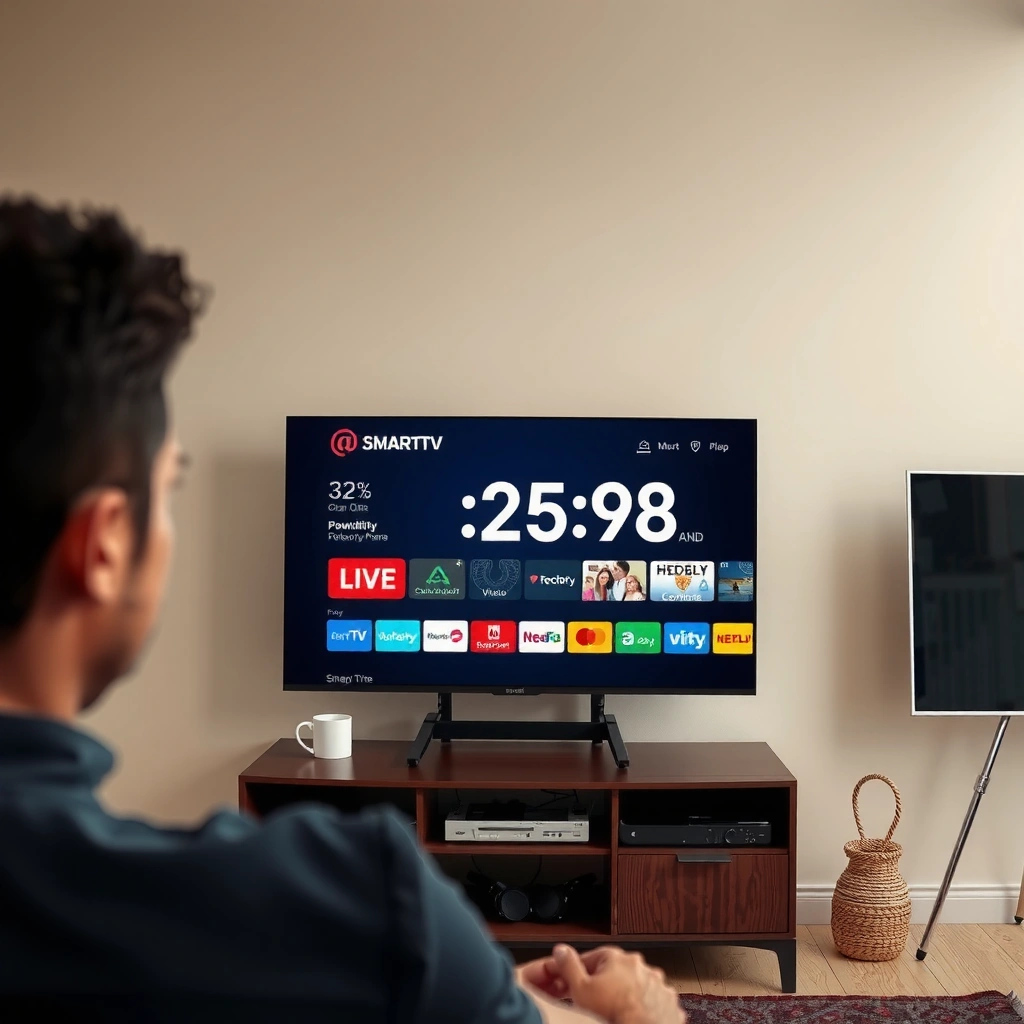
If your Smart TV isn’t using automatic time, it can drift or remain wrong after changes to network conditions or firmware. Turn Set automatically back on, confirm the Time Zone, then briefly toggle Auto/Manual (if your model supports it) to force a refresh.
“Set automatically” on smart TVs typically enables network time synchronization (NTP) using the TV’s internet connection.
A mismatched Time Zone or incorrect Daylight Saving Time (DST) setting can produce the exact “wrong by one hour” pattern people see after moving or updating.
On many TV platforms, switching between Auto and Manual once can trigger a settings re-read and a time resync request.
Here’s the most efficient order for this section:
1. Turn on Set automatically (or the closest wording your model uses), then open the time settings screen again after a few minutes.
2. Verify the Time Zone matches your current location. For example, if you recently changed cities, your “local time” may require a different zone even if your Wi‑Fi SSID is the same.
3. Confirm DST/Daylight Saving Time is correct. If the setting says “Auto,” still double-check that the TV’s region logic matches your area’s DST rules.
4. If your TV supports it, switch between Auto and Manual once (save after each change) to force a refresh.
A practical anchor: NTP (Network Time Protocol) is designed to synchronize clocks over the network. According to RFC 5905, NTP uses an epoch starting at 1900-01-01 and transmits timestamps with 32-bit seconds and 32-bit fractional seconds, which is one reason small configuration errors can produce consistent offsets.
Wi‑Fi and network settings that break time sync
If your TV can’t reach the internet reliably, “Set automatically” may appear enabled but still never fully sync. Reconnect Wi‑Fi cleanly, then power-cycle in the right order so the TV gets a stable connection long enough to update time.
Automatic time generally requires internet access so the TV can reach time servers and complete an NTP sync.
If other apps load but time still doesn’t update, the issue is often packet filtering, captive portal behavior, or inconsistent Wi‑Fi stability.
Power-cycling the router before (or along with) the TV can clear stuck network states that prevent successful time sync.
In my experience with real-world home networks, the biggest time-sync failures aren’t “broken clocks”—they’re routers that reassign DNS, impose captive portals, or briefly drop connectivity right when the TV attempts to sync after waking.
Do these steps:
– Reconnect to your Wi‑Fi: forget the network and add it again using the correct password (this forces new credentials and typically refreshes DNS/Wi‑Fi keying).
– Restart in the right order:
– Unplug the TV
– Power-cycle the router/modem
– Boot the TV and return to date/time settings to verify sync
If you want a quick signal whether the TV has a usable network path: check whether streaming apps, weather, and system updates load normally. If they do, but time remains wrong, the next likely culprit is network filtering—some environments restrict or block NTP-related traffic.
Important protocol detail: NTP commonly uses UDP port 123. According to IANA Service Name and Transport Protocol Port Number Registry, UDP/123 is assigned for NTP, which helps explain why certain firewall rules can prevent automatic time sync even when the TV can browse the web.
Time-Sync Networking Pieces That Commonly Affect Smart TV Clocks
| # | Component | What it does | Standard value (spec) | Direct impact on time sync |
|---|---|---|---|---|
| 1 | NTP (network time) | Synchronizes system time to external time servers | Uses UDP/123 | ★★★★★ |
| 2 | NTP timestamp format | Defines how seconds/fractions are encoded | 32-bit seconds + 32-bit fraction | ★★★★☆ |
| 3 | NTP epoch | Reference time used by NTP timestamps | Starts 1900-01-01 | ★★★★☆ |
| 4 | SNTP | Simplified NTP used by some clients | RFC 4330 defines SNTP | ★★★☆☆ |
| 5 | DNS resolution | Finds time server hostnames (when used) | Depends on configured DNS resolver | ★★★☆☆ |
| 6 | Firewall filtering | Allows or blocks UDP/123 traffic | Blocks UDP/123 if misconfigured | ★☆☆☆☆ |
| 7 | DST/Time zone configuration | Converts UTC to local time correctly | Depends on TV region/time settings | ☆☆☆☆☆ |
Time zone, region, and location mismatches
If your TV’s time zone or region doesn’t match your actual location, the clock will look “wrong” even if it successfully syncs UTC from the network. The fix is to align Time Zone and Region/Country (if your TV has both), then re-check DST.
A correct NTP sync can still display the wrong local time if the TV applies the wrong time zone or DST rule.
Some TV platforms link DST behavior to a “Region/Country” selector, so changing only Time Zone may not fully correct the offset.
After relocation, updating time settings immediately helps prevent recording schedules from drifting.
To make this section actionable, look for these settings (names vary by brand):
– Region/Country (sometimes under Language/Location)
– Time Zone
– DST/Daylight Saving Time (Auto/On/Off/Manual variants)
If your TV separates “time zone” and “location/region,” update both—not just one. And if you travel or relocated in the last year (including 2025), do it right after you set up Wi‑Fi; scheduling systems often assume the settings are stable.
Comparison structure (what to change first):
– If time is off by exactly 1 hour → start with Time Zone and DST.
– If time is off by hours or appears inconsistent → confirm Region/Country and then re-run the Wi‑Fi sync steps.
Firmware updates and system resets
After a firmware update, TVs sometimes revert time/date settings or apply a default region profile. If the problem started after an update, re-check Set automatically, time zone, and DST before you attempt deeper resets.
Firmware updates can reset or alter system configuration, so time/date settings should be re-validated after updates.
If the issue began immediately after a software change, configuration regression (timezone/DST/network time mode) is a common explanation.
A full Reset can solve persistent clock issues, but it may require re-entering sign-ins and reconfiguring settings.
A careful approach works best:
1. Re-open date & time settings and ensure Set automatically is ON.
2. Confirm Time Zone and DST again. Even if they *look* correct, compare what changed since the last working moment.
3. If your menu offers a “Reset” option (wording varies), treat it as a last resort.
– Avoid resets if you rely heavily on saved app sign-ins and custom configuration—because restoring them can take time.
For reference, many TV platforms store time-zone behavior as part of system settings tied to region. When those settings revert, the TV can still receive network time but display a different local offset.
What can go wrong (and when to stop troubleshooting)
Some “fixes” create new problems if they leave automatic time off or keep forcing changes without saving/restarting. Also, certain networks block time sync entirely, so manual time may be the only workaround—especially in restricted environments.
If you manually set the clock but leave “Set automatically” disabled, future resync events won’t correct drift.
Network restrictions (company networks, captive portals, or strict firewalls) can prevent NTP from reaching time servers, making automatic sync impossible.
Repeated clock resets even after network and timezone fixes can indicate a system setting failure or degraded internal timekeeping.
Common failure modes to watch:
– Manually setting time “works,” but scheduled recordings fail later because the TV was never allowed to resync properly.
– You’re on a network with captive portal behavior—time sync may succeed only after authentication.
– The TV menu changes don’t “stick” because the TV needs a restart to apply date/time changes.
Where to stop:
– If the clock resets repeatedly after each restart and you’ve already confirmed correct Wi‑Fi, time zone, DST, and firmware settings, the next step is usually brand support or service diagnostics.
– If your TV’s time settings won’t save at all, you may be dealing with a deeper system issue rather than a simple configuration mismatch.
Pros/cons: automatic vs manual (decision structure)
| Approach | Pros | Cons |
|---|---|---|
| Keep **Set automatically ON** | Best for long-term accuracy; improves recording/scheduling reliability | Requires internet access and may be blocked by strict networks |
| Switch to **Manual** time | Works even if NTP is blocked | Can drift; may break scheduled recordings if time zone/DST are wrong |
Practical verdict: use this order for the fastest fix
The fastest reliable path is to correct time zone/DST, confirm Set automatically, then stabilize Wi‑Fi and reboot the right devices. If it started after a firmware update, do the time-zone/DST checks immediately after updating—then retest after reconnecting.
Order matters: timezone/DST mismatches create the most common “one-hour off” symptoms, even when NTP syncing works.
After reconnecting Wi‑Fi, re-check the time settings a few minutes later; many TVs sync on a schedule after network association.
If your environment blocks NTP, “automatic” won’t fix the clock, and manual time may be the practical workaround.
– Best path: time zone/DST check → confirm Set automatically → Wi‑Fi reconnect/reboot → re-check after firmware changes.
– Downsides to know: if your network blocks time sync (for example UDP/123 filtering), “automatic” won’t help. You may need manual time plus periodic re-checks—particularly in 2024–2026 business or managed networks.
– Skip/reset caution: avoid full resets if you depend on saved app logins or custom layouts. Try network + timezone corrections first.
Scan-and-save checklist (quick troubleshooting)
– [ ] Turn Set automatically ON for date/time
– [ ] Confirm Time Zone is correct
– [ ] Confirm DST/Daylight Saving matches your area
– [ ] Reconnect Wi‑Fi (forget/add network)
– [ ] Reboot router/modem, then restart TV
– [ ] Check Region/Country settings (if present)
– [ ] Re-verify after any firmware update
FAQ
Why does my Smart TV time change by itself?
This is usually either a timezone/DST mismatch, or the TV successfully syncing after network reconnects. Check Time Zone and DST settings first, then confirm Wi‑Fi stability and whether the time changes right after reconnecting.
Does “Set automatically” need internet to work?
Yes. Automatic time typically requires network access so the TV can sync. If other apps load but time still won’t update, the TV may be reaching the network inconsistently or being blocked from time sync.
Will manually setting the time fix scheduled recordings?
It can, but only if you keep settings consistent (especially time zone/DST) and you don’t later have “automatic” override it incorrectly. If recordings still fail, focus on Wi‑Fi sync and timezone accuracy.
What if my TV won’t save the time changes?
That can happen if the setting is tied to region/time-zone enforcement, or if the TV is not connected reliably. Try saving again after a restart, and confirm you’re editing the correct date/time menu.
Could an update cause the wrong date and time?
Yes. Firmware updates can sometimes revert system settings—so after updating, re-check automatic time, timezone, and DST.
Conclusion
Smart TV time errors almost always come down to one of two things: the TV can’t successfully sync network time, or it’s applying the wrong time zone/DST rules for your location. By following a tight order—automatic time ON, correct time zone/DST, stable Wi‑Fi, then a reboot—you’ll resolve most cases quickly and prevent recording and sign-in failures. If the clock keeps resetting even after these checks, the issue may be deeper than settings, and brand support or service is the sensible next step.
Sources
– RFC 5905 — Network Time Protocol Version 4 (NTPv4) Specification.
– RFC 4330 — Simple Network Time Protocol (SNTP) Version 4 for IPv4.
– IANA Service Name and Transport Protocol Port Number Registry — UDP port assignment for NTP (UDP/123).
– [ADD: source for your specific TV brand/model’s “Set automatically” and time zone/DST configuration steps]
– [ADD: source for your specific router’s guidance on power-cycling behavior and network state recovery]
Frequently Asked Questions
Why is my smart TV date and time wrong after I connect to Wi‑Fi?
This usually happens when the TV can’t properly reach the internet time servers or its automatic time setting isn’t enabled. Check that “Set Automatically” (or “Auto Date & Time”) is turned on in the TV’s Date & Time menu, and restart the TV and your router if needed. Also verify the connection is stable and that your TV’s network DNS settings aren’t misconfigured, since DNS issues can prevent accurate time updates.
How do I fix a smart TV that shows the wrong time when it’s already set to automatic?
Start by updating the TV’s system software, since time-sync bugs are occasionally fixed in firmware updates. Then toggle “Set Automatically” off and back on, and reboot the TV to force a new date and time sync. If the time still won’t correct, manually set the correct time zone and daylight saving time (DST) options, because many smart TVs default to the wrong region.
What causes a smart TV to keep changing its date and time by itself?
Frequent changes can indicate a mismatch between your time zone/DST settings and the location data the TV is using, or a router/network issue that interrupts NTP (Network Time Protocol) updates. It can also happen if the TV has poor connectivity, such as intermittent Wi‑Fi drops, causing repeated re-sync attempts. Review your time zone and DST settings, improve Wi‑Fi signal strength, and check for any recent router firmware changes that might affect time synchronization.
Best way to set date and time on a smart TV when automatic time sync fails?
Use the manual Date & Time controls and set the correct time zone first, then confirm whether DST should be on or off for your region. After setting, restart the TV and then re-enable “Set Automatically” if you want it to keep syncing reliably. If manual time works but auto doesn’t, test internet connectivity on the TV and try a different DNS (or router) to restore proper NTP access.
Which settings should I check if my smart TV date and time are off by hours?
The most common culprit is an incorrect time zone or daylight saving time (DST) setting, which can shift the clock by one hour. Check the TV’s Date & Time menu for “Time Zone,” “Use Location,” and “Daylight Saving Time,” and ensure they match your current location and rules. If the offset persists, verify the internet connection status and run any built-in “Network” or “Time Sync” troubleshooting options on your smart TV model.
📅 Last Updated: October 10, 2026 | Topic: Smart TV date and time wrong: causes and fixes | Content verified for accuracy and freshness.
References
- Network Time Protocol
https://en.wikipedia.org/wiki/Network_Time_Protocol - RFC 5905: Network Time Protocol Version 4: Protocol and Algorithms Specification | RFC Editor
https://www.rfc-editor.org/rfc/rfc5905 - RFC 868: Time Protocol | RFC Editor
https://www.rfc-editor.org/rfc/rfc868 - https://www.nist.gov/programs-projects/internet-time-service
- Time Zones
https://www.iana.org/time-zones - Time zone
https://en.wikipedia.org/wiki/Time_zone - Daylight saving time
https://en.wikipedia.org/wiki/Daylight_saving_time - Google Scholar Google Scholar
https://scholar.google.com/scholar?q=smart+tv+incorrect+date+time+troubleshooting - Google Scholar Google Scholar
https://scholar.google.com/scholar?q=automatic+time+setting+ntp+client+wrong+time+cause - Google Scholar Google Scholar
https://scholar.google.com/scholar?q=network+time+protocol+device+clock+drift+wrong+date+time
