
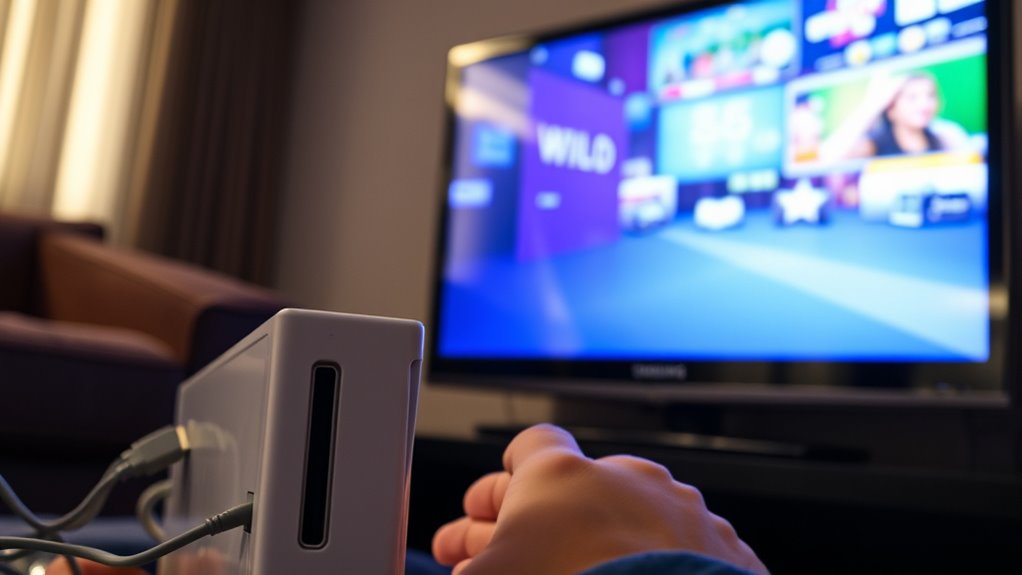

To connect your Wii to a Samsung Smart TV, start by using composite or component cables. Plug the video and audio connectors into the corresponding ports on the TV. Turn on both devices and select the right input on your TV’s menu. Adjust the resolution to 480p for the best display. Make sure everything’s securely connected. If you encounter issues or want to enhance your gaming experience, tips for optimization are just ahead.
Understanding the Wii’s Output Options
When connecting your Wii to a Samsung Smart TV, understanding the console’s output options is essential. The Wii primarily supports a standard definition output, which is typically 480p. While this might seem limiting, it allows for a smooth gaming experience without overwhelming your setup. You’ll need the right cables, such as composite or component, to guarantee you’re getting the best video resolution possible. Remember, the Wii doesn’t output in HD, but with the right connections, you can still enjoy your games on a larger screen. Make sure your TV’s settings are adjusted to accept the Wii output, so you can maximize your gaming freedom without any hassle. Enjoy your time gaming with clarity and ease!
Identifying Your Samsung Smart TV’s Input Ports
To successfully connect your Wii to your Samsung Smart TV, you need to know the types and locations of the input ports on your TV. Samsung TVs typically feature HDMI, component, and composite ports, so identifying these will help guarantee compatibility. Once you locate the right ports, you can easily make the connection.
Types of Input Ports
As you prepare to connect your Wii to your Samsung Smart TV, it is vital to identify the different input ports available on your television. Your Samsung TV may feature a variety of AV input types, guaranteeing legacy support for older devices like the Wii. Understanding these ports helps you choose the best connection method.
| Port Type | Description |
|---|---|
| HDMI | Supports high resolution and digital audio. |
| Component Video | Offers better quality than composite connections. |
| Composite | Basic AV input for legacy devices. |
Keep in mind the resolution differences between these inputs and ascertain ideal port accessibility for your setup. This knowledge will enhance your gaming experience.
Location of Ports
Finding the input ports on your Samsung Smart TV is essential for connecting your Wii. Proper port placement makes your setup easier and helps with cable organization. Here’s where you’ll typically find the ports:
- HDMI Ports: Usually located on the back or side.
- AV Input: Often found on the side for older connections.
- USB Ports: Typically on the side for additional devices.
- Ethernet Port: Located on the back for network connectivity.
- Optical Audio Out: Usually at the back for sound systems.
Make sure to check your TV’s manual for specific port locations. Once you locate them, connecting your Wii will be a breeze, and you’ll enjoy a tidy, organized entertainment space.
Choosing the Right Cables for Connection
While connecting your Wii to a Samsung Smart TV might seem straightforward, choosing the right cables can make all the difference in achieving ideal picture and sound quality. You’ll typically encounter a few cable types: the standard composite cables with red, white, and yellow connectors, and the component cables, which offer higher connection quality with separate video signals. If you want the best experience, consider using component cables, as they provide improved clarity. Make sure your TV has the appropriate inputs for the cables you choose. If you’re using an adapter, double-check compatibility. By selecting the right cables, you’ll enjoy a smoother gaming experience and vibrant visuals, ultimately enhancing your overall enjoyment.
Connecting the Wii to the TV
Now that you’ve chosen the right cables, it’s time to connect your Wii to your Samsung Smart TV. You’ll need to guarantee you have the required cables and adapters for a smooth setup. Once you have everything ready, follow these steps to establish the connection.
Required Cables and Adapters
To connect your Wii to a Samsung Smart TV, you’ll need the right cables and adapters. Here’s what you should gather:
- Wii composite cables: These are essential for video and audio output from the Wii.
- HDMI adapter: This will help if your TV only has HDMI ports.
- Audio/Video splitter: Useful if you want to connect multiple devices.
- Extension cables: They can help reach the TV if the console is far away.
- Power cable: Don’t forget this to guarantee your Wii is powered on.
With these items on hand, you’ll be ready to set up your connection. Enjoy your gaming experience on that stunning Samsung Smart TV!
Setting Up the Connection
Connecting your Wii to a Samsung Smart TV is a straightforward process that can be completed in just a few steps. First, plug the Wii’s AV cables into the appropriate ports on your TV. If you face any Wii compatibility issues, consider using a component or HDMI adapter to guarantee a proper connection. Once connected, turn on your TV and select the correct input source to view the Wii’s display. Take advantage of your Smart TV features by adjusting settings for ideal picture quality. Additionally, make sure both devices are powered on for the best experience. With these simple steps, you’ll be able to enjoy your favorite Wii games on your Samsung Smart TV without hassle.
Configuring the TV Input Settings
Before diving into gameplay, you’ll need to configure the TV input settings to make certain your Samsung Smart TV recognizes the Wii. Here’s how to get started:
- Turn on your Samsung Smart TV and the Wii console.
- Use your TV remote to access the input selection menu.
- Select the HDMI port or AV input where your Wii is connected.
- Adjust the screen resolution if needed; the Wii typically outputs at 480p.
- Save your settings and exit the menu.
Once you’ve done this, your TV should properly display the Wii’s output. Enjoy your gaming experience with clear visuals and seamless changes!
Adjusting the Wii Settings for Optimal Display
Adjusting the Wii settings can greatly enhance your gaming experience on a Samsung Smart TV. Start by traversing to the Wii main menu and select “Wii Options.” From there, go to “Settings” and adjust the display resolution. For the best results, choose 480p if your TV supports it, as it provides a clearer image. Next, check the aspect ratio; most Samsung TVs work well with a 16:9 setting, so make certain your Wii is set accordingly. This guarantees your games look their best without any stretching or black bars. By fine-tuning these settings, you’ll enjoy a more immersive and visually appealing experience while playing on your Samsung Smart TV. Happy gaming!
Troubleshooting Common Connection Issues
If you’re having trouble connecting your Wii to your Samsung Smart TV, there are a few common issues to check. First, make certain all cable connections are secure, then adjust your TV settings as needed. Finally, verify that you’ve selected the correct input source to guarantee your Wii displays properly.
Check Cable Connections
One of the first steps in troubleshooting connection issues between your Wii and Samsung Smart TV is to check all cable connections. Verifying you have the right cable types and that they’re securely plugged in can greatly enhance connection stability. Here’s what to look for:
- Wii AV Cable: Verify it’s connected to the Wii and the correct TV input.
- HDMI Adapter: If using one, check it’s firmly attached.
- Power Cables: Confirm both devices are powered on and plugged in.
- Loose Connections: Inspect for any loose cables or damaged ports.
- Input Selection: Make sure your TV’s input source matches the cable used.
Adjust TV Settings
To guarantee a successful connection between your Wii and Samsung Smart TV, it’s essential to check and adjust your TV settings. Start by maneuvering to the picture settings; you might need to adjust brightness to ensure the colors display vividly while playing your favorite games. A well-lit screen enhances your gaming experience and reduces eye strain. Next, focus on optimizing sound. Check the audio settings to make sure they’re set to the best mode for gaming, as this will help you fully enjoy the immersive experience. If you encounter any audio issues, try adjusting the volume levels or switching to a different audio output. These simple tweaks can notably enhance your gaming experience and eliminate common connection frustrations.
Verify Input Source
Before diving into gameplay, it’s crucial to verify your Samsung Smart TV is set to the correct input source for your Wii. Incorrect input selection can lead to frustrating moments when you’re ready to play. Here’s how to confirm proper source verification:
- Locate your TV remote.
- Press the “Source” or “Input” button.
- Browse through the available options (HDMI, AV, etc.).
- Select the input matching where your Wii is connected.
- Confirm the selection by checking for a display from the Wii.
If you don’t see the game screen, double-check your connections and repeat the steps. Getting your input right paves the way for uninterrupted fun, so take a moment to verify everything’s set up perfectly!
Enhancing Your Gaming Experience on a Smart TV
Although connecting your Wii to a Samsung Smart TV can seem straightforward, enhancing your gaming experience involves more than just the initial setup. To maximize your gaming performance, consider adjusting the picture settings on your TV. Increase the brightness and contrast for improved visual clarity, ensuring that colors pop and details stand out during gameplay. Additionally, using game mode on your Smart TV can reduce input lag, allowing for smoother, more responsive controls. If your TV supports it, try to use a high-definition connection, as this can greatly enhance the overall experience. Finally, don’t forget to position your seating for ideal viewing; a comfortable and immersive setup can make all the difference in how you enjoy your games.
Exploring Additional Features of Your Samsung Smart TV
What features can enhance your viewing experience on a Samsung Smart TV? With its smart features and app integration, you can transform your TV into a hub of entertainment. Here are some highlights:
- Voice Control: Use your voice to navigate and control your TV effortlessly.
- Streaming Apps: Access popular platforms like Netflix, Hulu, and YouTube all in one place.
- Screen Mirroring: Share your smartphone or tablet screen directly on your TV for a bigger view.
- Smart Home Integration: Control your smart devices from the comfort of your couch.
- Gaming Mode: Enjoy a smoother gaming experience with reduced input lag.
These features not only elevate your TV time but also make it more interactive and engaging!
Tips for Maintaining Your Wii and TV Setup
To keep your Wii and Samsung Smart TV setup running smoothly, it’s important to follow some simple maintenance tips. Regular cleaning and proper cable management are key to ensuring a seamless experience.
| Task | Frequency |
|---|---|
| Clean your Wii | Every month |
| Dust your TV | Weekly |
| Organize cables | Every few months |
For cleaning tips, use a microfiber cloth to avoid scratches. When it comes to cable management, consider using cable ties or clips to prevent tangling and clutter. This not only keeps your space tidy but also helps with airflow, reducing overheating risks. Stay on top of these tasks, and you’ll enjoy gaming and streaming without a hitch!
Frequently Asked Questions
Can I Use a Wireless Connection for the Wii With My Samsung TV?
No, you can’t use a wireless connection for the Wii. The Wii doesn’t support Wi-Fi for gameplay; it’s designed for wired connections. Your Samsung TV’s compatibility won’t change that limitation. Stick to cables for the best experience.
Will the Wii Work With 4K Samsung Smart TVS?
The Wii won’t fully utilize 4K resolution, but it can still work with your Samsung Smart TV. You might notice lower image quality, as the Wii’s capabilities don’t match modern display technology.
How Do I Adjust the Aspect Ratio on My Samsung TV for the Wii?
To adjust the aspect ratio on your Samsung TV for the Wii, go to the aspect ratio settings in the menu. Select “Screen Format” and choose the option that best fits your display preferences.
Can I Connect the Wii to a Soundbar Instead of the TV?
Yes, you can connect the Wii to a soundbar. Just make sure you’re using the right cables for audio output. Keep audio quality considerations in mind for the best experience while gaming or watching.
Is There a Way to Enhance Wii Graphics on My Samsung Smart TV?
You can’t greatly enhance Wii graphics on your Samsung Smart TV since the console’s output is limited. However, using a good upscaler may improve the image slightly, providing a better viewing experience overall.

[…] to avoid surprises is to confirm the display type (projection vs. direct-view) first, then validate input ports and room brightness before you worry about touch […]