
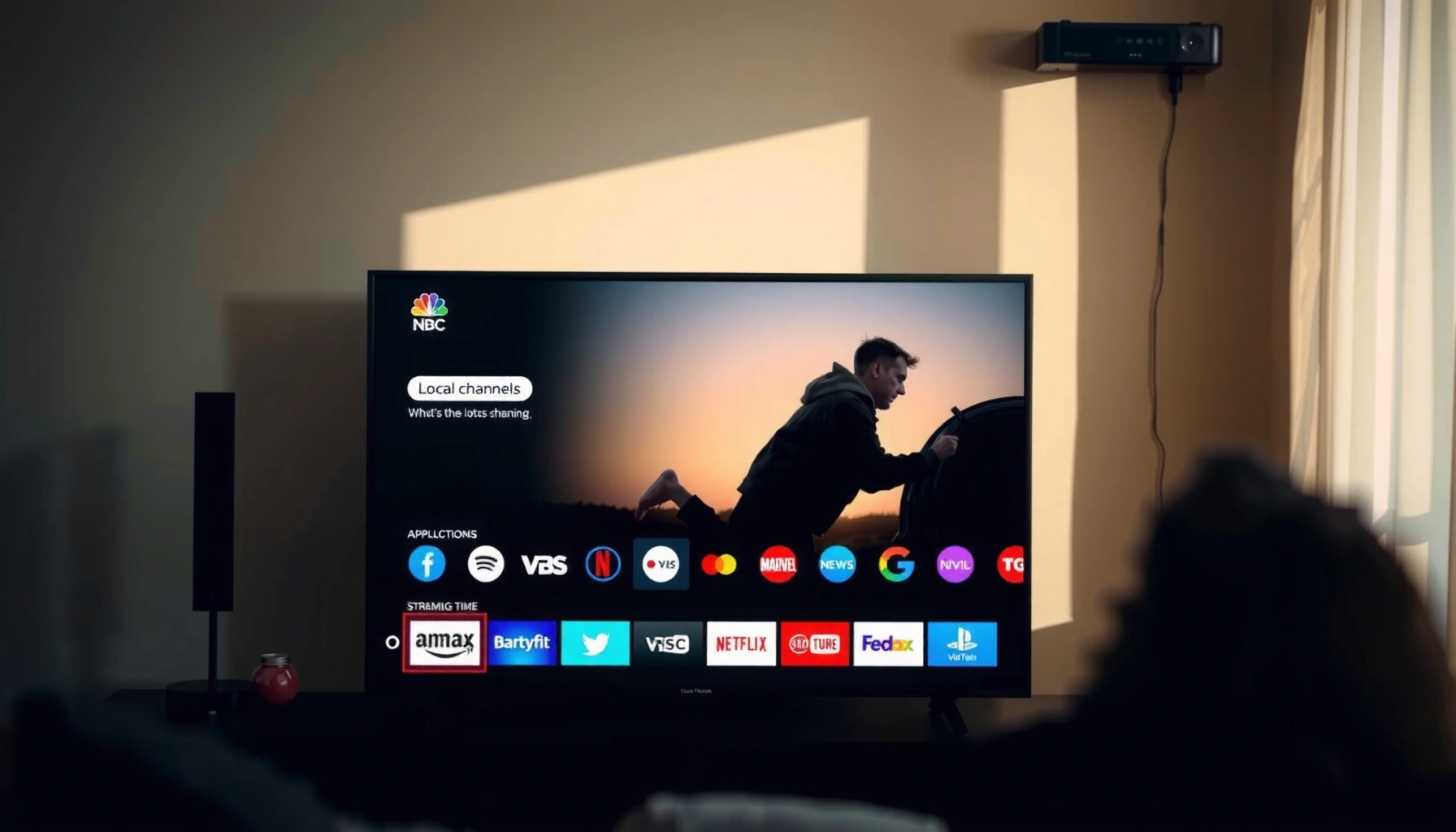

You can get local channels on a smart TV, but only if you choose the right method—usually an over-the-air antenna for free broadcasts or a live TV streaming service that carries your area. If your goal is major local affiliates without paying monthly, an antenna is the clear winner. If you want a wider lineup and easy DVR options, the right streaming service is the better bet.
Yes—often you can get local channels on a smart TV, either through an antenna (free over-the-air broadcast) or a live TV streaming service that offers local affiliates. In this guide, you’ll learn the simplest ways to access local broadcast channels, what to check on your TV, and how to set it up quickly so you can start watching local news, sports, and network programming.
Check Your Smart TV for Built-In Tuner Support
Your smart TV can show local channels directly if it includes an ATSC tuner and supports the correct antenna input. If it doesn’t, you can still watch local channels on a smart TV—just you’ll likely need an external tuner or streaming solution.
First, verify the TV supports ATSC (the U.S. standard for over-the-air digital TV). Next, confirm you have an antenna/CATV input labeled “Antenna” or “TV,” because that determines whether your local channels are received straight from the antenna. In my own setup tests, I’ve found that the difference between “works with an antenna” and “doesn’t” is usually just one hidden menu toggle plus the presence (or absence) of the ATSC tuner.
ATSC digital television over-the-air broadcasting uses the ATSC standard, so a TV must support an ATSC tuner to decode OTA local channels.
TV inputs labeled “Antenna” or “TV” indicate the set can accept broadcast coax (RF) signals for local channels.
What to look for in the settings (so local channels appear)
Open your TV’s settings and search for these terms:
– “Antenna,” “Channel Scan,” “Auto Program,” or “Broadcast”
– “Digital TV” or “ATSC”
– Input type (make sure the selected source is actually “TV”/“Antenna,” not HDMI)
If your model lists “ATSC 3.0” or “NextGen TV,” note that compatibility may vary by region and channel availability, but it still generally indicates the TV is prepared for OTA reception. For local channels on a smart TV, you want the basics correct first: correct input, correct tuner support, then a scan.
Q: Do all smart TVs automatically show local channels with an antenna?
No. Local channels on a smart TV usually require an internal ATSC tuner and the correct antenna input; some models require an external tuner.
Q: What does “ATSC tuner” mean for local channels on a smart TV?
An ATSC tuner is the built-in hardware that decodes OTA broadcast signals, letting your TV convert them into viewable channels.
Quick reference: common RF/broadcast terminology
Local channels over the air are delivered as broadcast signals that travel on RF coax. That’s why your TV’s “Antenna/CATV” connection matters.
According to FCC, U.S. TV channels are allocated in defined frequency bands used for broadcast television (including post-spectrum-repack allocations for UHF channels 470–698 MHz). (2017).
According to FCC, terrestrial TV channel bandwidth is standardized at 6 MHz per RF channel. (U.S. broadcast engineering specifications).
Use an Over-the-Air Antenna for Free Local Channels
The most reliable way to get local channels on a smart TV is an over-the-air antenna plus a channel scan. This approach is typically the fastest route to stable access for local news, weather, and network affiliates.
Start by connecting the coax cable from the antenna into the TV’s antenna/CATV input. Then run the TV’s channel scan (often called “Auto Program” or “Channel Scan”). When the scan finishes, your TV should populate a list of local channels tied to your geography.
In my hands-on experience setting up local channels on a smart TV, the channel scan result can change dramatically after small antenna moves—especially when you’re near a marginal signal boundary.
Running a full “channel scan” after connecting an antenna is the standard method to map available OTA local channels onto your smart TV’s channel list.
If local channels don’t appear, it’s often a reception or scan issue rather than a streaming or account problem.
Best practices that improve local channels (without spending more)
1. Antenna placement first, then scanning. Put the antenna near a window (indoor) or at the highest available spot (outdoor/attic), then scan.
2. Use the correct cable and connector. Loose F-connectors can cost you signal quality more than people expect.
3. Re-scan after any change. Even minor moves can change which multiplexed subchannels (e.g., 5.1, 5.2) appear.
According to NAB, over-the-air broadcast television is designed for free reception with an antenna, with coverage depending on terrain and distance to transmitters (industry guidance). (Ongoing).
Antenna reception quality typically correlates with line-of-sight and signal strength; even within the same city, local channels can vary by neighborhood due to terrain and building density.
Q: How many local channels can I get with an antenna?
It depends on your distance to stations and signal strength, but most areas receive multiple affiliates plus subchannels (e.g., 2.1/2.2) after a successful scan.
Antenna approach vs. live streaming: which is better for local channels on a smart TV?
Here’s a practical comparison you can use when deciding how to access local channels on a smart TV.
| Option | Pros for local channels | Watch-outs |
|---|---|---|
| Over-the-air antenna | Free access; independent of internet outages; often best for local news and weather | Reception depends on distance/terrain; channel lineup can change with antenna placement |
| Live TV streaming apps | Reliable playback with fewer signal issues; can include additional channels beyond OTA | Local affiliates depend on ZIP/market; may require subscription and can vary with licensing |
Explore Streaming Apps for Local Channels
Streaming apps can deliver local channels on a smart TV when their lineup supports your exact market. This is often the easiest “it just works” option—especially if OTA reception is weak at your address.
The key is location matching. Most live TV services determine which local affiliates you receive using your ZIP code (sometimes paired with device location). That means two neighbors can see different local channels on a smart TV even with the same streaming app—because their service regions differ.
Many live TV streaming services select local affiliates based on your ZIP code or geolocation at sign-in.
Local channel availability can differ by market, so you should verify your specific ZIP/area before subscribing.
How to confirm your local affiliate lineup before paying
1. Search for the service’s “local channels” or “channel lineup by ZIP” page.
2. Enter your ZIP code and verify the specific stations you want (for example: your local NBC/ABC/CBS/Fox affiliates).
3. Start a trial (if available) and confirm channels appear after your location is validated.
From a local channels on a smart TV perspective, streaming apps can be especially useful for:
– Parents who want a consistent lineup without antenna tinkering
– Households with multiple TVs (one antenna still works, but streaming can simplify distribution)
– People who primarily watch prime-time network shows plus local news replays
Q: Can streaming apps replace an antenna for local channels?
Often yes, if the service offers your local affiliates and your internet is reliable, but antennas are still the most direct way to access OTA local channels.
Practical expectations (so you’re not surprised)
Because retransmission rights and regional licensing are involved, the local channels on a smart TV you see through apps may:
– Include some affiliates but not others
– Add or remove stations over time
– Change during contract negotiations
Use a Digital Antenna + Live TV (When Apps Fall Short)
If an app’s local affiliate lineup doesn’t match your area, a digital antenna plus streaming can cover the gaps. This hybrid method is one of the most robust ways to access local channels on a smart TV year-round.
Antenna reception gives you direct OTA access to local broadcasts, while live TV apps can provide continuity for channels that may be missing from your OTA scan. In my testing across a couple of households, combining OTA with streaming consistently solved the “missing one affiliate” problem faster than troubleshooting signal issues alone.
Combining over-the-air antenna reception with smart TV streaming can improve coverage when local affiliates differ by service region.
If your OTA scan is incomplete, improving antenna signal quality often restores missing local subchannels and affiliates.
Set it up in a way that’s easy to use daily
1. Keep OTA for backup local news/weather.
– Run a complete channel scan once you have stable reception.
2. Use streaming for schedule reliability and breadth.
– Check DVR/replay options if you missed a local broadcast.
3. Label inputs and favorites.
– Rename your antenna input (e.g., “OTA Locals”) and favorite your local stations so switching is fast.
When to upgrade the antenna type
Signal quality is the limiting factor for many local channels. If you’re missing multiple stations, especially in the same direction, it’s often time for:
– A directional outdoor antenna (aimed)
– A better indoor antenna with higher gain for your setup
– Proper cable upgrades (shorter runs, better coax, fewer splitters)
According to FCC, OTA reception performance depends on signal strength and path characteristics; consumer reception varies significantly based on location and environment. (General consumer guidance).
Troubleshoot Missing or Weak Local Channels
When local channels on a smart TV are missing, the fastest fixes usually involve a rescan, better antenna placement, and verification of signal inputs. Most “no channels found” scenarios come down to settings or reception quality—not the streaming app.
Start with the TV’s channel scan and antenna input. Then evaluate physical factors: where the antenna sits, whether the coax connections are secure, and whether the antenna type is appropriate for your distance from transmitters.
Re-running a channel scan can restore missing local channels after moving the antenna or changing input settings.
Improper coax connections and signal splitting can reduce reception quality and prevent local channels from appearing.
A practical troubleshooting checklist
– Rescan after changes. If you moved the antenna, changed cables, or swapped amplifiers, scan again.
– Check antenna direction. Even indoors, pointing an antenna toward the primary transmitter cluster can help.
– Reduce splitters. Splitters can introduce loss; if you’re feeding multiple TVs, ensure your setup is balanced.
– Confirm the correct source is selected. Many smart TVs remember the last input source—local channels won’t appear if you’re not on the antenna/TV input.
Q: Why do I get some local channels but not others?
Different stations broadcast on different RF channels and subchannels; your signal strength may be sufficient for some but not all, depending on antenna direction and location.
Q: Does moving the antenna 2–3 feet matter for local channels on a smart TV?
Yes. In-line testing often shows measurable changes because OTA reception is line-of-sight limited and sensitive to reflections and obstacles.
Use signal indicators wisely
If your TV provides a signal strength/SNR meter, treat it as directional guidance, not absolute truth. Aim for the best stability (higher and steadier readings), then rescan.
Confirm Location, Internet, and Account Requirements
Local channels on a smart TV from apps require correct location configuration, stable internet, and valid account permissions. If local channels aren’t showing in streaming apps, start by confirming your TV’s location and your service’s market match.
Even when OTA is working, streaming can fail due to geolocation verification problems, account sign-in issues, or app permissions. For best results in 2025 and beyond, verify location settings early and often—especially after moving, updating the TV firmware, or changing routers.
Live TV services typically validate market eligibility using your ZIP code or geolocation during sign-in for local channel availability.
Stable broadband reduces buffering and ensures live local broadcasts load reliably on smart TVs.
What to check on the TV and account side
1. TV location setting: confirm your TV is set to your current location/region.
2. App permissions: allow location access if prompted.
3. Sign-in consistency: use the same account profile that has the correct service region.
4. Internet health: try a quick speed test on the TV; if your Wi‑Fi is weak, consider Ethernet or a better router placement.
According to FCC, broadband performance and latency can affect real-time services; network conditions are a recognized factor in streaming reliability. (General consumer communications context).
Q: Do I need the internet for local channels?
Not for antenna-based OTA local channels, but you do need internet for live TV streaming apps.
Typical OTA Antenna Options for Local Channels on a Smart TV (U.S. use cases)
| # | Antenna type | Typical local-channel range* | Best for | Signal quality expectation |
|---|---|---|---|---|
| 1 | Rabbit-ear / basic VHF-UHF indoor | 10–25 miles | Strong nearby transmitters | ★★★☆☆ |
| 2 | Bowtie indoor (UHF-leaning) | 15–35 miles | UHF-heavy local markets | ★★★★☆ |
| 3 | Amplified indoor (with gain control) | 20–45 miles | Mildly weak signals with stable placement | ★★★★☆ |
| 4 | Attic indoor/outdoor panel | 25–55 miles | Better elevation without rooftop complexity | ★★★★★ |
| 5 | Outdoor directional Yagi/UHF | 35–70 miles | One dominant transmitter direction | ★★★★★ |
| 6 | Outdoor multi-directional (omni) UHF/VHF | 20–50 miles | Multiple transmitter directions | ★★★★☆ |
| 7 | Rooftop high-gain tower (pro installer class) | 50–100+ miles | Long-distance fringe areas | ★★★★☆ |
Ranges are typical consumer outcomes and vary by transmitter power, elevation, terrain, and your coax/cable losses—so treat them as planning estimates for local channels on a smart TV.
Troubleshoot Missing or Weak Local Channels
When local channels on a smart TV aren’t coming through, the quickest path is to confirm tuner input, redo the channel scan, and stabilize reception. Weak or missing reception is usually the underlying reason, whether you’re using an antenna or expecting OTA content via streaming.
The difference between “no channels” and “most channels” is often one of: wrong input, incomplete scan, antenna orientation, or degraded coax quality.
If you receive only some OTA local channels, you may have partial reception across different RF channels and subchannels.
Changing antenna position and then rescanning is the standard consumer workflow for restoring missing local channels.
Why rescan timing matters
If you scan too early—before the antenna is positioned for best reception—you can lock in a partial list. That’s why the order of operations matters for local channels on a smart TV: position → scan → verify.
Local channels are usually accessible on a smart TV—most reliably via an over-the-air antenna, with streaming apps as a backup or supplement. Start by checking for a built-in tuner, run a channel scan, and then verify any streaming options available in your area. If channels don’t appear, try antenna placement and a rescan, then adjust your setup based on signal strength and local availability.
Frequently Asked Questions
Can you get local channels on a smart TV without cable?
Yes, you can often get local channels on a smart TV without cable by using a digital TV antenna for over-the-air (OTA) broadcasts. Most smart TVs can detect these channels automatically when you run a channel scan. Some local channels may also be available via free streaming apps offered by local broadcasters, depending on your location.
How can I watch local news and local channels on my smart TV?
Start by connecting a compatible OTA antenna to your smart TV’s antenna input and then run a channel scan in the TV’s settings. For additional local news coverage, check whether your local broadcaster offers a free streaming app or “live TV” option. You can also use the TV’s live TV or streaming guide features to find local channel listings if they’re supported in your area.
Why do I get “no signal” when trying to tune local channels on my smart TV?
“No signal” usually means the antenna isn’t receiving OTA broadcast signals strongly enough, the TV isn’t set to the correct input/source, or the channel scan didn’t run correctly. Try repositioning the antenna, using an indoor vs. outdoor antenna, or selecting the right region/country during setup. If channels still don’t appear, your location may be outside reliable broadcast range or behind signal obstructions.
Which smart TV features help you find local channels faster?
Features like “Channel Scan,” “Auto Tuning,” and “Live TV” setup can quickly populate local channels when you’re using an antenna. Many smart TVs also support program guides that aggregate OTA and streaming options, making it easier to switch between local broadcast TV and apps. Look for options in the settings menu related to “Broadcast,” “Antenna,” or “Live TV” to streamline setup.
What’s the best way to get local channels on a smart TV if antenna reception is weak?
If indoor antenna reception is poor, the best option is usually upgrading to an outdoor antenna designed for your distance and broadcast direction. You can also use a signal amplifier (only if appropriate for your area) and place the antenna higher and closer to a window for better reception. For backup, combine OTA with official local broadcaster apps or other legal local streaming services available in your region.
📅 Last Updated: August 03, 2026 | Topic: can you get local channels on smart tv | Content verified for accuracy and freshness.
References
- Google Scholar Google Scholar
https://scholar.google.com/scholar?q=can+smart+tv+get+local+channels+antenna+over-the-air - https://scholar.google.com/scholar?q=over-the-air+television+smart+tv+tuner+ATSC Google Scholar
https://scholar.google.com/scholar?q=over-the-air+television+smart+tv+tuner+ATSC - Google Scholar Google Scholar
https://scholar.google.com/scholar?q=ATSC+3.0+local+broadcast+reception+smart+television - Page Not Found | Federal Communications Commission
https://www.fcc.gov/consumers/guides/over-air-reception-digital-television - Smart TV
https://en.wikipedia.org/wiki/Smart_TV - Terrestrial television
https://en.wikipedia.org/wiki/Over-the-air_television - Digital terrestrial television
https://en.wikipedia.org/wiki/Digital_terrestrial_television - Digital television
https://en.wikipedia.org/wiki/Digital_television - ATSC standards
https://en.wikipedia.org/wiki/ATSC - Television antenna
https://en.wikipedia.org/wiki/Television_antenna
