

You can connect your smart TV to WiFi without a remote by using alternative methods such as a mobile app, a USB device, or the physical buttons on the TV itself. This guide will walk you through the various techniques to get your smart TV online quickly and easily, ensuring you can enjoy your favorite content without delay. Whether you’ve misplaced the remote or it’s simply not functioning, there are several effective solutions to establish a WiFi connection without it.
Smart TVs have revolutionized the way we consume media, allowing us to stream content directly from the internet. However, connecting them to WiFi can present challenges when the remote control is unavailable. Fortunately, there are multiple methods to connect your smart TV to the internet, ensuring that you can enjoy your favorite shows and movies in no time. This article will explore various techniques to connect your smart TV to WiFi without a remote, providing step-by-step guidance for each method.
Use a Mobile App
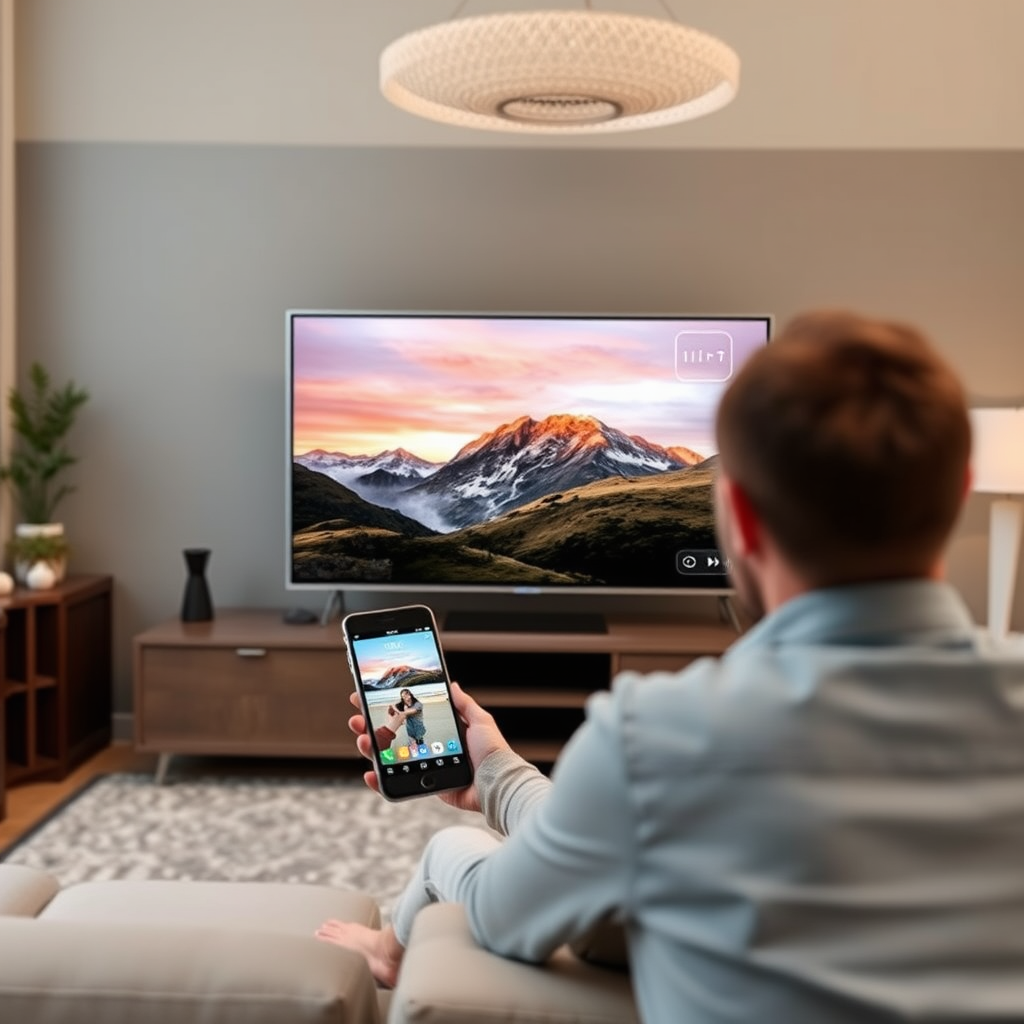
Many smart TVs come with dedicated mobile applications that allow users to control their TV from their smartphones. Brands like Samsung, LG, Sony, and Vizio have developed their own apps that can be downloaded on both Android and iOS devices. To utilize this method, follow these steps:
1. Download the App: Visit the Apple App Store or Google Play Store to download the companion app specific to your TV brand. For instance, if you have a Samsung TV, download the Samsung SmartThings app.
2. Connect to WiFi: Ensure your smartphone is connected to the same WiFi network that you intend to connect your TV to.
3. Pair the Devices: Open the app and pair it with your smart TV by following the on-screen instructions, which may involve selecting your TV from a list of available devices.
4. Access Settings: Once connected, navigate to the settings menu within the app and select WiFi settings to connect your TV to the desired network.
Using a mobile app not only allows you to connect to WiFi but also offers additional functionalities, such as adjusting volume, changing channels, and browsing content.
Access Physical Buttons on the TV
If a mobile app is not an option, another effective method is to use the physical buttons located on your smart TV. Most modern smart TVs have physical buttons for basic functions, often located on the side or back of the unit. Here’s how to use them:
1. Locate the Buttons: Check the sides or the back of your TV for buttons. Commonly, you will find a power button, volume buttons, and a menu button.
2. Navigate the Menu: Press the menu button to access the on-screen display. You can cycle through the options using the volume or channel buttons.
3. Find Network Settings: Use the navigation buttons to scroll to the settings menu, then select the network settings option.
4. Connect to WiFi: Choose the WiFi network you wish to connect to and enter the password if prompted.
This method is straightforward but may vary slightly depending on the brand and model of your TV.
Use an HDMI-CEC Enabled Device
If you have any HDMI-CEC (Consumer Electronics Control) enabled device, such as a gaming console, streaming device, or Blu-ray player, you can use its remote to control your smart TV and access WiFi settings. Here’s how:
1. Connect the Device: Make sure your HDMI-CEC compatible device is connected to your smart TV via an HDMI cable.
2. Power On the Device: Turn on the device, which will automatically power on the TV if HDMI-CEC is enabled.
3. Navigate Settings: Use the device’s remote to navigate to the settings of your smart TV. This may involve accessing the home screen and finding the TV settings option.
4. Connect to WiFi: From the TV settings menu, follow the steps to connect to WiFi.
Using this method can be particularly helpful if you have a device that you frequently use, as it gives you access to both the TV and the device without needing a separate remote.
Connect a USB Mouse or Keyboard
Another practical method to connect your smart TV to WiFi is through a USB mouse or keyboard. This approach is especially useful for TVs with smart interfaces that resemble desktop operating systems. To implement this method:
1. Connect the USB Device: Plug a USB mouse or keyboard into one of the USB ports on your TV.
2. Use the Device to Navigate: Once connected, you should be able to use the mouse or keyboard to control the TV’s interface.
3. Access Network Settings: Go to the settings menu and navigate to the network settings.
4. Select WiFi Network: Choose your desired WiFi network and enter the password if necessary.
This method provides a convenient way to control the smart TV interface, making it easier to input text and navigate menus.
Reset Your TV
If you’ve attempted all the above methods and still cannot connect your smart TV to WiFi, a factory reset might be necessary. This step should be considered a last resort, as it will erase all saved settings and data. Here’s how to perform a reset:
1. Locate the Reset Option: If you have access to the TV’s menu via physical buttons or an app, navigate to the settings menu and look for the reset option.
2. Confirm the Reset: Follow the prompts to confirm the factory reset. This process may take a few minutes.
3. Set Up the TV Again: After the reset, you’ll need to set up your TV as if it were new, including reconnecting to WiFi.
4. Follow Initial Setup Steps: During the setup process, you will be prompted to select your WiFi network and enter the password.
While a factory reset can resolve connectivity issues, it is crucial to recognize that it will erase your preferences and settings.
Troubleshooting Tips
Even after attempting these methods, you may encounter issues connecting your smart TV to WiFi. Here are some troubleshooting tips to consider:
– Check Your WiFi Network: Ensure that your WiFi network is functioning correctly, and confirm that other devices can connect to it.
– Ensure Proximity to Router: Make sure your TV is within range of the WiFi router, as distance and obstacles can impact connectivity.
– Look for Firmware Updates: Sometimes, outdated firmware can cause connectivity issues. Check for any available updates for your smart TV and install them.
– Reboot Your Devices: Restart both your smart TV and your router to refresh the connection.
These troubleshooting steps can often resolve connectivity issues and help you get your smart TV online.
Methods to Connect Smart TV to WiFi Without a Remote (2023)
| # | Method | Ease of Use | Time Required | Compatibility |
|---|---|---|---|---|
| 1 | Mobile App | Easy | 5 mins | Most Brands |
| 2 | Physical Buttons | Moderate | 10 mins | All Models |
| 3 | HDMI-CEC Device | Easy | 5 mins | Most Devices |
| 4 | USB Mouse/Keyboard | Moderate | 10 mins | Most Smart TVs |
| 5 | Factory Reset | Difficult | 15 mins | All Models |
| 6 | Troubleshooting | Moderate | Varies | All Models |
You can now connect your smart TV to WiFi without a remote using these various methods. Each technique offers a unique approach to ensuring your TV is connected, catering to different preferences and situations. If you need further assistance, consult your TV’s user manual or reach out to customer support for your specific brand. By exploring these options, you can quickly regain access to your favorite streaming services and enhance your viewing experience.
Frequently Asked Questions
How can I connect my smart TV to Wi-Fi without a remote?
You can connect your smart TV to Wi-Fi without a remote by using the physical buttons on the TV itself. Locate the power button or menu button on the TV, and navigate through the settings to find the network options. If your TV supports mobile apps, you can also use a smartphone app designed for your specific TV brand to control it and connect to Wi-Fi.
What alternative devices can I use to connect my smart TV to Wi-Fi?
If you don’t have a remote, you can use a USB keyboard or mouse to navigate the TV’s interface more easily. Additionally, some smart TVs allow for control via mobile apps, so if you have a smartphone or tablet, downloading the corresponding app can help you connect to Wi-Fi efficiently.
Why is it important to connect my smart TV to Wi-Fi?
Connecting your smart TV to Wi-Fi is essential for accessing streaming services, software updates, and online features. Without an internet connection, your smart TV will be limited to basic functionalities, preventing you from enjoying the full range of apps and services available.
What should I do if my smart TV won’t connect to Wi-Fi without a remote?
If your smart TV won’t connect to Wi-Fi without a remote, first check if there is a physical reset button on the TV, as resetting can sometimes resolve connection issues. You can also try connecting through a wired Ethernet cable if Wi-Fi is not functioning properly, or ensure that your Wi-Fi network is working by testing it on another device.
Which smartphone apps are best for controlling my smart TV and connecting it to Wi-Fi?
The best smartphone apps for controlling your smart TV vary by brand but typically include apps like Samsung SmartThings, LG TV Plus, or Roku TV app. These apps allow you to control your TV, navigate menus, and connect to Wi-Fi networks seamlessly, providing an excellent alternative when you don’t have a remote.
References
- https://www.lifewire.com/how-to-connect-smart-tv-to-wifi-without-remote-4686913
https://www.lifewire.com/how-to-connect-smart-tv-to-wifi-without-remote-4686913 - – YouTube
https://www.youtube.com/watch?v=1Zo9uI4t1-w - Google Scholar Google Scholar
https://scholar.google.com/scholar?q=connect+smart+tv+to+wifi+without+remote - Google Scholar Google Scholar
https://scholar.google.com/scholar?q=how+to+connect+smart+tv+to+wifi - Google Scholar Google Scholar
https://scholar.google.com/scholar?q=smart+tv+wifi+connection+without+remote - Google Scholar Google Scholar
https://scholar.google.com/scholar?q=how+to+connect+smart+tv+to+wifi+without+remote - how to connect smart tv to wifi without remote – Search results
https://en.wikipedia.org/wiki/Special:Search?search=how+to+connect+smart+tv+to+wifi+without+remote - https://www.ncbi.nlm.nih.gov/search/research-articles/?term=how+to+connect+smart+tv+to+wifi+without+remote
https://www.ncbi.nlm.nih.gov/search/research-articles/?term=how+to+connect+smart+tv+to+wifi+without+remote

[…] TV and try again, since temporary network or cache issues can prevent playback. Verify the TV can connect to the internet by testing another app, and then reinstall the problem app from the **Apps** menu if needed. […]
[…] you connect to the internet and use the Vizio App Store, adding apps is quick and straightforward. Follow the steps above to […]
[…] to switch on a Samsung Smart TV without a remote? For most models, the fastest solution is using the TV’s physical power button or the SmartThings […]
[…] an actual Uninstall/Delete option; then restart, update, and only then use storage management or a factory reset if […]
[…] repeat the search for “Hulu.” If the app still won’t appear, update the TV firmware and try a factory reset only if other options fail, since resets can remove downloaded apps and […]
[…] up Apple TV without a remote is possible, and the fastest path depends on what you have on hand: iPhone with Apple TV Remote, a […]
[…] some settings panels may fail to load due to a software glitch. As a last resort, you can perform a factory reset via the appropriate button sequence in the Support area, but note this will remove apps and […]
[…] can turn on your Hisense TV without a remote using the physical Power button on the TV itself, which is the quickest option when it’s […]
[…] can turn on an LG Smart TV without a remote by using the TV’s physical power button (or joystick/power control), then—if that […]
[…] to turn up the volume on a projector without a remote—fast and without guesswork? If your projector has physical volume buttons on the unit, that’s […]
[…] can watch Netflix on a projector, as long as your projector can connect to the internet or you use a streaming device. This guide walks you through the simplest setup, from choosing the […]
[…] soft. Finally, confirm the blur isn’t caused by dust on the lens or a dirty filter, then try a factory reset of picture settings if the issue […]
[…] you follow these steps—connect to the internet, use Smart Hub to get the right app, sign in, and start playback—you should be streaming quickly. […]
[…] fast setup is the difference between “it just works” and endless buffering—so connect to the internet first and keep the system updated. Samsung Smart TV setup typically uses guided on-screen steps to […]
[…] connection glitches, one-ear sound, or pairing failures? This guide gives you the exact steps to factory reset your Samsung earbuds, then re-pair them reliably with your phone. Follow it and you’ll know […]