
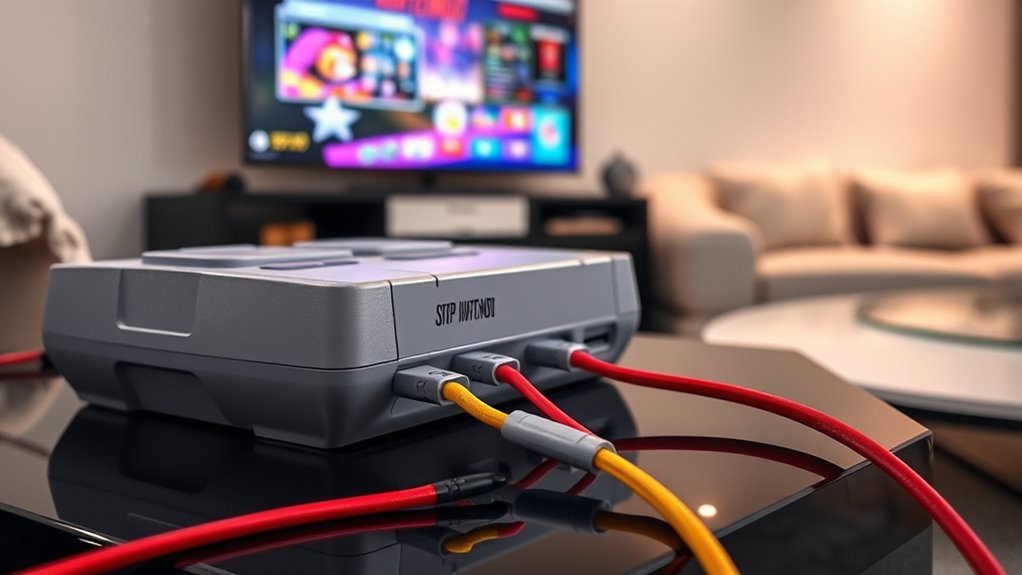

To connect your SNES to a Smart TV, first, check if you have the necessary AV cables (red, yellow, and white connectors). If your TV doesn’t have AV ports, grab an HDMI adapter compatible with the SNES. Plug everything in, select the correct input on your TV, and adjust the aspect ratio to 4:3 for the best experience. With a few tweaks, you’ll be set for some classic gaming fun. There’s even more to discover about enhancing your setup!
Understanding the SNES and Smart TV Compatibility
When diving into the world of retro gaming, understanding how your Super Nintendo Entertainment System (SNES) pairs with a modern Smart TV is essential. The SNES features a unique 16-bit architecture, delivering classic games that defined a generation. However, modern Smart TVs come packed with capabilities like high-definition resolution and advanced image processing, which can enhance your gaming experience. To get the most out of this combination, it’s important to take into account how the SNES’s output can be effectively displayed on your Smart TV. Embracing retro gaming doesn’t mean sacrificing quality; instead, it’s about merging nostalgia with today’s technology. By knowing how to leverage these devices, you’ll enjoy a seamless connection that brings your favorite classic games to life.
Required Cables and Adapters
Connecting your SNES to a Smart TV requires the right cables and adapters to guarantee a smooth setup. First, identify the cable types your SNES uses. Most models require an AV cable with red, yellow, and white connectors. If your TV lacks these ports, you’ll need an adapter that converts these signals to HDMI.
Look for an HDMI converter that’s compatible with your SNES. These adapter options often come with additional features, like upscaling for better video quality. Always make sure your cables are in good condition to avoid connectivity issues. With the right setup, you can enjoy those classic games on your modern screen without a hitch!
Connecting the SNES to Your Smart TV
To get your SNES up and running on your Smart TV, start by plugging the AV cables into the corresponding ports on both the console and the TV or adapter. If you’re using an HDMI adapter, connect it to the TV’s HDMI port. Once that’s done, switch your TV input to the correct source. You’re now ready to plunge into some classic retro gaming! If the picture isn’t clear, double-check your connections. For those exploring SNES emulation, consider using software on your Smart TV that can run SNES games digitally. This allows you to enjoy those nostalgic titles without the hassle of physical cartridges. Embrace the freedom of retro gaming in the comfort of your modern setup!
Configuring Your TV Settings
Once you’ve connected your SNES, it’s time to configure your TV settings for the best gaming experience. You’ll need to select the correct input, adjust the aspect ratio, and tweak the audio settings. Let’s go through each step to guarantee everything looks and sounds just right.
Input Selection Process
How do you confirm your SNES displays correctly on your smart TV? First, make sure your console’s connected via the appropriate cable—whether that’s HDMI or an RCA adapter, depending on your input types. Next, grab your TV remote and locate the input selection button. This typically showcases a source icon or says “Input.” Press it, and you’ll see a list of input sources. Select the one matching your SNES connection—like HDMI 1 or AV. If you don’t see your game, double-check the cables and try a different input source. Once you find the right one, your SNES should display perfectly, letting you plunge into those classic games on your big screen. Enjoy your gaming freedom!
Aspect Ratio Adjustment
Have you ever wondered how to get the best picture while playing your SNES on a smart TV? One key aspect is adjusting the aspect ratio. Most modern TVs offer various settings, like 16:9 or 4:3. For an authentic SNES experience, you’ll want to select the 4:3 ratio, which closely matches the original game display. This prevents distortion and guarantees you see the game as it was intended.
Don’t forget about screen scaling! If your TV has a “Just Scan” or “Original” mode, activate it to avoid any cropping. You want to maximize your gaming experience without losing any details. By tweaking these settings, you’ll enjoy a crisp, clear image that brings your favorite retro games to life!
Audio Settings Configuration
After adjusting the aspect ratio for ideal visuals, you’ll want to turn your attention to the audio settings for a complete gaming experience. Start by checking the audio formats supported by your TV. Most smart TVs allow for various options, so select one that best suits your setup, such as PCM or Dolby Digital. Next, explore the sound enhancements available. Many TVs come with preset modes like “Game” or “Movie,” which can greatly improve your audio. You might also want to adjust the equalizer settings to fine-tune bass and treble to your liking. Don’t forget to test the sound during gameplay to verify everything’s balanced and immersive. Enjoy your retro gaming with fantastic audio to match!
Adjusting Aspect Ratios for Optimal Viewing
While it might seem straightforward to connect your SNES to a smart TV, adjusting the aspect ratio is essential for an optimal viewing experience. If you don’t tweak the aspect ratio settings, you might face screen distortion, which can ruin your nostalgic gameplay. Here’s a quick reference table to help you choose the best settings:
| Aspect Ratio | Recommended Setting |
|---|---|
| 4:3 | Classic SNES games |
| 16:9 | Widescreen TVs |
| Stretch | Avoid this option |
| Zoom | Adjust if needed |
Select the 4:3 ratio for a retro feel, or 16:9 for a modern twist. Just remember, achieving the right aspect ratio can make all the difference in enjoying your gaming sessions.
Using Retro Gaming Features on Smart TVs
Once you’ve adjusted the aspect ratio for an ideal viewing experience, it’s time to explore the retro gaming features that many smart TVs offer. These enhancements can amplify your retro gaming nostalgia by providing filters and special effects, making those classic SNES titles visually stunning. Many smart TVs come with built-in emulators, allowing you to play your favorite retro games without additional hardware. Plus, some even support multiplayer options, making it easy to relive those competitive gaming sessions with friends. You’ll also find customizable controls that adapt to your gaming style. Immerse yourself in your smart TV’s menu to discover these features, and unleash the full potential of your retro gaming experience!
Troubleshooting Common Connection Issues
If you encounter issues when connecting your SNES to your smart TV, don’t worry—troubleshooting these common problems is often easier than you think. First, check the cables for any signs of damage; frayed or broken cables can lead to poor connection or no signal at all. Next, consider signal interference. If you’re using wireless adapters, they might be affected by nearby electronics or Wi-Fi devices. Try repositioning your setup to minimize interference. Also, make certain your TV is set to the correct input source. If the image is distorted or there’s no sound, adjusting the resolution settings on your TV might help. Keep these tips in mind, and you’ll be gaming in no time!
Enhancing Your Gaming Experience With Audio
To truly elevate your gaming experience on the SNES, paying attention to audio is key. By adjusting ideal sound settings and considering external speakers, you’ll immerse yourself in the rich soundscapes of your favorite games. Plus, exploring HDMI audio options can further enhance sound quality for a more vibrant gaming atmosphere.
Optimal Sound Settings
While you’re immersed in the nostalgic worlds of your favorite SNES games, optimizing your sound settings can substantially enhance your gaming experience. Start by adjusting your TV’s audio settings to achieve the best sound quality. Look for options like “Game Mode” or “Dynamic” to boost clarity and responsiveness. Don’t forget to explore any built-in audio enhancements your TV may offer, such as equalizer settings or surround sound options. These features can elevate the retro soundtracks and sound effects, immersing you deeper into gameplay. If you want to take it further, experiment with the balance between dialogue and effects to suit your preferences. With the right adjustments, your SNES gaming sessions can sound as epic as they feel!
External Speakers Benefits
Optimizing your TV’s audio settings can greatly improve your gaming experience, but adding external speakers takes it to the next level. With enhanced audio quality, you’ll immerse yourself in the game’s atmosphere like never before. External speakers can provide richer soundscapes, making explosions more thrilling and dialogues clearer.
Proper speaker placement is essential; positioning them at ear level and creating a surround sound effect can elevate your gameplay. You’ll feel like you’re right in the action, giving you a competitive edge. Plus, the freedom to customize your audio setup allows you to tailor your sound experience based on your preferences. So, invest in external speakers and transform your SNES gaming sessions into an unforgettable auditory adventure!
HDMI Audio Options
When you hook up your SNES to a smart TV, exploring HDMI audio options can greatly elevate your gaming experience. HDMI not only transmits video but also supports various audio formats, ensuring you get rich sound that complements your gameplay. You might want to experiment with stereo or surround sound settings to find what sounds best for you. Keep an eye on sound latency, though; even a slight delay can disrupt your timing during fast-paced games. To minimize latency, consider using a dedicated soundbar or external speakers with low latency options. With the right setup, you’ll immerse yourself in retro adventures like never before, enjoying every pixel and note to its fullest!
Exploring Additional Retro Gaming Options
As you dive deeper into the world of retro gaming, you’ll find that there are plenty of options beyond the beloved Super Nintendo. Retro gaming consoles, like the Sega Genesis and Atari, offer vast classic game libraries that can rekindle your nostalgic spirit. Here’s a quick comparison table to help you explore:
| Console | Notable Games | Features |
|---|---|---|
| Sega Genesis | Sonic, Mortal Kombat | 16-bit graphics, multiplayer |
| Atari 2600 | Space Invaders, Asteroids | Pioneering gameplay |
| PlayStation 1 | Final Fantasy VII | 3D graphics, CD format |
| NES | Super Mario Bros. | Iconic platforming |
Each of these consoles provides unique gameplay experiences, allowing you to enjoy retro gaming freedom and discover hidden gems.
Frequently Asked Questions
Can I Use Wireless Controllers With My SNES on a Smart TV?
Absolutely, you can use wireless controllers with your SNES on a smart TV, as long as they’re compatible. Retro gaming accessories have come a long way, giving you the freedom to game untethered. Enjoy!
Will My Smart TV Automatically Recognize the SNES Console?
Your smart TV might not automatically recognize the SNES console due to compatibility issues. You’ll likely need to configure settings or use adapters for seamless console recognition, ensuring smooth gameplay without hassle. Enjoy your nostalgia!
What Should I Do if the Screen Is Flickering?
If your screen’s flickering, check the screen resolution settings on your TV. Verify your connection cables are secure and compatible. Sometimes, adjusting these settings can resolve flickering issues for a smoother gaming experience.
Are There Any Specific Smart TV Brands Better for Retro Gaming?
You’d think all smart TVs are great for retro gaming, right? Ironically, brands like LG and Samsung offer better smart features while maintaining compatibility. Just make certain they support the resolution and input lag you need for classic games.
Can I Play SNES Games Online With My Smart TV?
Yes, you can play SNES games online with your smart TV by using emulators or streaming services. Retro gaming has evolved, offering you freedom to enjoy classic titles without needing the original console.
