
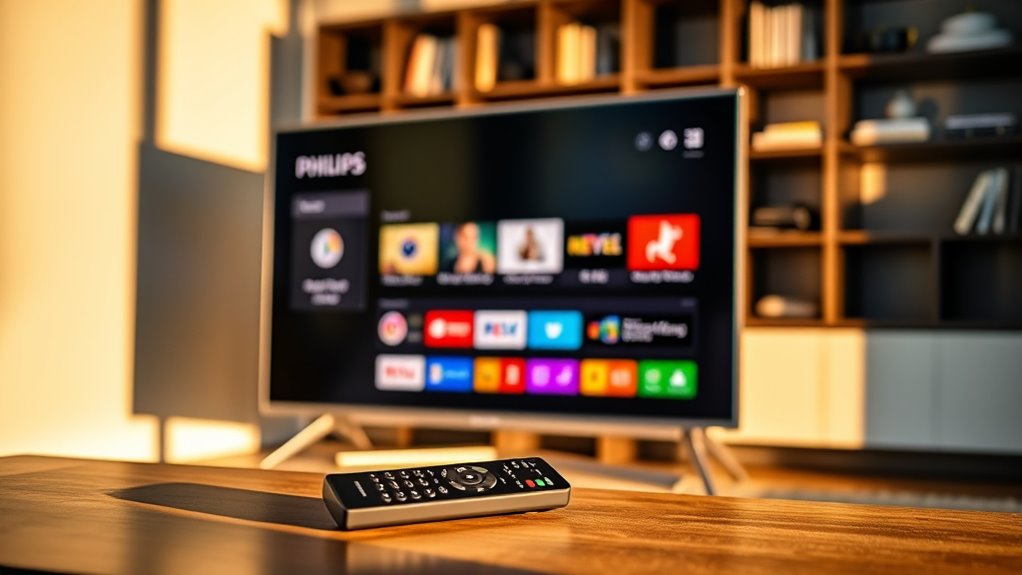

To scan for channels on your Philips 4K Smart TV, start by ensuring your antenna or cable is securely connected. Power on the TV and press the “Home” button. Navigate to the “Settings” menu, then find “Channel Setup” or “Broadcasting.” Choose either manual tuning or automatic scanning. After the scan, review the channels found and save your favorites for easy access. There are tips for troubleshooting any issues you might encounter, so keep going to enhance your channel scanning experience!
Understanding Your Philips 4K Smart TV
Understanding your Philips 4K Smart TV is essential for getting the most out of its features and capabilities. With cutting-edge Philips features, you can enjoy stunning visuals and immersive sound, transforming your viewing experience. The Smart TV functionalities allow you to access a world of content, from streaming services to apps, all at your fingertips. You’ll appreciate the intuitive interface that simplifies navigation, making it easy to customize your viewing preferences. Additionally, voice control options grant you the freedom to search for shows and adjust settings without lifting a finger. By familiarizing yourself with these functionalities, you can reveal the full potential of your Philips 4K Smart TV, ensuring countless hours of entertainment tailored to your tastes.
Preparing Your TV for Channel Scanning
Before you start scanning for channels, make certain your TV’s signal connection is secure. You’ll want to access the TV settings to prepare for the scan. This step guarantees a smooth and efficient channel search.
Check Signal Connection
To successfully scan for channels on your Philips 4K Smart TV, it is vital to first check your signal connection. Start by ensuring that your antenna or cable is securely connected to the correct input port on your TV. The type of connection—whether it’s coaxial, HDMI, or a combination—can greatly affect your signal quality. If you’re using an antenna, position it to minimize obstructions and maximize reception. You might also want to check your cable connection for any wear or damage. A strong signal is key for a successful scan, so take the time to verify that everything is in order. With a solid connection, you’re one step closer to accessing your favorite channels.
Access TV Settings
With your signal connection checked and secure, the next step is to access the TV settings to prepare for channel scanning. To do this, grab your remote and follow these simple steps:
| Action | Description |
|---|---|
| Open Settings | Press the ‘Home’ button, then select ‘Settings.’ |
| Navigate to Preferences | Choose ‘System Preferences’ to access all options. |
| Explore Accessibility | Find ‘Accessibility Options’ to customize your viewing experience. |
Once you’re in the system preferences, look for the option to scan for channels. This will help you access all available channels, giving you the freedom to enjoy a variety of content. Let’s get scanning!
Accessing the Menu Settings
Once you’ve powered on your Philips 4K Smart TV, accessing the menu settings is a straightforward process that sets the stage for scanning channels. First, grab your remote and press the “Home” button to bring up the main interface. From there, look for the gear icon or “Settings” option, which will lead you to a settings overview. Use the arrow keys to navigate through the menu, and don’t hesitate to explore different categories based on your needs. If you’re unsure, remember these menu navigation tips: take your time, and familiarize yourself with the layout. This will make it easier to locate the channel scan option when you’re ready. Enjoy the freedom of finding your favorite channels!
Selecting the Channel Scan Option
Now that you’ve accessed the menu settings, it’s time to select the channel scan option. This step is essential for finding all available channels on your Philips 4k Smart TV. Let’s walk through how to initiate the channel scan and get your TV ready for viewing.
Accessing TV Settings
To begin scanning for channels on your Philips 4K Smart TV, you’ll first need to access the TV settings. Navigate to the home screen and look for the settings icon, typically resembling a gear. Once you’re in the settings menu, you’ll find a range of Smart TV features at your disposal. For efficient TV configuration tips, select “Channel Setup” or “Broadcasting.” Here, you’ll discover the options for manual tuning or automatic scanning. This step is essential, as it sets the stage for finding all available channels in your area. By familiarizing yourself with the settings, you can enjoy a more personalized viewing experience, fully harnessing the power of your Philips Smart TV.
Initiating Channel Scan
Select the channel scan option to begin the process of finding available channels on your Philips 4K Smart TV. First, navigate to the settings menu and locate the channel setup section. You’ll see options for different channel types, like digital and analog. Choose the appropriate option based on your needs. Next, you’ll need to select the scan frequency; this determines how often the TV checks for new channels. Opt for a full scan to guarantee you catch all available channels in your area. Once you’ve made your selections, initiate the scan, and let your TV do the work. In a few moments, you’ll have an all-encompassing list of channels, ready to enjoy your favorite programs!
Choosing the Right Scan Type
When it comes to scanning for channels on your Philips 4K Smart TV, choosing the right scan type is crucial for getting the most out of your viewing experience. You typically have two main scan types: a quick scan and a full scan. A quick scan is ideal if you’ve already scanned before and just want to update your channel list. It’s faster and less intrusive. On the other hand, a full scan searches for all available channels, which might take longer but guarantees you’re not missing anything. Depending on your needs, select the appropriate scan options to optimize your setup. This way, you can enjoy your shows without the hassle of missing channels or having outdated listings.
Initiating the Channel Scan
Initiating the channel scan on your Philips 4K Smart TV is a straightforward process that can be completed in just a few minutes. First, power on your TV and navigate to the settings menu using your remote. Look for the “TV” or “Channels” option, where you’ll find the scan settings. Select the “Auto Scan” or “Channel Scan” option to begin the process. You’ll typically have the choice to scan for digital and analog channels, so make sure you’re selecting the right one based on your preferences. Once you’ve confirmed your settings, initiate the scan. Your TV will automatically search for available channels, allowing you to discover new content effortlessly. Enjoy the freedom of exploring your viewing options!
Reviewing Found Channels
After your Philips 4K Smart TV completes the channel scan, you’ll want to take a moment to review the channels you’ve found. Start by flipping through the list to identify any channels that might not meet your expectations. While you’re reviewing channel quality, pay attention to signal strength and clarity; you deserve the best viewing experience. If you come across channels you enjoy, make a note of them for later. Consider organizing your favorite channels for quick access, which can save you time and enhance your viewing pleasure. With a little effort in reviewing and organizing, you can effortlessly create a personalized channel lineup that caters to your tastes and preferences, giving you the freedom to enjoy your favorite shows.
Saving Your Channel List
Once you’ve reviewed your found channels and identified your favorites, it’s time to save your channel list for easy access. To do this, navigate to the settings menu on your Philips 4K Smart TV. Look for the option labeled ‘Channel Organization’ or ‘Favorites.’ Here, you can start organizing your favorite channels by adding them to a dedicated list. This not only simplifies your viewing experience but also allows for quick navigation between channels you love. Once you’ve made your selections, don’t forget to confirm and save your changes. This way, you’ll enjoy seamless access to your favorite channels, letting you reclaim your viewing freedom without the hassle of scrolling through unwanted options.
Troubleshooting Channel Scanning Issues
If you find yourself struggling to scan for channels on your Philips 4K Smart TV, don’t worry—you’re not alone. Many users encounter common scanning problems like poor signal reception or incorrect settings. Start by checking your antenna or cable connections; loose cables can disrupt the scanning process. Make sure you’re in the right input mode, as this can also affect your results. If issues persist, try resetting your TV to factory settings and then attempt the scan again. Utilizing these troubleshooting tips can help restore your channel list. Remember, patience is key—sometimes, a second scan is all you need to access the channels you crave. Enjoy your viewing freedom with these handy solutions!
Frequently Asked Questions
Can I Scan for Channels Without an Antenna?
You can’t scan for channels without an antenna, but there are antenna alternatives like streaming services or digital platforms. Exploring these can expand your options while maintaining the freedom to enjoy diverse digital channels.
How Long Does the Channel Scan Take?
A channel scan duration usually takes a few minutes, but it can vary. For quicker results, make certain your TV’s software is updated and your connections are secure. Happy scanning, and enjoy your viewing freedom!
Will Scanning Delete My Previously Saved Channels?
When you scan for channels, it won’t delete your previously saved channels; it just adds new ones. With the right channel management and scanning options, you can keep your favorites while exploring new content.
Can I Schedule Channel Scanning on My TV?
You can’t schedule channel scanning on your TV directly. However, you can manually initiate it when convenient. Check your settings for any scheduling options that might allow automated scans in the future.
What Should I Do if Channels Are Missing After Scanning?
Like a puzzle missing pieces, if channels are missing after scanning, follow troubleshooting steps: check connections, restart your TV, and re-scan. You’ll regain your freedom to enjoy all your favorite channels again.
