
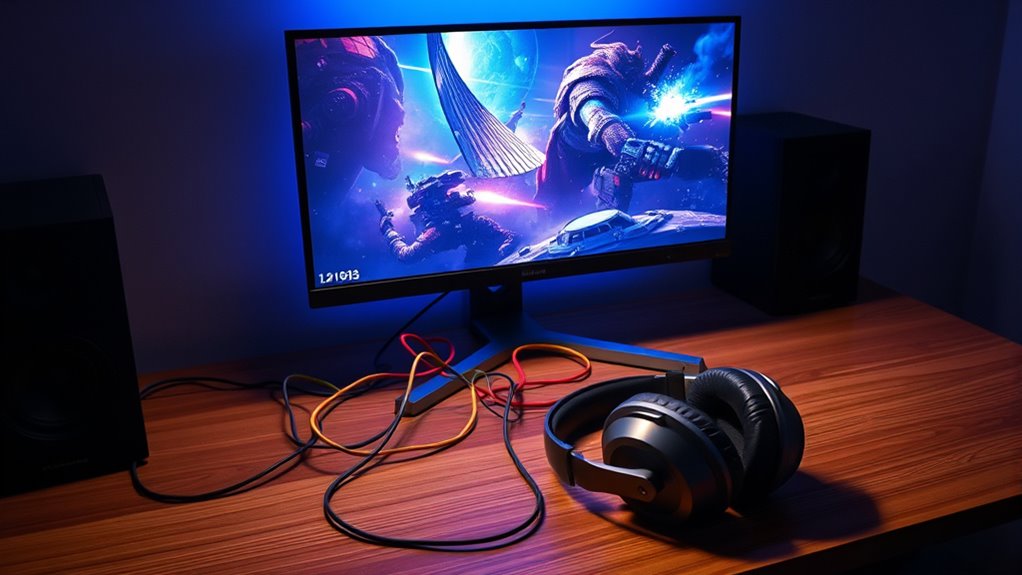

If your game audio is only coming from the monitor, it’s likely due to incorrect audio settings or hardware connections. First, check your default audio device settings and confirm your preferred output device is set correctly. Verify the compatibility of the monitor and cables being used. Additionally, outdated audio drivers or software conflicts can redirect sound. By addressing these factors, you can troubleshoot the problem efficiently and maximize your audio experience for gaming. There’s more to explore about solutions.
Common Causes of Audio Issues
When you’re troubleshooting audio issues in gaming, it’s vital to understand that several common factors can lead to unexpected sound problems. One primary cause could be incorrect monitor settings; if your monitor’s audio output isn’t configured properly, you may experience sound only from the monitor. Additionally, make sure that any connected devices, like headphones or external speakers, are detected and set as the default audio device in your system settings. Check for conflicts in your audio drivers, as outdated or corrupted drivers may hinder proper sound playback. Finally, consider the game’s audio settings; sometimes, in-game configurations can override system settings, causing audio to route incorrectly. Addressing these aspects is critical in effective audio troubleshooting.
Checking Your Audio Settings
To guarantee ideal game audio, you need to verify your default audio device settings. Check the in-game audio options to confirm they align with your preferences and monitor capabilities. Additionally, examining the system sound control panel can help identify any discrepancies that may affect your gaming experience.
Default Audio Device Settings
Although guaranteeing ideal audio settings might seem straightforward, checking your default audio device settings is essential for a seamless gaming experience. If your game audio’s only coming from your monitor, it may be due to misconfigured settings. Follow these steps to rectify the issue:
- Right-click on the volume icon in your system tray and select “Playback devices.”
- Identify your preferred audio device; verify it’s set as default.
- Check the properties of your default device to confirm the default audio formats are compatible with your monitor.
- Review your audio device preferences in the sound settings, confirming the correct output is selected.
In-Game Audio Options
After ensuring your default audio device settings are correctly configured, the next step involves examining the in-game audio options. Access the in-game audio settings menu, where you’ll find various options for sound quality adjustments. Verify that the audio output device is set to your preferred choice, such as headphones or speakers, rather than the monitor. Look for options like stereo or surround sound and adjust them based on your setup for ideal performance. Additionally, check for any volume sliders that might be muted or set too low. Ensuring these settings align with your hardware can greatly impact your gaming experience, allowing you to fully immerse yourself without being limited by incorrect configurations.
System Sound Control Panel
While you’ve adjusted in-game audio settings, it’s vital to check the System Sound Control Panel to verify your overall audio configuration is ideal. Here’s how to navigate through your system preferences:
- Open the Control Panel and select “Sound.”
- Review the Playback tab to confirm your monitor is set as the default device.
- Check the properties of your audio formats under the Advanced tab to guarantee they match your monitor’s capabilities.
- Test each format to identify which offers the best sound quality.
Troubleshooting Hardware Connections
When troubleshooting hardware connections for game audio, it’s crucial to systematically check each component in the signal chain. Start with your audio cable types—ensure you’re using the appropriate cables for your setup, such as HDMI, optical, or 3.5mm. Next, confirm your monitor compatibility; not all monitors support audio output effectively.
| Component | Checkpoint | Action |
|---|---|---|
| Audio Cable | Type and integrity | Replace if damaged |
| Monitor | Compatibility with audio input | Test with another device |
| Sound Card | Output settings | Verify configuration |
| Connections | Secure and undamaged | Reconnect if loose |
Software Conflicts and Drivers
Although hardware issues are often the first suspects in audio problems, software conflicts and outdated drivers can equally disrupt your game audio experience. Here are some key points to reflect on:
- Audio Driver Updates: Regularly check for updates to your audio drivers, as outdated versions can lead to performance issues.
- Software Compatibility Issues: Confirm your game and audio software are compatible; mismatches can cause audio routing problems.
- Background Applications: Close unnecessary applications that might interfere with audio outputs, as they can cause conflicts.
- Audio Settings: Verify your audio settings in both the game and operating system, as incorrect configurations can redirect audio to the wrong device.
Testing With Different Output Devices
Resolving audio issues often requires examining the output devices in use. Start by testing different audio devices to determine compatibility with your system. If you’re using a monitor with built-in speakers, check the monitor audio settings to guarantee they’re correctly configured. Connect headphones or external speakers to see if the issue persists across devices. This will help you identify if the problem lies within the monitor itself or your audio setup. Always verify that the selected output device matches your game audio settings. If you find that audio works well with other devices, it could indicate a limitation in audio device compatibility with your monitor’s specifications. This process is essential for achieving the best audio performance in your gaming experience.
Additional Tips for Optimal Audio Experience
To enhance your gaming audio experience, confirm that your sound settings are meticulously configured to match your gaming environment. Implementing effective audio enhancement techniques can greatly elevate your sound quality. Consider these essential tips:
Optimize your gaming audio by carefully adjusting sound settings and employing effective enhancement techniques for superior quality.
- Calibrate your surround sound setups to guarantee ideal channel separation and immersion.
- Adjust in-game audio settings, focusing on balance between music, effects, and dialogue.
- Utilize software equalizers to fine-tune frequencies according to your auditory preferences.
- Experiment with virtual surround sound, especially if you’re using headphones, for an enhanced spatial audio experience.
Frequently Asked Questions
Can I Fix Audio Issues Without Restarting My Computer?
Yes, you can fix audio issues without restarting. Try audio troubleshooting tips like checking your monitor settings adjustments, ensuring the correct audio output is selected, and updating your sound drivers for peak performance.
What if My Game Audio Is Too Loud Compared to Other Sounds?
If your game audio drowns out other sounds, adjust the audio balance in your sound mixer settings. Picture a symphony; each instrument deserves its moment, ensuring harmony in your gaming experience without overwhelming distractions.
Will Changing My Monitor Solve the Audio Problem?
Changing your monitor might not solve the issue. Instead, check your audio settings and verify monitor compatibility. Adjusting these settings can help balance your game audio with other sounds for a more harmonious experience.
How Do I Reset Audio Settings to Default?
To reset your audio settings to default, navigate to your control panel, select sound settings, and choose the option to restore defaults. It’s a simple troubleshooting tip that can often bring back your audio freedom.
Can Outdated Firmware Affect My Monitor’s Audio Output?
Yes, outdated firmware can impact your monitor’s audio output. Firmware updates often enhance audio compatibility, resolving issues that may arise from previous versions. Keeping your firmware up-to-date guarantees peak performance and functionality for your monitor’s audio system.
