
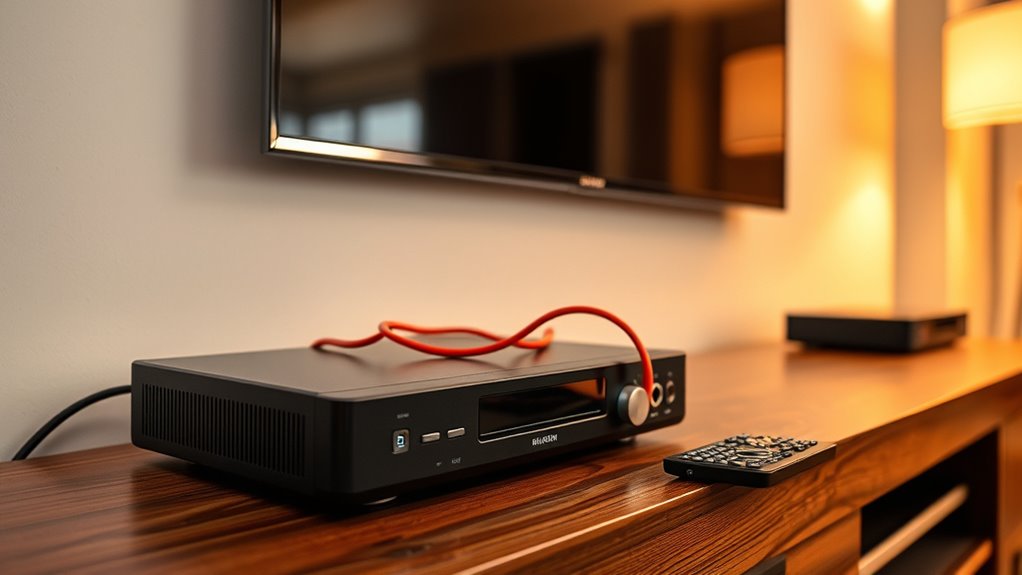

To hook your DVD player to a smart TV, you’ll need the right cables. If your DVD player has HDMI, use that for the best quality. Connect one end to the DVD player and the other to the TV’s HDMI port. If you’ve got an older player, you may need composite cables (yellow, red, white). Once connected, turn on the devices and select the corresponding input on your TV. There’s more to optimizing your experience, so keep going!
Understanding Your Smart TV and DVD Player Compatibility
When you’re ready to connect your DVD player to your smart TV, it’s important to first understand their compatibility. Smart TV features can vary greatly, and knowing what types of DVD players work best will make your setup smoother. Most modern smart TVs support HDMI connections, which are compatible with many DVD player types, including standard and upscaling models. However, if you have an older DVD player, you might need to check for composite or component connections. It’s vital to verify that both devices can communicate effectively; otherwise, you could miss out on enjoying your favorite movies. By understanding these compatibility aspects, you’ll set yourself up for a hassle-free viewing experience.
Gathering the Necessary Cables and Equipment
Before connecting your DVD player to your smart TV, you’ll need to gather some essential cables and equipment. Make sure you have the right cables, like HDMI or composite, depending on your devices. Also, check that you have everything else you’ll need, such as a power source and remote controls.
Required Cables Overview
To successfully connect your DVD player to a smart TV, you’ll need to gather a few essential cables and equipment. Choosing the right cable types is vital for ideal connection quality. Here’s what you should look for:
- HDMI Cable: This is the best option for high-definition video and audio.
- Composite AV Cables: If your DVD player and TV have matching ports, these yellow, red, and white cables work well, though the quality isn’t as good as HDMI.
- Optical Audio Cable: If you want enhanced sound quality and your devices support it, this cable can make a difference.
Once you’ve got these cables, you’re on your way to enjoying your favorite DVDs on your smart TV!
Essential Equipment Checklist
Gathering the right equipment is essential for connecting your DVD player to a smart TV. First, check the DVD player features; you’ll likely need an HDMI cable for the best audio and video quality. If your DVD player is older, you might require RCA cables instead. Next, verify your smart TV has the necessary ports available—HDMI or composite—depending on the connection type. Don’t forget your remote controls! You’ll want to easily switch between your DVD player and smart TV capabilities. Finally, consider a power strip to keep everything organized and powered. With the right equipment in hand, you’re ready to enjoy your favorite movies seamlessly on your smart TV while leveraging its advanced features.
Connecting the DVD Player to Your Smart TV
Now that you have all your cables and equipment ready, it’s time to connect your DVD player to your smart TV. You’ll need to understand the required cables and adapters, as well as the connection ports on both devices. Once you know what you’re working with, setting up the device will be a breeze.
Required Cables and Adapters
When connecting your DVD player to a smart TV, having the right cables and adapters is essential for a smooth setup. Here are the cable types and adapter options you might need:
- HDMI Cable: This is the most common choice for connecting a DVD player to a smart TV, providing high-quality audio and video.
- Composite Cables: If your DVD player is older, you may need these red, white, and yellow cables for video and audio.
- Adapter Options: If your TV only has HDMI ports, consider an HDMI converter for composite or component cables.
Connection Ports Explained
Understanding the different connection ports on your DVD player and smart TV is crucial for a successful setup. There are several connection types you might encounter, such as HDMI, composite, and component ports. HDMI is the most common and delivers high-quality audio and video in one cable, making it ideal for modern devices. If your DVD player doesn’t have HDMI, composite (the red, white, and yellow cables) can still provide a decent output format, though the quality won’t match HDMI. Component cables, with their red, green, and blue connectors, offer improved video quality compared to composite but require separate audio connections. Knowing these ports guarantees you can choose the right cables for a seamless connection between your devices.
Setting Up the Device
To successfully connect your DVD player to your smart TV, start by selecting the appropriate cable based on the connection ports you identified earlier. Next, focus on device positioning to guarantee an ideal viewing experience. Place your DVD player close to your TV, ideally on the same shelf or stand.
For effective cable management, follow these steps:
- Connect the cable from the DVD player to the TV’s corresponding port.
- Secure any excess cable using cable ties or clips to keep your setup tidy.
- Test the connection by turning on both devices and selecting the correct input on your TV.
With these steps, you’ll enjoy hassle-free movie nights in no time!
Configuring Your Smart TV Settings
Before diving into connecting your DVD player, it’s crucial to configure your smart TV settings for peak performance. Start by accessing the settings menu on your TV. Check the HDMI input settings to verify it’s set to the correct port where your DVD player will connect. Next, adjust the audio settings; you might want to switch from TV speakers to an external sound system if you have one. This guarantees you get the best sound quality when watching your DVDs. Additionally, consider calibrating the picture settings to enhance your viewing experience. By taking these steps, you’ll create an ideal environment for enjoying your DVD collection, giving you the freedom to immerse yourself in your favorite films.
Powering On and Testing the Connection
Now that your smart TV settings are configured, it’s time to power on your devices and test the connection. First, confirm both your DVD player and smart TV are plugged into their respective power sources. When they’re powered on, follow these steps to verify device operation:
- Select the correct input source on your smart TV using the remote.
- Insert a DVD into the player, and press play.
- Observe the TV screen for any playback.
If you see the DVD menu, your connection is successful! If not, double-check your wiring and settings. Enjoy your viewing experience, knowing you’ve connected your devices with ease and freedom!
Troubleshooting Common Connection Issues
Even after successfully powering on your devices and confirming the connection, you might encounter some common issues that can disrupt your viewing experience. If you notice your DVD player isn’t displaying anything on the TV, check for signal interference. This can happen if cables are too close to devices like routers or microwaves. Verify all cables are securely connected and try repositioning them.
If your picture looks blurry or pixelated, you may be facing resolution issues. Make sure your DVD player’s output resolution matches your TV’s supported settings. Access the menu on your DVD player to adjust the resolution if necessary. By addressing these issues, you can enjoy a smoother viewing experience.
Enjoying Your DVD Collection on a Smart TV
How can you make the most of your DVD collection on a smart TV? With the right home theater setup, you can elevate your DVD movie experience. Here’s how:
Elevate your DVD movie experience on a smart TV with the perfect home theater setup.
- Connect Your DVD Player: Use the HDMI or composite cables to connect your DVD player to the smart TV for the best picture quality.
- Optimize Your Settings: Adjust the TV’s picture and sound settings to match the DVD’s output. This guarantees you get the most immersive experience.
- Create a Cozy Viewing Environment: Dim the lights, grab your favorite snacks, and arrange comfortable seating to enhance your home theater vibe.
Frequently Asked Questions
Can I Use an Old DVD Player With a New Smart TV?
Yes, you can use an old DVD player with a new smart TV. Just connect it using composite cables, and make certain you connect the audio devices properly for best sound quality. Enjoy your movies!
What if My DVD Player Has No HDMI Output?
If your DVD player lacks HDMI output, don’t worry! You can still connect it using composite video and audio cables. Just plug them into the appropriate ports on your smart TV for a seamless experience.
Does Connecting a DVD Player Affect Smart TV Performance?
Connecting a DVD player generally won’t affect your smart TV’s performance. However, if you experience connectivity issues, it might impact video quality. Confirm proper connections and settings for the best viewing experience. Enjoy your movies!
Can I Connect Multiple DVD Players to One Smart TV?
Yes, you can connect multiple DVD players to one smart TV! Just confirm your TV supports multiple connections. With proper DVD compatibility, you’ll enjoy a seamless selection of your favorite films without hassle.
Is It Possible to Play Blu-Ray Discs on a DVD Player?
No, you can’t play Blu-ray discs on a standard DVD player due to DVD player limitations. Blu-ray compatibility issues arise because the technologies used in Blu-ray discs are different from those in DVDs.
