
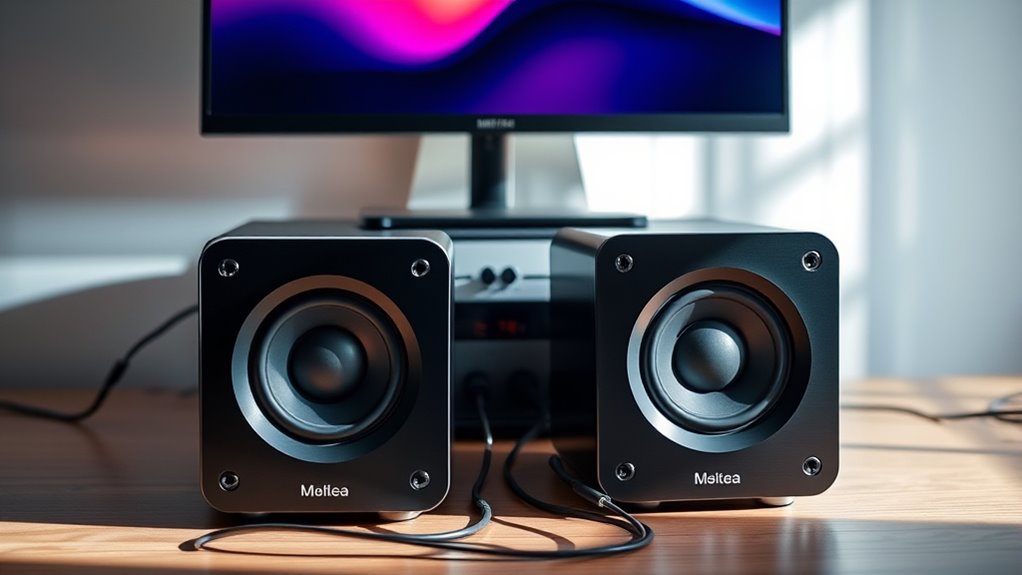

To connect speakers to your monitor, check the audio output options like HDMI, DisplayPort, or 3.5mm jacks. Confirm your speakers are compatible with your monitor’s output. Use the correct cables (RCA, TRS, or optical) and position the speakers at ear level for ideal sound quality. Adjust the monitor’s audio settings to direct sound to the speakers and conduct a sound test to fine-tune levels. For more detailed guidance on settings and enhancements, continue exploring.
Understanding Your Monitor’s Audio Output Options
When you’re looking to connect speakers to your monitor, understanding the audio output options is vital. Your monitor’s audio output compatibility determines what types of speakers you can use effectively. Common outputs include HDMI, DisplayPort, and 3.5mm audio jacks. HDMI and DisplayPort typically carry audio alongside video, guaranteeing high-quality monitor audio. However, if you’re using a 3.5mm jack, you’ll need speakers with compatible inputs. It’s important to verify the specifications of both your monitor and speakers to avoid connection issues. Always check the audio settings on your monitor to confirm proper output selection. By grasping these technical details, you empower yourself to create an ideal audio setup tailored to your preferences, enhancing your overall multimedia experience.
Choosing the Right Speakers for Your Setup
How can you guarantee that the speakers you choose will deliver ideal performance with your monitor? Start by ensuring speaker compatibility with your monitor’s audio output. Check the specifications for impedance and power handling to avoid mismatch issues. Next, consider the audio quality; opt for speakers that provide a balanced sound profile suited to your needs, whether for gaming, music, or professional work. Look for frequency response ratings and sensitivity levels, as these will impact overall listening experience. Additionally, pay attention to the build quality and design, as these factors can affect sound reproduction. Finally, read reviews and seek recommendations to find models that consistently perform well with your monitor, ensuring an excellent auditory experience.
Required Cables and Adapters
To connect your speakers to the monitor, you’ll need to understand the types of speakers you’re using and the corresponding cables and adapters. Different speaker types require specific connection methods, so it’s important to identify the right cables, such as RCA, TRS, or optical. Additionally, you may need adapters to guarantee compatibility between your monitor and speaker system.
Speaker Types Overview
Understanding the various types of speakers is essential for ensuring ideal audio performance when connecting them to your monitor. You’ll encounter different speaker types, each with unique characteristics:
- Active speakers: Built-in amplifiers for ease of use.
- Passive speakers: Require separate amplifiers, offering more flexibility.
- Studio monitors: Designed for accurate sound reproduction, ideal for mixing.
- Surround sound systems: Create immersive audio experiences for movies and gaming.
Knowing these distinctions allows you to choose the right setup for your needs. Remember, whether you prefer the convenience of active speakers or the tailored sound of passive options, each type has its merits. Make informed decisions to enhance your audio experience and enjoy the freedom of quality sound.
Cable Types Explained
Selecting the right cables and adapters is as important as choosing the appropriate speaker type for connecting to your monitor. You’ll encounter various cable types, including RCA, 3.5mm, and optical, each serving different audio needs. Consider cable lengths carefully; longer cables can introduce signal degradation, affecting sound quality. Opt for high-quality cables to minimize interference and guarantee peak audio performance. Shielded cables can help reduce noise, while gold-plated connectors enhance connectivity. Always match the cable type to your monitor’s output and your speakers’ input for seamless integration. Remember, investing in superior cable quality not only guarantees a better audio experience but also provides the freedom to arrange your setup without compromising performance.
Adapter Options Available
When connecting speakers to a monitor, various adapter options can guarantee compatibility between different audio outputs and inputs. Understanding adapter types is essential to avoid compatibility concerns that can hinder your audio experience. Here are a few options to take into account:
- 3.5mm to RCA Adapter: Perfect for connecting standard speakers to monitors.
- HDMI Audio Extractor: Ideal for those wanting to separate audio from video.
- USB Sound Card: A great choice for adding additional audio outputs.
- Optical to Analog Converter: Useful for connecting digital audio sources to analog speakers.
Choosing the right adapter can enhance your setup greatly, opening the door to a more liberating audio experience. Don’t let compatibility issues limit your freedom to enjoy quality sound.
Connecting Speakers to Your Monitor
When connecting speakers to your monitor, you’ll need to take into account the available audio output options, such as HDMI, audio jacks, or optical outputs. Ensuring the correct wiring and setup is vital for ideal sound quality. Understanding these elements will help you create a seamless audio experience.
Audio Output Options
Although connecting speakers to your monitor might seem straightforward, understanding the various audio output options is essential for achieving the best sound quality. The right choice can greatly impact your audio experience, allowing you to enjoy freedom in sound design and speaker placement.
Consider these audio output options:
- HDMI: Delivers high-quality audio and video over a single cable.
- 3.5mm Jack: A versatile and common option, though audio quality may vary.
- USB: Offers digital audio, often providing cleaner sound.
- Optical: Ideal for high-fidelity setups, ensuring minimal signal loss.
Wiring and Setup
Connecting speakers to your monitor requires careful consideration of wiring and setup to guarantee peak audio performance. Start by identifying the audio output on your monitor—typically a 3.5mm jack, HDMI, or optical output. Use appropriate wiring techniques to make certain compatibility; for instance, an adapter may be necessary for different connections. When setting up, position your speakers at ear level for best sound distribution. Make sure to use quality cables to minimize interference and enhance audio clarity. Additionally, adjust your monitor’s audio settings to direct sound output to the speakers. Finally, conduct a sound test to fine-tune the volume levels and balance. By following these setup tips, you’ll make certain a seamless integration that maximizes your audio experience.
Adjusting Audio Settings on Your Monitor
To guarantee ideal sound quality from your speakers, it’s essential to adjust the audio settings on your monitor properly. Making precise audio balance adjustments can greatly enhance your listening experience. Here are a few key settings to contemplate:
- Adjust the bass and treble levels for clarity.
- Fine-tune the volume output to prevent distortion.
- Utilize equalizer presets for specific genres or uses.
- Test different sound modes to find your preference.
Configuring Sound Settings on Your Computer
Configuring sound settings on your computer is essential for achieving ideal audio performance from your external speakers. Start by accessing your sound preferences through the control panel or system settings. Here, you can select your external speakers as the default audio device to guarantee your audio routes correctly. Explore the audio enhancements available to optimize your listening experience—these may include equalizer settings, bass boost, or virtual surround sound options. Adjust the volume levels and balance to suit your preferences, ensuring a clear and immersive soundstage. Don’t forget to check for any software updates for your audio drivers, as these can greatly impact performance. By fine-tuning these settings, you’ll enjoy a more dynamic audio experience tailored to your needs.
Testing Your Speaker Connection
Once you’ve set up your speakers, it’s important to verify that they’re functioning correctly. Start with speaker testing to guarantee the best audio performance. Here’s how to check:
- Play a variety of audio files: music, dialogue, and sound effects.
- Listen for clarity and balance across all frequencies.
- Adjust volume levels to test for distortion at both low and high settings.
- Use a sound meter app to measure decibel levels for accuracy.
Troubleshooting Common Connection Issues
Even after confirming your speakers are working correctly, you might encounter connection issues that can disrupt audio performance. First, check your cables; damaged or loose connections are common audio issues. Verify that the audio source settings on your monitor are properly configured, as incorrect settings can prevent sound output. If you’re using an adapter, confirm it’s compatible with both your monitor and speakers. Additionally, test the speakers with another device to rule out hardware problems. If you hear sound intermittently, look for interference from nearby electronic devices. Finally, consult your operating system’s audio settings for any muted channels. These troubleshooting tips should help you identify and resolve most connection problems efficiently.
Enhancing Your Audio Experience With Additional Equipment
To enhance your audio experience, you might consider integrating additional equipment that complements your current setup. This can greatly improve audio quality and allow for ideal speaker placement. Here are some options to elevate your sound:
- Audio interface: Provides high-quality sound processing and better control over your audio signals.
- Subwoofer: Delivers deep bass, enhancing the overall sound spectrum.
- Speaker stands: Guarantees proper speaker placement for balanced sound distribution and reduced distortion.
- Acoustic panels: Aids in minimizing sound reflections, improving clarity and richness of audio.
Frequently Asked Questions
Can I Use Bluetooth Speakers With My Monitor?
Yes, you can use Bluetooth speakers with your monitor, provided it has Bluetooth compatibility. However, be aware of potential audio latency issues, which may affect your experience during gaming or watching videos.
Will Connecting Speakers Affect My Monitor’s Video Quality?
Connecting speakers typically won’t affect your monitor’s video quality. However, audio interference or signal degradation may occur if the speakers are poorly shielded or positioned too close, impacting overall performance. Maintain proper separation for best results.
How Do I Know if My Speakers Are Powered?
To identify powered speakers, check for a built-in amplifier or a power cord. Passive speakers lack these features and require external amplification. Knowing this distinction can enhance your audio experience, giving you more freedom in setup.
Can I Connect Multiple Speakers to One Monitor?
Yes, you can connect multiple speakers to one monitor, but make certain their speaker compatibility matches the monitor’s audio outputs. Consider using a mixer or splitter if the monitor’s output is insufficient for multiple connections.
What Should I Do if My Speakers Make Static Noise?
If your speakers make static noise, check for speaker interference. Reduce static by ensuring proper grounding, using shielded cables, and adjusting volume levels. These steps will enhance your audio experience and maintain freedom from unwanted noise.
