
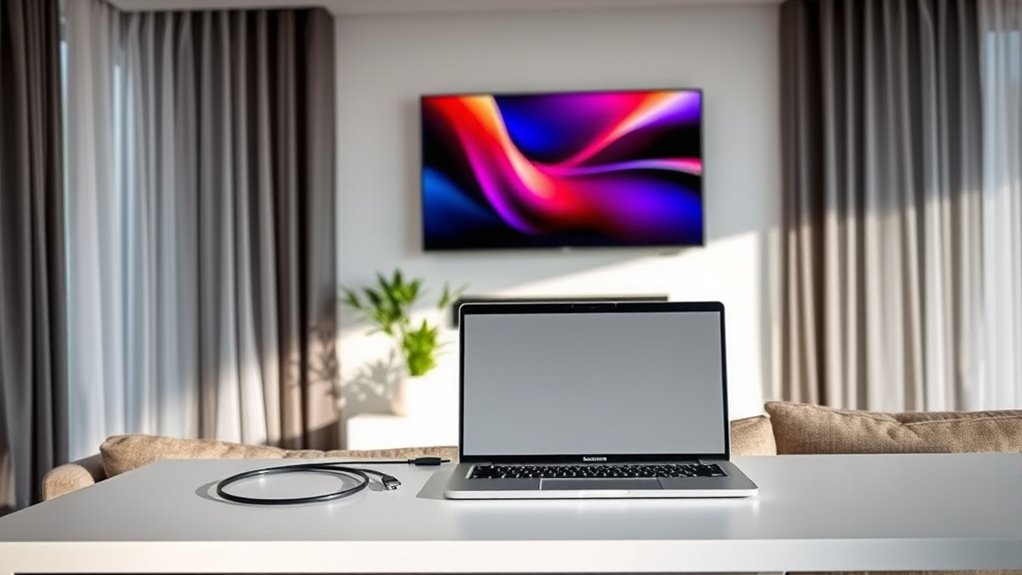

Yes, you can use a TV as a computer monitor, and it can greatly enhance your gaming and streaming experience. The larger screen size offers immersive visuals, but keep in mind factors like resolution, input lag, and refresh rates. Connecting via HDMI will provide the best quality. Make sure to take into account your viewing distance and room setup for comfort. If you’re curious about optimizing your experience, there’s plenty more to discover!
Understanding the Basics of TV and Monitor Compatibility
When you’re considering using a TV as a computer monitor, it’s essential to understand the compatibility between the two devices. Start by checking the TV resolution; ideally, you want 4K for crisp visuals. Keep in mind that monitor refresh rates are generally higher, which affects how smooth your experience will be, especially in gaming or video editing. Additionally, color calibration is important—TVs often come pre-set for viewing in bright rooms, which might not suit your needs for detailed work. Finally, familiarize yourself with different display technologies like OLED and LED, as they can impact both image quality and your overall experience. Understanding these factors will help you make the most of your setup.
Key Differences Between TVs and Computer Monitors
Although both TVs and computer monitors serve the purpose of displaying visuals, there are key differences that can greatly impact your experience. Here are some aspects to take into account:
- Screen Size: TVs usually have larger screens, making them ideal for group viewing, but they can be overwhelming for close-up use.
- Resolution: Monitors generally offer higher pixel density, leading to sharper text and images when you’re sitting closer.
- Input Lag: Monitors often have lower input lag, which is vital for gaming or fast-paced tasks.
- Viewing Distance: The best viewing distance varies; monitors are best for close range, while TVs work better from further away.
Understanding these differences will help you determine which display suits your needs better.
Benefits of Using a TV as a Computer Monitor
Using a TV as a computer monitor can offer several advantages that might enhance your overall computing experience. One major benefit is the larger screen size, which can greatly improve your gaming experience. You’ll appreciate the vivid colors and immersive visuals when playing your favorite games. Plus, if you enjoy streaming media, a TV can transform your living room into a cozy cinema, making binge-watching shows or movies much more enjoyable. The ability to connect multiple devices easily allows for seamless switching between gaming consoles and streaming platforms. Overall, using a TV as a monitor not only provides flexibility but also elevates your entertainment options, giving you the freedom to enjoy your digital content in a whole new way.
Factors to Consider Before Connecting Your TV
Have you thought about what factors to reflect on before connecting your TV as a computer monitor? It’s essential to guarantee you’re making the right choice for your setup. Here are a few key points to evaluate:
- Screen Size: Larger screens can enhance your experience, but guarantee it fits your space.
- Viewing Distance: Keep in mind how far you’ll sit from the screen; too close can strain your eyes.
- Resolution: Guarantee your TV’s resolution matches your needs for clarity and detail.
- Refresh Rate: A higher refresh rate can improve your experience, especially for gaming or video editing.
Taking these factors into account can help you create a more enjoyable and productive workspace. Enjoy the freedom of your new setup!
Connectivity Options: HDMI, VGA, and More
When connecting your TV to a computer, it’s essential to understand your options, like HDMI and VGA. HDMI is often the go-to for its superior quality, but you should also consider VGA if you’re working with older equipment. Plus, there are alternative connection methods that might suit your setup better, so let’s explore what works best for you.
HDMI Connection Benefits
Although there are several connectivity options available, HDMI stands out as the most versatile choice for connecting a TV to a computer. It offers numerous benefits that enhance your experience:
- High resolution scaling: Enjoy crisp visuals without compromising quality.
- Audio output: HDMI carries both video and audio signals, eliminating the need for extra cables.
- Easy plug-and-play setup: Just connect and start using; no complicated configurations.
- Wide compatibility: Most modern TVs and computers support HDMI, making it convenient.
With HDMI, you get a seamless connection that caters to your needs, allowing you to enjoy gaming, streaming, or working on a large screen. Embrace the freedom of a versatile setup and elevate your computing experience with HDMI!
VGA Compatibility Considerations
While HDMI is often the go-to choice for connecting a TV to a computer, VGA remains a viable option, especially for older devices. If you’re using a computer with a VGA output, you might appreciate its simplicity. However, keep in mind the VGA limitations—namely, lower resolution and potentially less vibrant colors compared to HDMI. If your TV lacks a VGA port, don’t worry; VGA adapters can bridge the gap, allowing you to connect your device without hassle. Just remember that using adapters may introduce additional variables in quality. Ultimately, if you’re sticking with VGA, be aware of these factors to guarantee you get the best possible experience while using your TV as a monitor.
Alternative Connection Methods
If you’re exploring ways to connect your TV as a computer monitor, you’ll find several options beyond just HDMI and VGA that can cater to your specific needs. Here are some alternative connection methods to take into account:
- DisplayPort: Great for high resolutions and refresh rates.
- DVI: Offers a digital connection, often used in older setups.
- Component/Composite Cables: Useful for older TVs or specific devices.
- Wireless Display: Embrace the freedom of connecting without cables through technologies like Miracast or Chromecast.
These options give you flexibility and can enhance your setup, depending on your hardware. Make sure to check your devices’ compatibility, and you’ll be on your way to enjoying your TV as a monitor in no time!
Resolution and Display Quality: What to Expect
When using a TV as a computer monitor, you’ll want to take into account resolution compatibility to guarantee sharp images. Color accuracy can vary considerably from standard monitors, affecting how your visuals appear. Plus, the refresh rate can impact your experience, especially during fast-paced tasks or gaming.
Resolution Compatibility Considerations
As you consider using a TV as a computer monitor, understanding resolution compatibility is essential for achieving ideal display quality. You’ll want to pay attention to how the resolution scales and the pixel density of your TV compared to your computer monitor. Here are some key points to keep in mind:
- Native Resolution: Verify your TV’s native resolution matches your computer settings for the best image.
- Resolution Scaling: Be aware that scaling can affect clarity; you may notice blurriness if the resolutions don’t align.
- Input Lag: Check for any input lag that might affect your experience, especially in gaming or fast-paced tasks.
- Screen Size: Consider how the larger screen impacts your viewing distance and overall comfort.
Color Accuracy Differences
While resolution compatibility plays a significant role in display quality, color accuracy is another critical factor to take into consideration when using a TV as a computer monitor. TVs often struggle with precise color reproduction compared to dedicated monitors. You’ll want to reflect on the color spectrum and how well the TV can display various hues. Calibration techniques can help improve this, but many TVs come with preset modes that might not suit your needs.
| Color Spectrum | TV Performance |
|---|---|
| sRGB | Generally Good |
| Adobe RGB | Often Limited |
| DCI-P3 | Varies by Model |
Investing time in calibration can enhance your experience, ensuring you get the most accurate colors possible.
Refresh Rate Impact
Although many people focus on resolution when choosing a TV for computer use, the refresh rate considerably impacts your overall display quality. A higher refresh rate can enhance your viewing experience, especially for gaming or fast-paced activities. Here are some refresh rate advantages you should consider:
- Smoother visuals: Higher rates reduce motion blur.
- Improved responsiveness: Great for gaming, making actions more immediate.
- Better video playback: Ideal for watching movies or streaming content.
- Less eye strain: A consistent refresh rate can make viewing more comfortable.
When you do a refresh rate comparison, you’ll see how essential it is for a seamless experience. Don’t overlook this factor; it can make all the difference in your setup!
Input Lag and Its Impact on Performance
When you’re using a TV as a computer monitor, input lag can greatly affect your performance, especially in fast-paced gaming or real-time applications. Input lag refers to the delay between your actions and the TV’s response, which can disrupt your gaming experience. If you’re into competitive gaming, the input lag effects can be significant, making it harder to react quickly to in-game events. A higher input lag can lead to missed opportunities and reduced accuracy, ultimately impacting your gaming performance. It’s essential to choose a TV with low input lag if you want to enjoy a seamless experience. By being mindful of this aspect, you can guarantee that your shift to a TV monitor doesn’t compromise your gaming freedom.
Ideal Use Cases for a TV as a Monitor
Using a TV as a monitor can be ideal for various scenarios beyond just gaming. You’ll find it especially useful in the following situations:
- Gaming setups: Enjoy immersive experiences on a larger screen with vibrant visuals.
- Media consumption: Stream movies and shows in comfort, making your viewing experience more enjoyable.
- Workspace organization: Use a spacious display to manage multiple windows and applications, helping you stay productive.
- Casual browsing: Surf the web while lounging on your couch, giving you a relaxed browsing experience.
Tips for Optimizing Your TV for Computer Use
To guarantee you get the best experience when using your TV as a computer monitor, it’s essential to enhance its settings. Start with screen calibration tips: adjust brightness, contrast, and color settings to reduce eye strain and improve clarity. Most TVs have a ‘Game’ or ‘PC’ mode—activate this for better response times.
Next, consider viewing distance recommendations; sitting too close can cause discomfort. Aim for a distance of 1.5 to 2.5 times the diagonal size of your screen. If you’re using a 55-inch TV, sit about 6.5 to 11.5 feet away for ideal viewing. Finally, verify your resolution matches your TV’s capabilities to get the sharpest image. With these adjustments, you’ll enjoy a vibrant and comfortable computing experience!
Frequently Asked Questions
Can I Use a Smart TV as a Computer Monitor?
Yes, you can use a smart TV as a computer monitor. Just verify it’s compatible and supports your desired display resolution. It’s a great way to enjoy a larger screen for work or entertainment!
Will Using a TV as a Monitor Void Its Warranty?
Using a TV as a monitor won’t necessarily void its warranty, but it’s essential to check the manufacturer’s warranty guidelines. Following usage guidelines helps guarantee you’re protected against potential issues that could arise.
Can I Connect a Gaming Console to My TV Monitor Setup?
Absolutely, you can connect your gaming console to your TV monitor setup! Just verify your console’s gaming compatibility matches your display resolution settings, and you’ll release an epic gaming experience that’ll leave you breathless!
How Do I Adjust TV Settings for Better Computer Use?
To adjust your TV settings for better computer use, tweak the resolution settings to match your display needs and reduce input lag by enabling game mode if available. This enhances responsiveness and overall viewing experience.
What Are the Best TV Brands for Computer Monitor Use?
For computer use, Samsung and LG excel, but hey, let’s not forget about resolution! Avoid HDMI compatibility issues with brands like Sony or Vizio. A good TV can make your screen time feel liberating!

[…] projector’s distance depends on your target screen size and the projector’s throw distance (or throw ratio) specified in the manual—then you fine-tune […]
[…] answer to how far back from a projector screen you should sit is determined mainly by your target screen size and how much of the image you want in your field of view. If you want a sharp, non-straining setup, […]
[…] at the distance that matches your desired screen width. If you share your projector model and screen size, you’ll get a precise distance in minutes—no […]
[…] ideal how far back should projector be from screen is determined by your screen size and the projector’s throw ratio, and you should use the math-first range that lands you in sharp, […]
[…] is determined by its throw ratio, and this guide tells you the exact numbers to hit your target screen size. If you want the simplest answer, match the projector’s throw ratio to the wall distance so your […]
[…] guide, you’ll get a clear answer for how many feet a typical projector throws an image—based on screen size, throw ratio, and practical setup constraints. Use it to quickly estimate the maximum workable […]
[…] far can a short throw projector really work in real rooms—measured in feet, screen size, and usable brightness, not marketing claims? You’ll get a direct answer for the typical […]
[…] If you need the exact distance for your model, you’ll use its throw ratio against your screen size to dial it in […]
[…] sized image? We’ll give you a direct distance guide based on your projector’s throw ratio and screen size, so you can calculate the right placement in minutes. If you want the simplest path, use the […]
[…] place it, the right answer is determined by one thing: your projector’s throw ratio and the screen size you’re using. Use that to pick the exact distance—standard lenses require one clear range, […]
[…] it at the distance dictated by your projector’s throw ratio—if you know the model and desired screen size, that’s the number that gets the image the right size without guesswork. We’ll tell you exactly […]
[…] best distance is the one your projector’s throw ratio dictates—use it to convert your desired screen size into a precise throw distance. If you want the simplest answer, put the projector at the […]
[…] start by placing your projector about the distance your lens’s throw ratio predicts for your screen size, then use zoom/focus to nail the image until it fills the screen. This method is usually more […]
[…] the throw distance by screen width to get the exact placement, then fine-tune to hit your target screen size. This guide gives a clear, exact placement method—so you know the winner distance for your setup […]
[…] the whole story. For the best results in real rooms, you should match lumens to room brightness, screen size, and contrast performance, then verify resolution and […]
[…] operating after its rated hours, but the image may no longer meet the brightness needs for your screen size and ambient […]
[…] prevent washed-out colors. This guide will tell you exactly how to pick the right lumens for your screen size and lighting so you don’t overbuy or […]
[…] or onto a large screen, you’ll need more—this guide gives you the exact lumen target based on screen size and […]
[…] what brightness is the clear right choice for your room? Use this guide to match lumen output to screen size, throw distance, and ambient light so you can pick a model that won’t look washed out or waste […]
[…] soften focus. The exact optimal distance depends on your projector’s throw ratio and your target screen size, so we’ll convert those numbers into a practical foot-by-foot range. This article answers the […]
[…] if the projector continues to operate beyond rated hours, screen size and ambient light can determine when the image becomes “too dim.” If you’re projecting large […]
[…] May require dimming room lights or adjusting screen size […]
[…] rooms only need a few thousand lumens for a watchable image—exactly how many depends mostly on screen size and how much you can control light. A practical approach is to match projector lumens to your […]
[…] 5,000+ lumens to overcome ambient light. Keep reading to get the exact lumen target based on your screen size and outdoor light […]
[…] and 3,500+ lumens if there’s any ambient light. This guide gives you the lumen target based on screen size, throw distance, and how dark your viewing area really […]
[…] closer to 5,000+ lumens. This article tells you how many lumens you need based on room lighting, screen size, and how “daylight” your projector setup really is—no guesswork. By the end, you’ll know […]
[…] need a projector’s lumens rating matched to your room and screen size, and the right number depends less on brand than on ambient light. For a typical home setup with […]
[…] bounce can quickly wash out lower-lumen models. We’ll give you the exact lumens target based on screen size and ambient light so you buy with […]
[…] lumens can be enough for most screen sizes. The right number depends mainly on throw distance and screen size, but brightness requirements rise fast as daylight or reflections […]
[…] usually need more lumens to avoid a washed-out picture. In this guide, we’ll map lumens to screen size and lighting so you can choose the right brightness level without […]
[…] to know how many lumens you need for a projector? The answer is simple: choose lumens based on screen size and ambient light, with brighter rooms demanding significantly more brightness. Get the exact […]
[…] answers the exact “how many lumens do you need for an outdoor projector” question based on screen size and how dark your viewing area […]
[…] 5,000+ lumens to cut through ambient light. Keep reading to find the exact lumens target based on screen size, throw distance, and how dark your viewing area […]
[…] daylight, the number of lumens you need to project depends on screen size, but there’s a clear target: for a usable image, plan for about 3,000–4,000 lumens for screens […]
[…] from 3,500+ lumens. The “right” number depends less on the projector alone and more on your screen size and how much ambient light is in the room. In this guide, you’ll learn how to pick a practical […]